

You will find useful information in the Generative Drafting User's Guide.
The following steps are mandatory:
- You must have access to the Drafting workbench.
- Go to Tools > Options > Mechanical Design > Drafting and
select the View tab. Make sure that:
- View generation mode is set to Exact view.
- Project 3D wireframe is selected.
- The contour map must be under a Geometrical Set or an Ordered
Geometrical Set.
Contour maps under a Hybrid Body or a Body in a Set are not taken into account. - Hide all the elements and sets that you do not want to transfer into the drawing.
- We recommend that you keep only the contour map in the visible space:
In the example below,
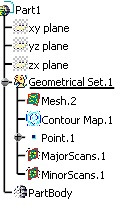
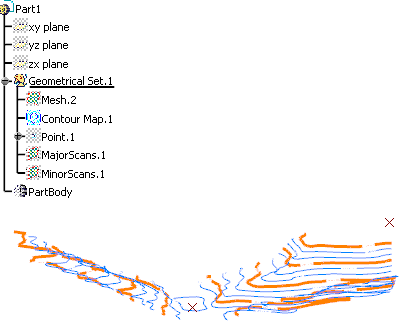
Point.1 is the origin of Contour Map.1. MajorScans and MinorScans have been extracted from Contour Map.1.
Those three items are not hidden and could be transferred to the drafting.
However, we recommend that you hide them, in order to create a drawing with only Contour Map.1
-
In the Drafting workbench:
- Click the drawing window to activate it.
- Select Front View
 .
.
In the CATPart containing the contour map, select xy plane.
-
On the sheet, a blue knob appears, as well as a green frame containing a preview of the view to be created.
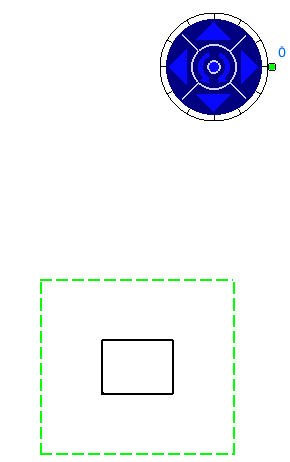
The knob lets you define the location and orientation of the view to be created, using the blue manipulators: Top, bottom, left, right or rotated according to a given snapping, or according to a specified rotation angle. Click the drawing sheet or at the center of the blue knob to generate the view:
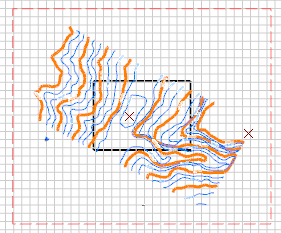
In a closer look, you can see that:- The contour lines annotations are created.
- The major scans and minor scans are drawn in two distinct colors
and line thicknesses.
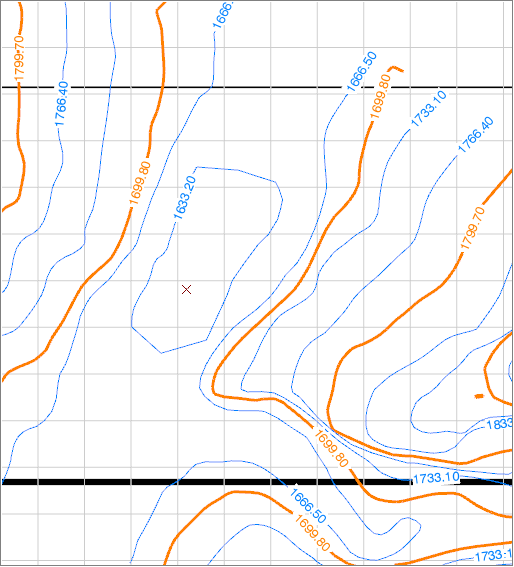
Contour lines annotations generated in drawing are same as in 3D contour map, i.e.:
- There is the same number of contour lines labels,
- At the same location
- With the same orientation.
Note that no coordinates are displayed when the mouse hovers over a contour line in the drawing.
Contour Map with Construction
It is possible to generate a drawing of contour map together with other
constructions such as dam or building, represented by a pad for example:
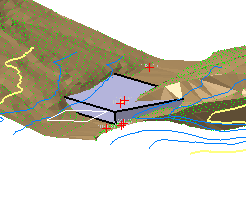
The drafting will look like this (extract):
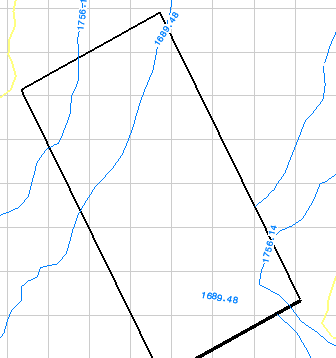
with the contour lines visible under the construction (represented by the
rectangle).
Set HideZLevelInsideConstruction to yes
if you do not want to see those lines under the construction.
