|
This task shows you how to create circles and circle centers using coordinates. | ||
 |
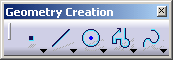
1. Select the Circle icon
 from the Geometry creation toolbar.
|
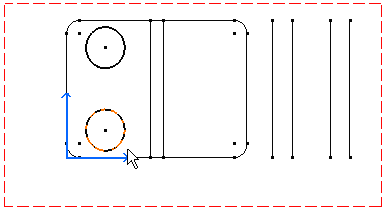
 |
|
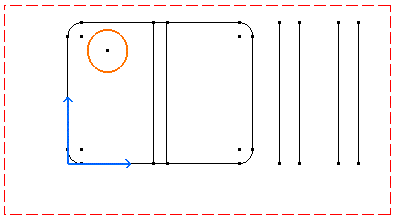
| The Tools Palette appears, displaying circle value fields. |
 |
||
| 2. Enter the Circle Center coordinates. For example, H: 0.75in and V: 2in. | |||
| 3. Press Enter.
|
|||
| 4. Enter the circle radius. For example, R: 0.375in. | |||
| 5.
Press Enter.
|
|||
| 6. Repeat the
scenario to create the second circle using the same circle radius values.
|
|||
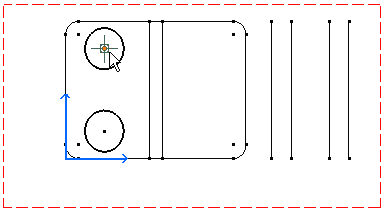
| Now, let's create inner circles. For this:
7. Click again the Circle icon
8. Select the existing circle center.
|
|||
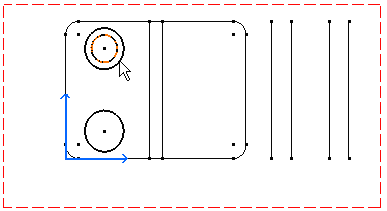
| 9. Enter
the center circle radius.
10. Press Enter.
|
|||
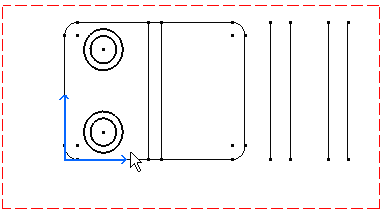
| 11. Repeat the
scenario to create the second inner circle. This is what you obtain:
|
|||
You can also select the geometry to be translated first
and then the Translate command
 . . |
|||
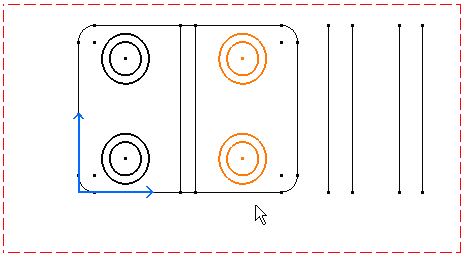
| You can then translate the circles newly created and get the following result: | |||
 |
|||
|
|
|||