

2.
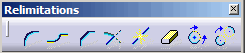
Click the Corner icon
 from the Geometry Modification toolbar (Relimitations sub-toolbar).

3. Enter a radius value in the Tools Palette. For example, Radius: 0.25in.


|
|
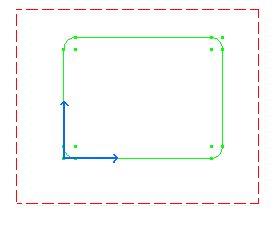
This task shows you how to create corners on an existing rectangle by multi-selecting points. | |
|
|
1.
Multi-select the rectangle endpoints. 2.
Click the Corner icon
|
|
|
|
||
| The Tools Palette is displayed with a Radius
field:
3. Enter a radius value in the Tools Palette. For example, Radius: 0.25in. |
||
| 4. The four corners are automatically created with the same radius value. |
|
|
|
|
If you want to create the corners one after the other, you can also select the Corner icon first and then click the geometry. | |
|
|
||