


-
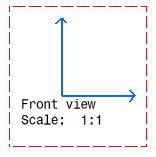
Click in the drawing to position the new view. The empty view is created, displaying a blue axis in a red frame, as well as the view name and scale.
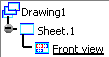
The drawing specification tree is updated to show the newly created view. A specific icon is added to the specification tree. Refer to CATDrawing Specification Tree Icons for more information.
If you change your system's regional settings to use another language, the default view name will be translated according to the language used by your system (both in the view and in the specification tree). Of course, this only applies to default view names; custom view names are not translated.
You can now create 2D geometry in this view.
-
Click the New View icon
 again and select a projection direction to create more views. The views
are created. As they are linked to the front view, they are projection
views.
again and select a projection direction to create more views. The views
are created. As they are linked to the front view, they are projection
views.
The drawing specification tree is updated again to show the newly created views.
From an active front view, you can create: - a top view
- a bottom view
- a left view
- a right view
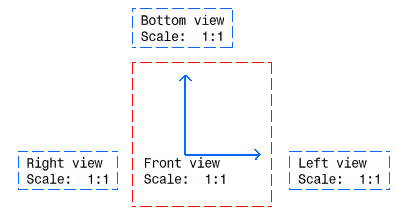
If you need to switch to the Third angle projection method, modify the Sheet Properties.
-
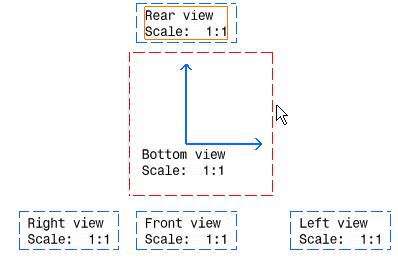
Activate one of the projection views by double-clicking it. For example, double-click the bottom view frame.
-
Click the New View icon
to create the rear view.
| Active View | Resulting Projection Views (linked to the active view) |
| Front view |
Bottom view |
| Left view | Rear views Auxiliary views |
| Right view | Rear views Auxiliary views |
| Rear view | Auxiliary view |
Naming Uniqueness
Consider the following points:
|
|
Select Ensure uniqueness of view names check box in Naming Uniqueness area, see Administration.
