
Note that you may create views from both 3D assemblies and parts. Refer to the Part Drawing section of this tutorial for information on how to use parts.

-
Select File > Open..., or click Open
 in the Standard toolbar.
 The File Selection dialog box appears.
-
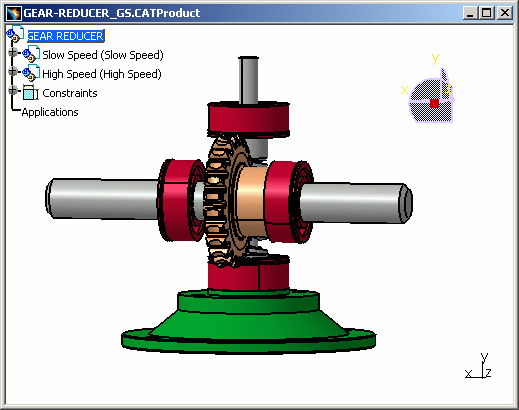
Select the assembly to be opened, the GEAR-REDUCER_GS.CATProduct document.

Note that this sample document is to be found in the C:\\Program Files\Dassault Systemes\\Bxxdoc\\English\\online\\cfysm_C2\samples\\Draftingfolder (where xx in Bxxdoc stands for the current release number). -
Click Open. The assembly is opened and will remain displayed in the window, whatever views you create from it.
For more information, see Product Structure User's Guide: Loading Components or Unloading Components.
Behavior of loading and unloading a part after the drawing update
