

- Variants have been defined in the assembly.
- The variant New Variant2 has been activated as current variant.
For more information on variants, refer to Assembly Design User's Guide: Assembly Variant.
- Define a new drawing sheet.
- Activate Relations in the Specification Tree Order area, in Tools > Options > Infrastructure > Product Structure > Tree Customization tab.

-
Click Front View
 in the Views toolbar.
 -
Select the variant from the specification tree.
-
Select one plane of the 3D part or a plane surface, to define the reference plane.
-
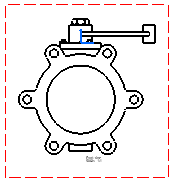
Click in the drawing to generate the view. The view is created with components as defined in the variant.
- Double-click
variant from the specification tree in the product.
The VARIANT_DT dialog box appears. - Select ALL_VARIANTS variant.
- Click
Apply.
The created view does not have variant applied to it.
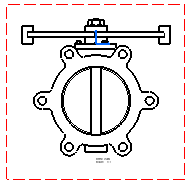

- When creating the view, selecting the knowledge template (variant) prior to selecting the projection plane, analyzes the active variant, and its definition is captured in the view. This definition refers to the list of the components that make up the variant. Thus, each view is defined according to the variant and enables the view to be updated relative to the any change taking place in the components of its variant.
- Views created can be edited using the Modify Links contextual menu command to add/delete components from this view. This enables to change the definition of an existing view after a change in the definition of a variant (if some components have been deleted/added to the variant). The Synchronise button in the Links Modification dialog box re-analyzes the current variant and automatically updates the view definition to add/delete the components. For more information on Modify Links contextual menu command, refer to Modifying a View's Links.
- Updating the views takes into account the activation/deactivation of each instance. An instance deactivated in the product is not represented in the view. So all the instances must be activated to perform the global update of a drawing containing views of several variants.
- You can create front view, isometric view and advanced front view from variants.
