


-
Double-click the view you want to modify to activate it.
The view is automatically highlighted.
-
Select the elements you want to modify and right-click them.
-
Select Duplicate Geometry.
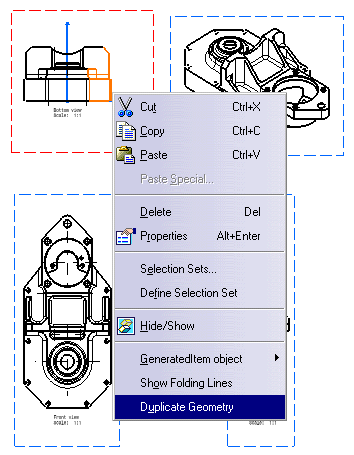
The selected geometry is duplicated on the view at the same position. It is highlighted after creation. Click on the drawing to de-select it.

- The resulting geometry is created udner the generative one. To access it, you can hide the corresponding generative geometry.
- The resulting geometry is a 2D geometry and has standard 2D geometry behavior and not specific behavior of the original geometry.
- If you want to copy/paste the generative geometry, it is recommended to use the Duplicate Geometry command.

Information about copying/pasting generated elements