
This task shows you how to create from 3D a
clipping
view using either a circle as callout (for a clipping view) or a sketched profile
(for a clipping view profile). The procedure
varies slightly depending on the method you choose.
A clipping view is similar to a detail view. It is a partial generated view that shows only what is necessary in the clear description of the object. The difference between a clipping view and a detail view is that the clipping view replaces the primary view, when a detail view is created in addition.
Also note that the Clipping View command uses a boolean operator from the 3D whereas the Quick Clipping View command computes the view directly from the 2D projection. The representation is therefore different.

Open the GenDrafting_clipping_view.CATDrawing document.
Make sure that Put in no show dimension on non-visible geometry is selected in Tools > Options > Mechanical Design > Drafting > View to specify that the dimensions which are attached to non-visible geometry in clipping views should be put in no show mode automatically.

-
Activate the Section view and then click Clipping View Profile
 in the Views toolbar (Clippings sub-toolbar), to
create a clipping view using a sketched profile as callout.
in the Views toolbar (Clippings sub-toolbar), to
create a clipping view using a sketched profile as callout.To create a clipping view using a circle as a callout, click Clipping View
 .
. -
Select the required points for sketching a polygon.
If you are creating a clipping view using a circle, select the center of the circle.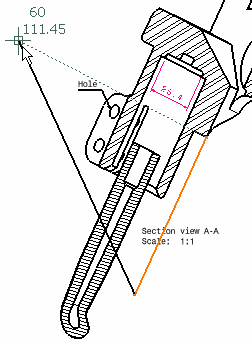
-
Close the polygon, or double-click to end its creation.
If you are creating a clipping view using a circle, drag the mouse to define the clipping profile, then click.
The view and the associated profile result as shown here: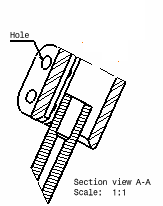
Note the existence of dimensions that are associated to a geometrical element, which is not visible in the clipping view: these dimensions are placed in the no-show space. (When applicable, this is also the case of annotations that are associated to such a dimension, and of annotations that are no longer linked to the clipping view.) For more information, refer to View > Quick Clipping View in the Customizing chapter.
-
Click Swap visible space
 in the View toolbar.
You can now visualize the dimensions (and annotations, when applicable) that no longer appear on the clipping view.

Dimensions are displayed in clipping views using the colors defined in Tools> Options> Mechanical Design> Drafting> Dimension tab, Analysis display mode area. For more information, refer to Analysis display mode.
-
If needed, you can show these dimensions again on the clipping view. To do so, click Hide/Show
 in the View toolbar.
You can also select Unclip from the contextual menu. However, selecting this option will not show the dimensions on the unclipped view.
-
Select the dimension you want to show on the clipping view.
-
Click Swap visible space
again. The selected dimension now appears on the clipping view again.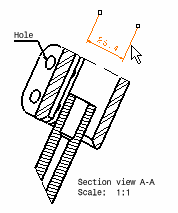
More About Clipping View / Clipping View Profile
- When unclipping a view, the dimensions which were hidden do not reappear. To visualize them, proceed as explained from step 4 to 7.
- You can insert a Bill of Material or Advanced Bill of Material into the active view.
- After clipping has been applied on a view, it is possible to create detail and quick detail views from this view.
- After clipping has been applied on a view, it is impossible to create breakout views and broken views from this view.
- Once a clipping has been applied on a section or auxiliary view, modifying the section or auxiliary view profile may lead to an update error if this modification places all of the generated geometry outside the clipping profile.
- The color used for dimensions depends on whether the dimension is
interactive (that is, created manually) or generated automatically:
- interactive dimensions are displayed using the color defined for dimensions on non-visible geometry (light blue by default).
- generated dimensions are displayed using the color defined for dimensions generated from 3D constraints (light green by default)
- You can remove a clipping view, even after modifying it. In the contextual menu, select the current view object, then Unclip.
