- After using this procedure, your IGES files will be imported into a product structure document. The following pages give you an example about importing IGES files interactively.
- Some IGES entities are not converted to V5. Click here for more information.

-
Open an empty or existing product structure document.
-
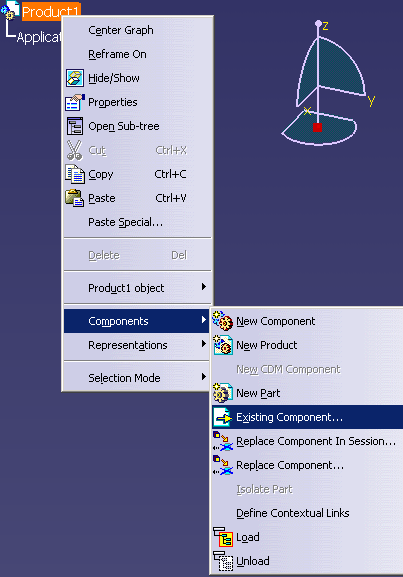
On the product structure document, right-click the product under which the IGES part is to be imported.
A menu appears.
-
Select Components -> Existing Component.
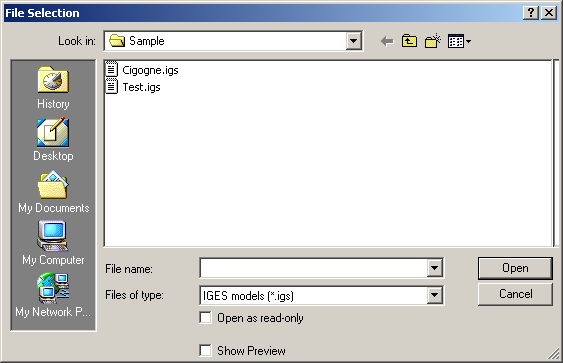
A dialog box appears, such as the one shown below, with parts files:
-
Navigate to the directory where the desired part files are present.
-
Select the part to be imported and click Open (or double-click the part).
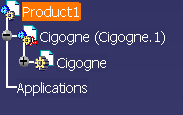
The selected file appears under the selected product in the product structure.
In the example below, the product selected in step 2 was Product1 (highlighted in orange);
the part selected in step 4 was Cigogne.igs.