
of a group of plies to meet weight saving, minimum cutting or other criteria.

However, if the virtual stacking is modified and if plies need to be updated,
you will have to rework only the portions of the ply contour around the cells that have been added or removed.

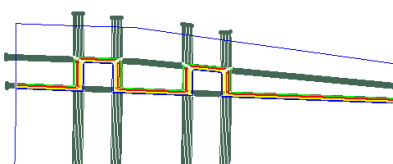
The original plies look like this:
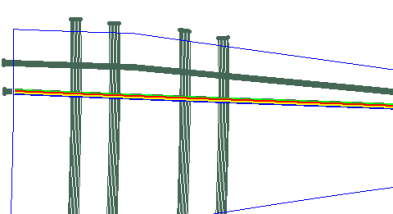
You want to modify their shape into:

-
Click Reroute Ply Contour
 in the Grid Design toolbar.
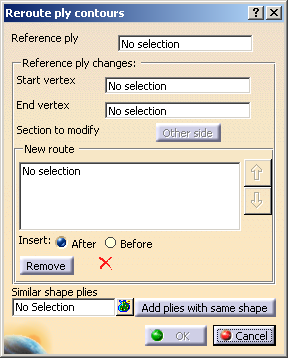
The Reroute ply contours dialog box is displayed:
-
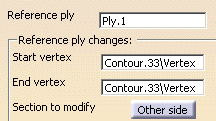
Select Ply.1 (top ply) as the Reference ply.
-
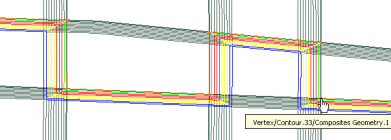
Select the Start vertex of the new contour of the Reference ply:
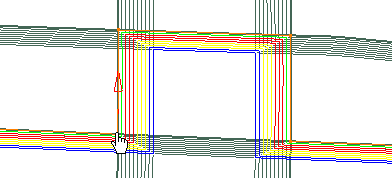
Then the End vertex:
-
If necessary, click the red arrow in the 3D viewer or click Other side in the dialog box
to define the section to modify.
-
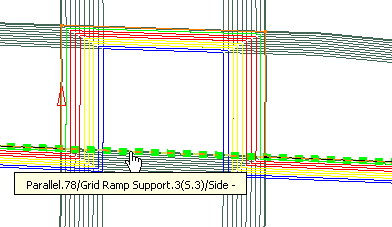
Define the contour of the New route. It will be highlighted.
It can be made of one or several elements.
You cannot select a panel limit, but only ramp support curves and structural elements.
A green tip replaces the red cross when the curves selected form a valid contour.
-
Select the plies of the similar shape that you want to re-route as well
and click Add plies with same shape.- Multi-selection of entities
 is
available.
is
available. - In the multi-selection
dialog box, click
 to select entities using the
Stacking Management.
to select entities using the
Stacking Management.
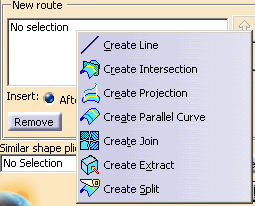
A contextual menu is available:
The start and end vertices of the similar shape plies must be intersections of curves
of the same ramp supports as the Reference ply.
A warning is displayed if this is not the case.
- Multi-selection of entities
-
Click OK. The plies are re-routed:

- The start and the end vertices of the Similar shape plies
must be intersections of curves
of the same ramp supports as the Reference ply.
A warning will be displayed if this is not the case. - If the number of curves on the ramp support is not
sufficient, an error icon will appear,
with the number of missing curves. - Warnings are issued in case of overlaps.
