
Flatten body elements are categorized into:
- Outer Contours
- Inner Contours
- Rosette
- Cuts
- Markers
- No Category (for remaining elements).
Each category is exported to a DXF layer to be used by the cutting machine.
In most cases, the categorization is done automatically at the creation of the Flatten Body. However:
- You need to categorize the Flatten Body elements of older models.
- Or to apply the Markers and Cut categories to newly created elements as they are not automatically recognized.
Only Flattening and Unfold features can be automatically categorized.
- Flattening, Flattening as Sketch, Flattening with optimization, Flattening as Sketch with optimization, Unfold are supported.
- Flatten with disassemble mode optimization is not supported.
- User selection is partially supported.
Following rules apply:
- Only one element under a Flatten Body can be categorized.
- Only visible elements can be categorized.
- Only elements without categorization can be categorized.
- Only the last modification of a feature can be categorized.
Once the Flatten Body elements have been categorized, the specification tree can be expanded as follows to easily check the categorization.
- Stacking
- Expand to Plies Groups
- Expand to Sequences
- Expand to Plies
- Expand to Cut-Pieces
- Expand to Composites Geometries
- Plies Group
- Expand to Sequences
- Expand to Plies
- Expand to Cut-Pieces
- Expand to Composites Geometries
- Sequence
- Expand to Plies
- Expand to Cut-Pieces
- Expand to Composites Geometries
- Ply
- Expand to Cut-Pieces
- Expand to Composites Geometries
You can categorize the elements of the Flatten Body of plies and
cut-pieces.
This is required for all Flatten Body elements in older
models, or for Markers and Cut in current models.
You can:


Categorize from the Dialog Box
-
Double-click the Flatten Body of a ply or a cut-piece.
The Flatten Body Definition dialog box opens.
The Flatten Body elements are listed with their category and their visibility status.
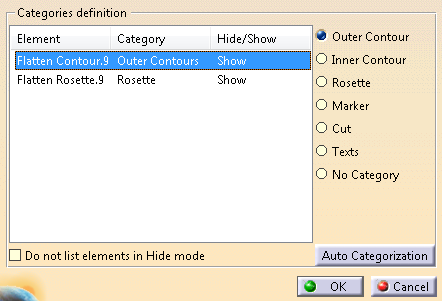
Categories are applied at the creation of the Flatten Body Elements.
This is not the case for older models, where all elements are listed as No Category. To apply a category to a No Category element, do one of the following:
- Select the element.
The option on the right corresponding to its category is selected. - Select another option to apply another category.
- Alternatively, click Auto Categorization.
All the elements are categorized automatically. This is particularly useful for older models.
- Select the element.
Click OK to vallidate.
Categorize from the Specification Tree
-
Right-click a stacking, plies group, sequence, ply or cut-piece in the specification tree.
Select xxx Object > Flatten Bodies node > Categorize Elements.The elements found in the Flatten Body nodes are listed, with their status and details, if any:
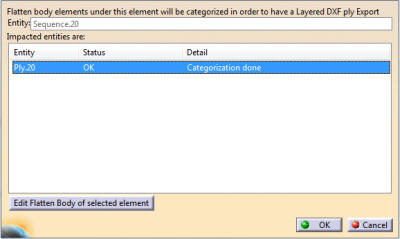
- OK - Categorization done
- Unknown entities - Manual edition needed to categorize user curves
- No flatten body
- No flattening/Unfold - No entitiy under flatten body
- No Flatten contour - Flattening integrity may have been broken
- Contour Hidden - Expected contour result is Hidden - No categorization done
- No rosette - No flatten rosette.
-
Select one element.
A reframe is done on the Flatten Body (or the element) to let you check it. -
Double-click the line or click Edit Flatten Body of selected element.
Proceed as explain above. -
Click OK in both dialog boxes.
-
To check the categorization, select xxx Object > Flatten Bodies node > By Categories (if not yet done) to display the elements by categories.
Categorize Elements switches the view from Standard to By Categories.
