 |
This task shows you how to add, edit and use a range of values to a
material.
Some parameters may vary due to the manufacturing process, e.g. the
cured thickness depends on the pressure applied during molding.
To take
those variations into account, it is necessary to have not only a value
to represent the nominal material parameter
also a range of
acceptable values.
|
 |
Available in Composites Engineering Design (CPE)
and Composites Design for Manufacturing (CPM). |
 |
Open
CompositesCatalog.CATMaterial from the Samples directory. |
 |
-
In the material catalog, right-click the material
and select Properties in the contextual menu.
-
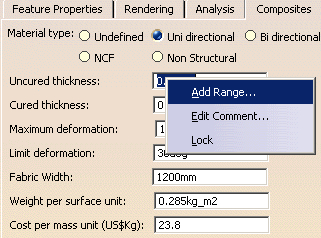
In the Composites tab, right-click the
value field of the parameter and select Add Range:
-
The Range dialog box is displayed.
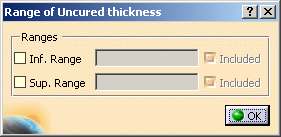
Select the required options and edit the values that appear.
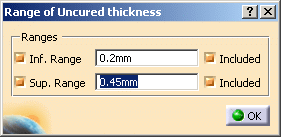
Click OK in the Range dialog box and OK in the Properties
dialog box.
|
|
|
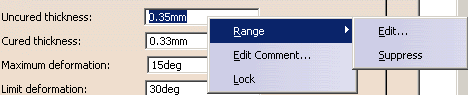
Once a range has been added, you can suppress it or edit it using
the contextual menu:
 |
|
|
-
When you add a material in the Composites
Parameters, this material feature is stored under the Materials
used node.
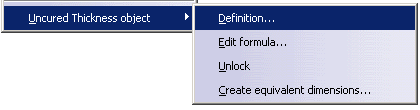
Right-click the parameter for which you want to create a range and
select Definition in its contextual menu.
-
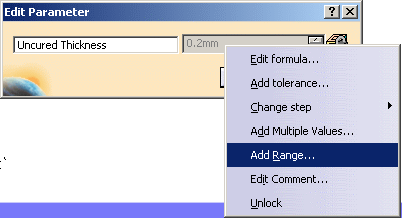
The Edit Parameter dialog box is displayed.
Right-click the value field and select Add Range in its contextual menu:
-
The Range dialog box is displayed.
Select the required options and edit the values that appear.
Click OK to validate and exit the dialog box.
|
|
|
- This range modification is local. It applies to the
Composites part you are working in, not to the material catalog from
which you have added materials.
- If you synchronize the cache materials stored under Materials
used with materials from a catalog,
the nominal values and ranges that
you may have modified locally will be erased and replaced by those of
the catalog.
Parameters will be reset to their locked status.
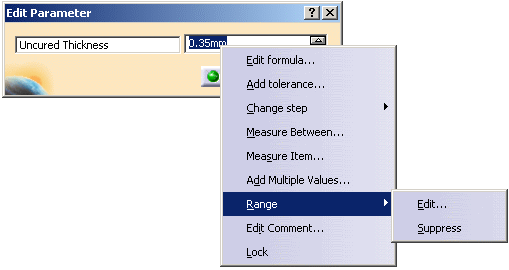
- Once a range has been added, you can suppress it or edit it using
the contextual menu:
|
|
|
Using the Range
-
When you add a material in the Composites
Parameters, this material feature is stored under the Materials
used node.
By default, the parameters of the material are locked and cannot be
edited:
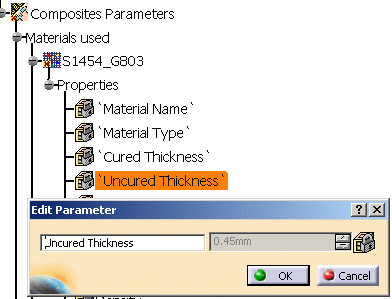
Right-click the parameter you want to edit and select Unlock
in its contextual menu:
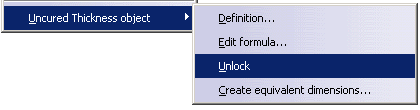
The lock on the parameter is removed.
-
Right-click the parameter again and select
Definition. You can now change the value of the parameter:
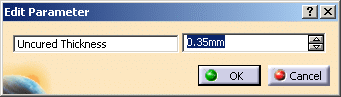
Key-in a value within the range you have defined in the catalog.
If you enter a value that is not within this range, an error message will
be displayed.
Click OK to validate and exit the dialog box.
|
 |
Depending on values used for the parameter, the spinner may be
de-activated, e.g. in the case above,
as the spinner step is 1mm, using
the spinner would lead to errors.
In those cases, key-in the required
values. |
|
|
- This modified value is local to the Composites part and will be used for the whole Composites
part,
i.e. you cannot apply a different value to different plies.
- If you synchronize the cache materials stored under Materials
used with materials from a catalog,
the nominal values and ranges that
you may have modified locally will be erased and replaced by those of
the catalog.
Parameters will be reset to their locked status.
|
|
 |