Several stackings can be
merged into one destination stacking but it has to be done one stacking
by one stacking
(multi-selection of stackings is not supported).

- Open any CATPart containing a stacking to merge.
- You must have write permission on the origin part
or run c:Prepare for Synchronization from the PowerInput in order to merge the stackings.

Merging the Stackings
-
Click Merge Stacking
 in the Plies toolbar.
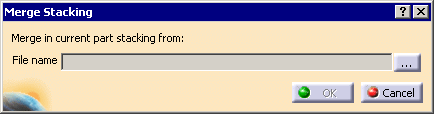
The Merge Stacking dialog box is displayed.
-
Click ... to select the CATPart with the second stacking to merge.
-
Click OK. The stackings are merged.
A message requests that you save the part to allow future synchronization.
A report dialog box is displayed listing the result of the stacking:Check is done on a ply basis (ply by ply) and displayed status is as follows for a ply:
- Created: Ply has been created during the operation,
- Deleted: Ply has been deleted during the operation,
- Modified: Ply has been modified during operation. In this case a message will detail the modification.
-
Following
modifications can be displayed (there can be several
modifications listed one by one):
- Material has changed,
- Orientation has changed,
- Resulting contour has changed.
This report can be exported as a text.
How Merge Stackings Works
The Composites information from the second stacking are transferred to the current part:
- Composites parameters and their contents,
- Stacking and its content (plies groups, sequences
and plies or cores):
Plies and cores come with their properties and the contour will be added ‘as result’,
corresponding to the last contour found in the origin part:- Merge Stacking
gathers all plies and computes all prerequisites for
the features under the stacking
(for instance, for a ply group, the rosette, the lying surface and the material information
and then recursively their prerequisites). - Merge Stacking does not gather logical information (Composites PD, Grid).
- On the Composites
geometry, Merge Stacking gathers the result of
the last contour
(not its specification, hence, not its constructing elements such as parallels, ramp supports, slicing curves, etc.)
and the lying surface. - Then the destination part is created
only with the elements gathered, i.e. the
plies contour will be ‘as result’,
without link to any geometry but the lying surface (history of the contour will not be transferred)
and all the features constituting the engineering contour will be merged as one single result contour. - This ‘as result’ contour is manageable as any
other contour
(for instance, material excess or a dart can be applied to it).
- Merge Stacking
gathers all plies and computes all prerequisites for
the features under the stacking
- The synchronization of the
destination part vs. modified original Composites part will be
enabled.
The destination part will always be synchronized using ‘as result’ mechanism.
This means that if a limit contour is added to a ply in the origin part, after synchronization,
the destination ply will still have one single contour but corresponding to the modified contour from origin part.
Avoiding the Duplication of Similar Objects
Let's consider a Composites part, split between several users,
each of them working
on a given sub-area of it.
If
each user creates its own Composites parameters with link to a
given unique material,
during the merge
process unique IDs will be added to each cache
material feature,
hence creating two different material cache features,
although they are similar
(pointing to the same material reference).
The same applies to any
objects receiving different IDs
during the merge process.
To avoid this, share the same entities in the different CATParts using the
standard collaboration mechanism.
One possible process is:
- Prepare the destination part with Composites parameters, rosette and support surface.
- Then using the collaboration native
product, share all those features and merge them in all the
parts
that will be used by individual users. This will provide the uniqueness of collaboration IDs across all of them. - During the merge, as the Composites parameters and their contents,
draping surface, rosette, etc.
share the same unique collaboration ID, the merge process will recognize them and hence avoid the duplication of similar objects
