Managing Products

This section contains the following information about Managing Products:

About Managing Products
When Managing Products
How to Open the Product List
How to Change Product List View Size
How to Load 2D Multi-Sheet Documents
How to Hide and Show Products
How to Remove Products
How to Modify Graphic Properties
How to Enable Selection Actions

About Managing Products

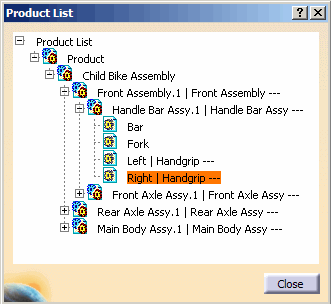
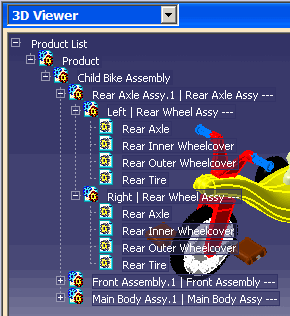
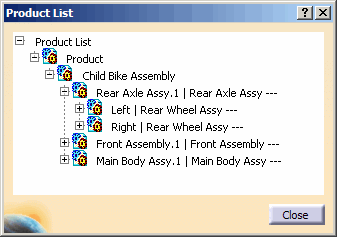
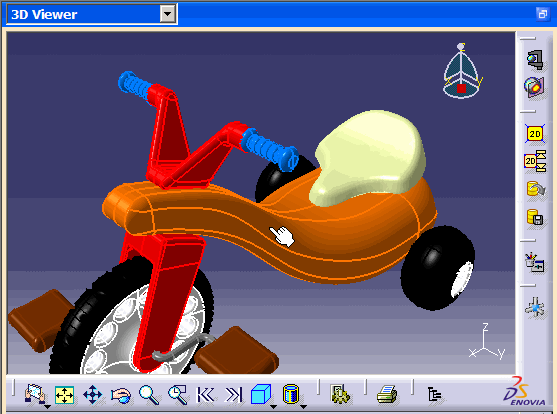
The Product List enables you to customize the view of product assemblies in the Web Viewer. It appears as either a free-floating dialog box or is immersed in the ViewerSpace (see Modifying Viewer Settings).

You can use the Enable Selection Actions button in the viewer to see the Logical Subset of a Shortcut Menu (LSCM). By using LSCM, you will have the context of viewer properties and will be able to perform functions available in the toolbar, and the shortcut menu of the Favorite or Search windows.

Un-select the Enable Selection Actions button when you do not need to see the LSCM. It will make the default menu load faster in the ViewerSpace.

When Managing Products

You can hide and display products in the product list using the Show, and Hide command. Products can also be removed using the Remove function.

The Graphics Properties of objects in the viewer can be also be modified. You can select the object color, modify line thickness, or select line type and surface transparency with this feature.

When selecting the Enable Selection Action function, the list of selected parts is retrieved from the server. Depending on your environment, the menu display may take a few moments to load. For more information on your system setup, see your System Administrator.

How to Open the Product List

You can open and manage a product list by following the steps below:

Before proceeding, load an assembly product into the Web Viewer. Refer to the Loading an ENOVIA V5 Assembly in the Web Viewer chapter on how to load an assembly.
  1. Click the Product List button in Web Viewer horizontal toolbar. The Product List dialog box appears or the Immersive Product List appears in the ViewerSpace. See the Modifying Viewer Settings chapter for more information on setting up the Product List.


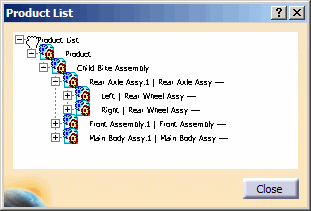
    Product List dialog box.

    Immersive Product List.

How to Change Product List View Size

You can change the Product List view size by following the steps below:

Before proceeding, load an assembly product into the Web Viewer. Refer to the Loading an ENOVIA V5 Assembly in the Web Viewer chapter on how to load an assembly.
Make sure the Product List is displayed.
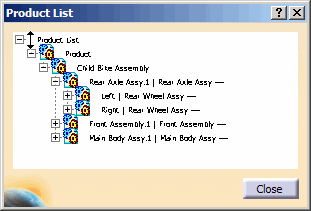
The Product List and its contents may appear very hard to read when the product is running using Japanese OS, or any other language. (This is not the case when using the English OS.) To adjust the view size of the Product List, do the following:
  1. Left-click and hold on the Product List.

  2. While holding the left mouse button, click and hold on the middle mouse scroll button.

  3. While holding the left mouse button and the scroll button, drag the mouse up and down.
    The Product List view size is zoomed out when you drag the mouse down, and zoomed in when you drag the mouse up.

  4. Release the mouse scroll button and the left mouse button when Product List view size is readable.

How to Load 2D Multi-Sheet Documents

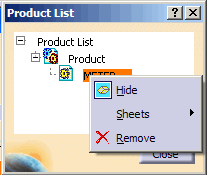
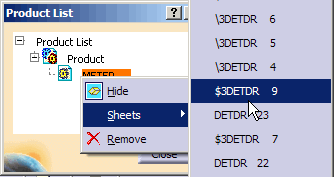
When loading multi-sheet 2D documents, all sheets are tessellated and sent to the viewer. You can access the sheets by selecting Sheets from the document shortcut menu.

  1. From the Product List, select the document that contains the sheets you want to access.

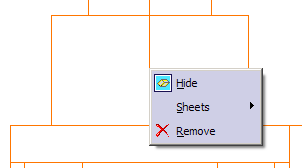
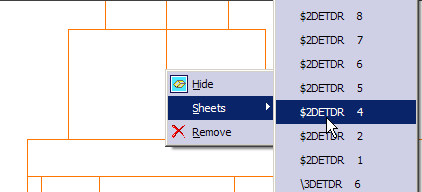
  2. Right-click and select Sheets from the shortcut menu to display the sheets attached to the document.

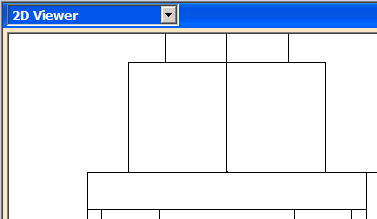
  1. Select the document from the Sheets list. Only one sheet can be selected at a time. The Sheets list will appear. Selected sheet is displayed in 2D Viewer (This sheet is a geometrical example used for the purposed of showing the functionality that can be done with sheets in 2D Viewer).

Multiple sheets can also be accessed inside the ViewerSpace.

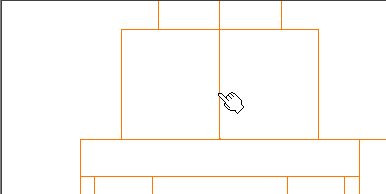
  1. Click and select the geometry in the document.

  2. Right-click the geometry and select Sheets from the shortcut menu to display the sheets attached to the document. The Document shortcut menu will appear.

  1. Select the document from the Sheets list.

Only one sheet can be selected at a time. The Sheets option will only appear if multiple sheets are available.

This feature pertains to V5 multi-sheet documents (CATProduct, CATDrawing, and 2D V4 Model).

Note: 2D layouts are not supported in the Web Viewer.

How to Hide and Show Products

You can hide a visible product or re-display a hidden product.

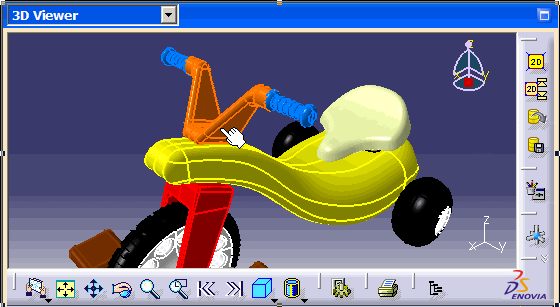
  1. From the Product List or in the ViewerSpace, select the product you want to hide.

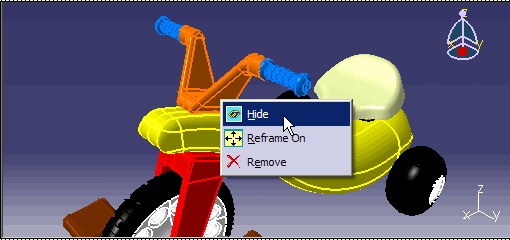
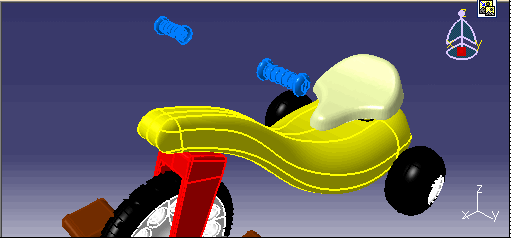
  2. Right-click the selected product and select Hide from the shortcut menu. The product is hidden. It disappears from the ViewerSpace.

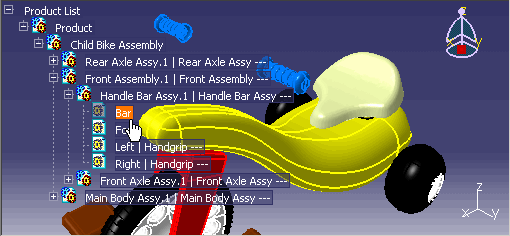
  3. To show the product, select it by clicking it in the Product List.

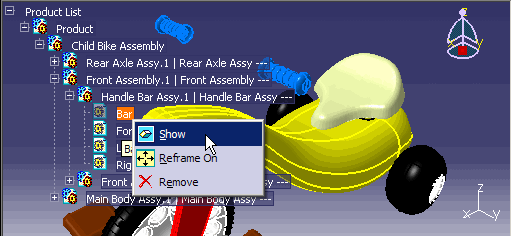
  4. Right-click the selected product and select Show from the shortcut menu. The product reappears in the ViewerSpace.

How to Reframe Products

You can reframe a product in the Web Viewer by bringing the selected part of the product closer for observation in the Viewer.

  1. Select the product by clicking it in the Product List or in the ViewerSpace.

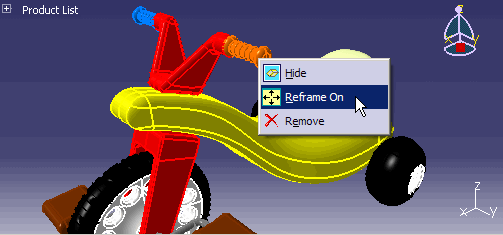
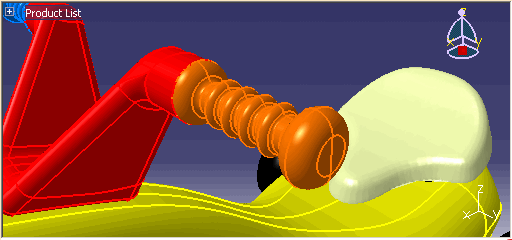
  2. Right-click the selected product and select Reframe On from the shortcut menu. The Product is reframed inside the Web Viewer.

How to Remove Products

You can remove parts of the product from the Web Viewer. Remove function only removes the parts of the product from the Viewer, it does not remove the parts of the product from the server where the product is loaded from for viewing in the Web Viewer. Re-load the product into the Viewer to see it complete with parts.

  1. Select the product by clicking it in the Product List or in the ViewerSpace.

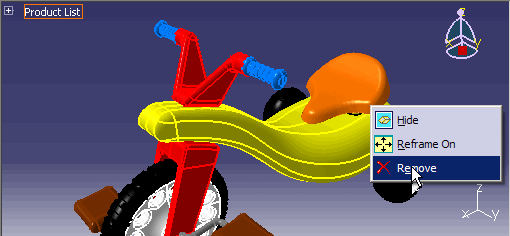
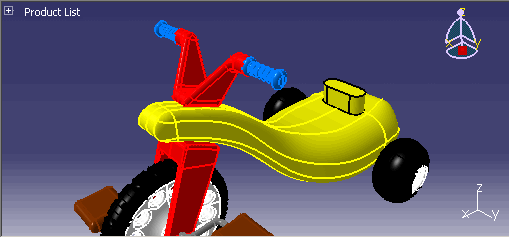
  2. Right-click the selected product and select Remove from the shortcut menu. The Product is removed from the Web Viewer.

How to Modify Graphic Properties

You can modify the Graphic Properties of objects in the viewer. This feature allows you to change the appearance of any part of the product in the Viewer.
  1. Select an object by clicking it in the ViewerSpace.

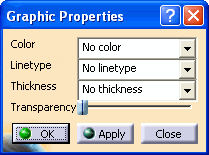
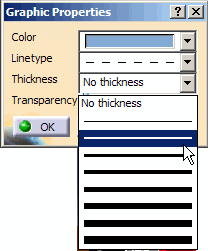
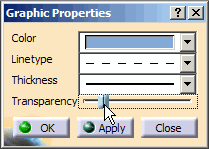
  2. Click the Graphic Properties button. The Graphic Properties dialog box appears.

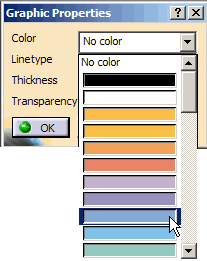
  3. To modify the color, click the Color selection button and select a color from the proposed list.

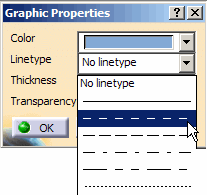
  4. To modify the line type, click the Linetype selection button and select a line type from the proposed list.

  5. To modify the line thickness, click the Thickness selection button and select a thickness from the proposed list.
    Note: Line thickness can only be modified for text of font type STROKE. For all other font types, modifying the line thickness will have no effect.

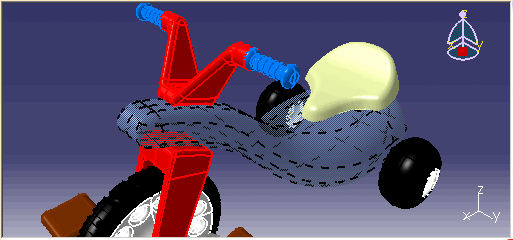
  6. To modify the Transparency, drag the Transparency slider (the extreme left of the slider corresponds to zero transparency, or solid, and the extreme right corresponds to complete transparency).

  7. To validate the modifications, click the OK button. The modified object is displayed.

  8. To close Graphic Properties window, click the Close button.

How to Enable Selection Actions

You can enable selection actions menu in the viewer to see the Logical Subset of a Shortcut Menu (LSCM). By using LSCM, you will have context of a viewer properties and will be able to perform functions that are available in the toolbar, and the chortcut menu available in the Favorite or Search windows. Disable the Enable Selection Actions function when you do not need to use it for faster menu load in the ViewerSpace.
  1. Click the Enable Selection Actions button in the viewer and select the object by clicking it in the Product List or in the ViewerSpace. Selected object is highlighted.
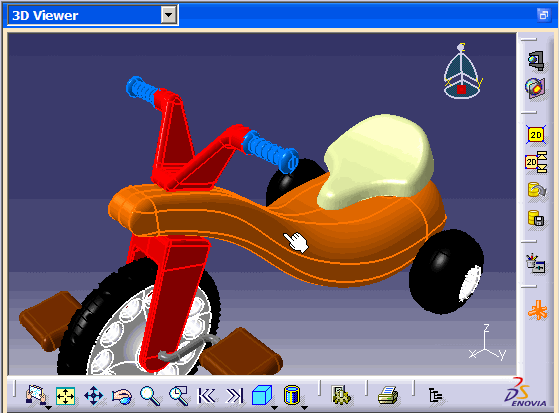
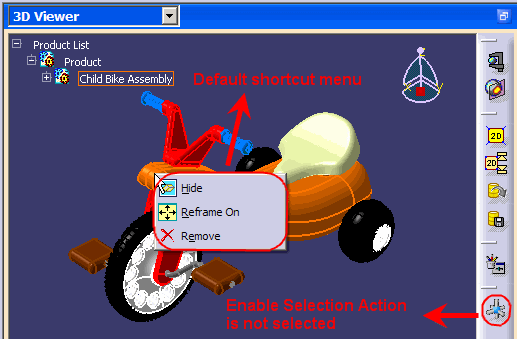
  2. Right-click the selected object. Logical Subset of a Shortcut Menu (LSCM) is populated. The shortcut menu appears with the LSCM that you will have in a context of a viewer properties.


  3. To display a default shortcut menu, select the Enable Selection Actions button again. Default menu appears.