Annotating

This section contains the following information about understanding Annotations.

About Annotating

When Annotating

How to Create an Annotation / Annotated View

How to Save Annotations

How to Move Annotations

How to Resize Annotations

How to Delete Annotations

How to Retrieve an Annotated View

How to Use Annotated View Management

How to Retrieve a Specific Annotated View

About Annotating

The annotation feature provides you with the opportunity to graphically note and identify information on the document. As a communication tool, annotating assist the user with a secondary source of data.

You can do the following with the annotation function:

  • Draw straight lines, freehand lines, circles, arrows and rectangles.

  • Include text in the annotated view.

  • Automatically link annotations internally to the model. The saved annotations will also be available in the "Favorites" tree within your active favorites folder.

When Annotating


You have several geometric options as well as a text option when the Annotate button is selected.

The geometric options are:

 -  drawing a straight line, point to point

 -  drawing a free line, multiple points

 -  drawing a circle, point to point

 -  drawing arrows, various lengths

 -  drawing rectangles, point to point

 -  creating text, font and size

You also has the options of Moving, Resizing and Deleting Annotations.

After annotations are created you can save the document as an Annotated View. As additional views are created you can manage the views through the viewer environments. Views can be shared through the environment while in the 3D meeting mode. You can also Add new views, Delete selected views, Modify names of views, and Display properties of selected views. Your have the option of sending selected views to meeting participants with the Send feature in 3D meeting mode.

Note: Only one view can be selected at a time.

How to Create an Annotation / Annotated View

You can create geometric annotations such as lines, rectangles, circles, arrows, free-lines using annotations. You can associate as many annotations as you wish to an annotated view.


The following steps demonstrate how to create annotations:

  1. In the toolbar, click the Annotate button. The Annotation toolbar appears.
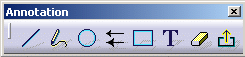
  1. Create an annotation using one of the following annotation types:

   to draw a line

   to draw a rectangle

   to draw a free line

   to draw a circle

   to draw an arrow

  1. Click the corresponding button and place the cursor at the point where you wish to place the annotation.

  2. Click the Left Button and drag the Mouse while continuing to hold the Left Button.

The corresponding geometrical figure is dynamically drawn.

  1. To create a text annotation:

  1. Click the Add Annotation Text  button.

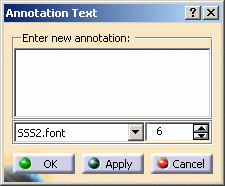
  2. In the ViewerSpace, click the point at which you wish to create the text annotation. The Annotation Text dialog box appears


  1. Select the desired font style by clicking the Down Arrow and selecting a font.

  2. Select the size of the annotation characters using the Increment/Decrement buttons to obtain the desired value.

  3. In the text-entry field, type the text that you wish to add as an annotation.

  4. Click OK to confirm. The annotation is created at the designated point.

  5. To exit the annotated view, click the Exits from the Annotated View  button. The annotated view is exited. You can re-access this annotated view from the Annotated Views command (see Retrieving an Annotated View).

Note: Clicking Cancel will only cancel the annotations previously created before you last clicked OK or opened the dialog box.

How to Save Annotations

You can save annotations as follows:

  1. To save the annotations, click the Save Annotation    button. A dialog box appears. Enter the name of the annotation file being created. (A unique name is not required.)
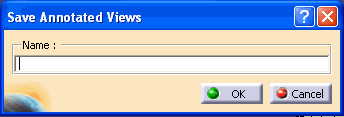


  2. Click OK to confirm. The annotation view is saved.

How to Move Annotations

You can move annotations as you wish.

  1. Select the annotation you want to move.

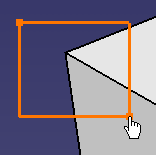
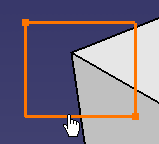
  2. Place the mouse pointer anywhere on the annotation (but not on one of the manipulator boxes).

  3. Drag the annotation to its new position. The annotation is moved accordingly.

How to Resize Annotations

Annotations in your annotated views can be resized.

  1. Select the annotation you want to resize.

  2. Place the mouse on any of the manipulator boxes.

  3. Drag the annotation to the new size.

How to Delete Annotations

Annotations in your annotated views can be deleted.

This command will delete all annotations in your annotated view.

To delete selected annotations, select the annotations in the viewer, right-click and select Remove from the shortcut menu.
 

  1. Click the annotation to select it (multi-selection is available by holding the Ctrl key down and clicking the different annotations to be selected).

  2. Click the Erase button. All annotations are deleted.

How to Retrieve an Annotated View

Every time you annotate a document, a new annotated view is automatically created with the name view.x, where x is a counter that will continually increment.

  1. Click the Annotated Views  button. The Annotated Views dialog box appears.
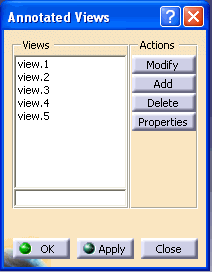
     

  1. To reinstate a view, double-click the view in the list. The annotations associated to the selected view reappear.

How to Use Annotated View Management

Annotated View Management allows you to Add views; Delete selected views; Modify the name of views; and display Properties of views.

The following steps demonstrates how to manage your annotations:

  1. Click the Annotated Views button. The Annotated Views dialog box appears.
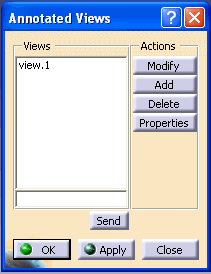


  2. You can select one of the action buttons listed.

Add -  Adds a new annotated  view. This annotated view will be automatically activated in the Edit mode and selected in the annotated view list.

Delete - Remove a selected annotated view. If the view is being edited, it will be automatically closed before deletion. 

Modify - Change the name of the annotated view. The new name will be entered in the dialog box. If the new name is empty, the annotated view will keep its old name. (A unique name is not required.)

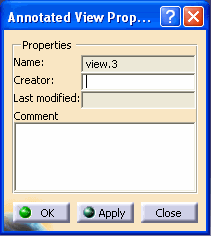
Properties - Displays the following properties of the annotated view:

  • Name of view

  • Creator of the view

  • Last date modified

  • Comments

  1. Right click on one of the views listed.

  2. Click on the Properties button and the Annotated View Properties dialog box appears.


  1. Click the Comment window and information can be changed or added.

  2. Click the OK button to accept, the Apply button to apply to annotation in the viewer, or the Close button to close the dialog box. 

  1. After the necessary changes are made, click one of the option buttons located at the bottom of the window.


    Apply - Modifies (if needed) and activates the selected annotated view in view mode (No Annotation toolbar available).

    OK - Modifies (if needed) and activates the selected annotated view in edit mode (Annotation toolbar available).

    Close - Finishes the command and deactivates the active annotated view.

    Send -  Sends the selected annotated views to meeting participants. The user who sends the annotated view must be the publisher in the meeting. (Button only available in 3D meeting mode).

Note: Double Click will activate the selected annotated view in view mode (No Annotation toolbar available).

How to Retrieve a Specific Annotated View


You can retrieve specific annotated views by query mode by following the steps below:

  1. Click the Open Annotations button.
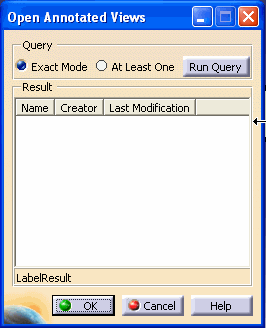
    The Open Annotated Views dialog box appears.


  1. Select a query mode by clicking the Exact Mode action button or the At Least One action button.

The Exact Mode action will display the annotated view that refers to the loaded models in the viewer with the exact content.

The At Least One action will display the annotated views  that refers to at least one of the the loaded models in the viewer.

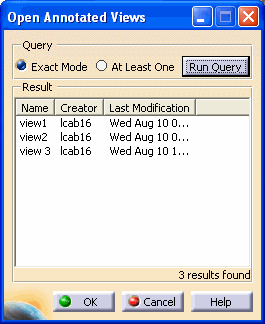
  1. Click Run Query button. The results will appear  in the dialog box.


The name of the view, the creator and the last time modifications were made will appear.

  1. Select a view from the list and click OK. The view will be listed and can be retrieved in the Annotated Views dialog box.