|
-
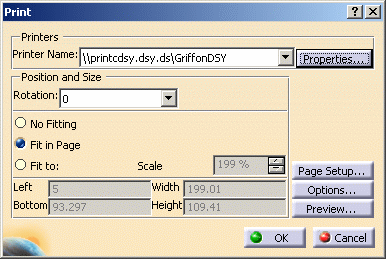
To preview the printer properties of the page to be
printed, click the Properties button from the Print
dialog box.
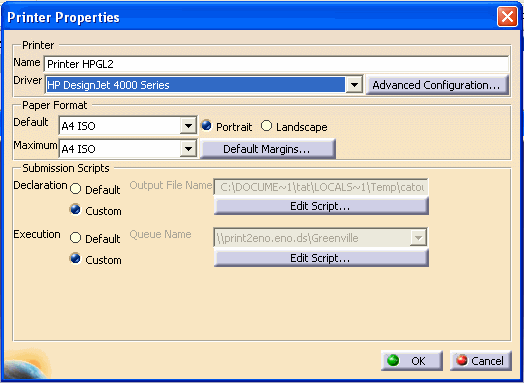
The Properties dialog
box appears.
-
To select a driver for your printer, click the Driver
selection button and choose a driver from the proposed list. The list
varies with your operating system, please see your system administrator to
define which printers require which drivers.
|
| |
Note: The DesignJet 4000 Series
printers are available for generating HPGL2 files.
|
| |
-
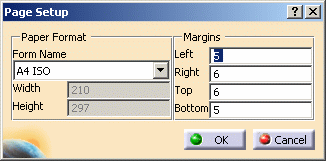
To change the paper format, click on the Default
selection button and the Maximum selection buttons to select
the paper sizes available.
-
You can modify the document orientation by clicking either
the Portrait or Landscape action buttons.
-
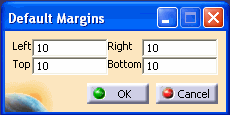
You can change the margins of the document by clicking the
Default Margins button. The Default Margins
dialog box appears.
-
To change the margin settings, enter the desired
margin in each of the text-entry fields. The settings are in
millimeters (mm).
-
Click OK to validate or Cancel
to discard changes.
-
In the Submission Scripts group box, you can
set the desired options activated when the print job is submitted.
This group box lets you specify:
-
the default output file name: each time you print a
document, an output file is created at the location you specify in the
text field
-
the default queue name: this field lets you choose which
print queue to send the print job to.
-
The Custom options let you specify the location
of your own submission scripts. Clicking these buttons activates the
Edit Script... action buttons to let you modify the script in the
Runtime Script window.
-
To change the Declaration script default,
click on the Default option button. The Output File
Name text-entry field will be accessible.
-
Enter your script specifications. Please see your system
administrator for script specifications.
-
Click the Custom option button to customize
your script. The Edit Script... action button becomes
available.
-
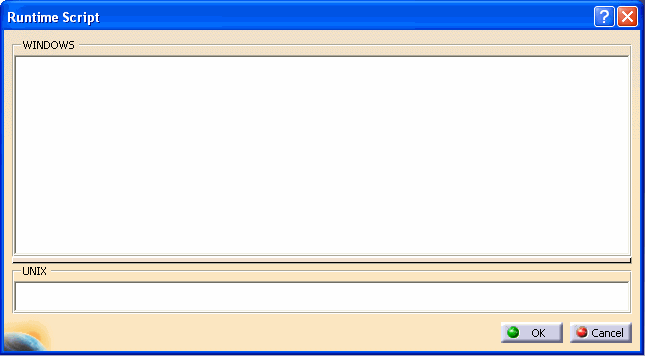
Click the Edit Script... action button.
The Runtime Script dialog box will appear.
-
Enter your script specifications. Please see your
system administrator for script specifications.
-
Click OK to validate or Cancel
to discard changes.
-
To change the Execution script default,
click on the Default option button. The Output File
Name text-entry field will be accessible.
-
Enter your script specifications. Please see your
system administrator for script specifications.
-
Click the Custom option button to customize
your script. The Edit Script... action button becomes
available.
-
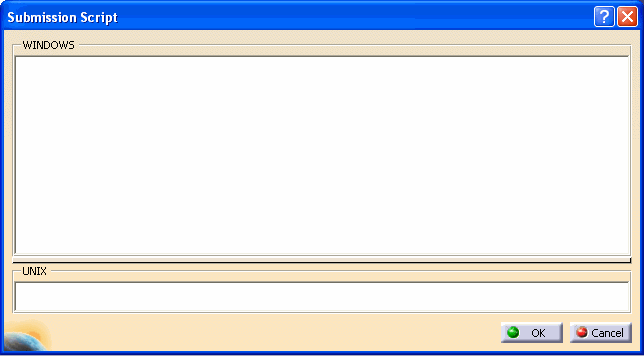
Click the Edit Script... action button.
The Submission Script dialog box will appear.
-
Enter your script specifications. Please see your
system administrator for script specifications.
-
Click OK to validate or Cancel
to discard changes.
-
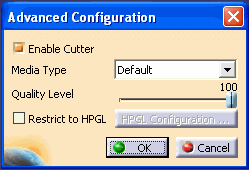
To access the advanced configurations, click on the
Advanced Configuration button. The Advanced Configuration
dialog box appears.
-
To enable or disable the paper cutter, click the
Enable Cutter action button.
-
To select a media type, click the Media Type
selection button.
-
To adjust the quality level of the print, adjust the
slider to your preference. The quality level ranges from 0-100, 100
being the best quality level.
-
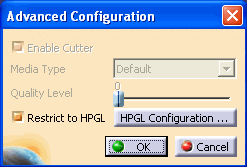
To restrict the HPGL, click the Restrict to HPGL
action button. The HPGL
Configuration button becomes active.
-
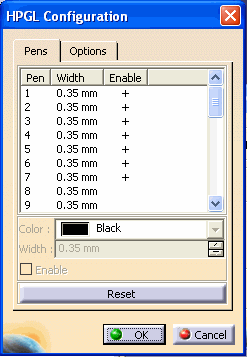
Click on the HPGL Configuration button.
The HPGL Configuration dialog box appears with the Pens
information being listed.
-
To change a pen line width or color, select a pen from
the list.
-
You can change the color by clicking the Color
selection button and choosing a color that is available.
-
You can change the pen line width by using the
increment/decrement  buttons.
-
Click the Reset button to accept the
changes.
-
To enable or disable a pen you can click on the Enable
action button.
-
Click OK to validate or Cancel
to discard changes.
|
 |
Note: Line Thickness
Changing model line thickness can be accomplished, based
upon the HPGL pen definitions, color, and thickness.
To accommodate various model line thicknesses a HPGL printer
must be created and selected.
For creation of the HPGL printer, refer to Graphics
Format > Customizing > Users Guide > Catia Infrastructure. |
| |
-
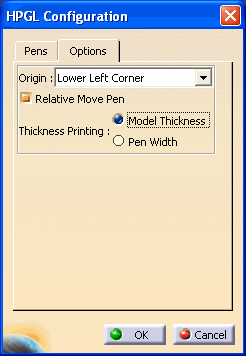
Click on the Options tab for additional pen
options. The Options dialog box appears.
-
You can change the beginning origin of the pen.
Click the Origin selection button and select a location
from the listing.
-
You can also activate the Relative Move Pen option
if you want the pen to move relative to current coordinates.
-
Printing thickness can be accommodated by clicking
the Model Thickness action button or Pen Width action button.
-
Click OK to validate or Cancel
to discard changes.
-
Click OK to validate or Cancel to
discard changes.
|
|
|
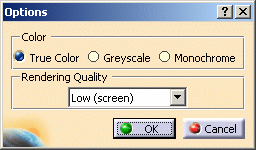
Various document customization options are available
depending on the printers available. Options include: page size, document
orientation, and graphics quality.
For more information on print properties, see the
documentation of your operating system and printer vendor. |
 About
Printing
About
Printing


 button. The
 button.