Modifying 2D Viewer Settings

This section contains the following information about Modifying 2D Viewer Settings.

About Modifying 2D Viewer Settings

When Modifying 2D Viewer Settings

How to Modify 2D Viewer General Settings

How to Modify Units Settings

How to Modify Annotation Settings

How to Modify Product List Settings

About Modifying 2D Viewer Settings

The ability to modify the 2D viewer settings provides you the opportunity to manage the visual display of a 2D model and the viewer performance:

  • Color enhancement

  • Model view display

  • Product list editing

You can change the general settings of the viewer, including background and model display. Annotation settings provide you the opportunity to modify the model line weights and style.

The unit settings can also be modified for calculation and dimensional purposes. Product Lists can also be included or modified in the model.

When Modifying 2D Viewer Settings

You can modify the 2D viewer settings by selecting the Settings button located in the horizontal toolbar. Upon clicking the button a dialog box  will be displayed with the following options:

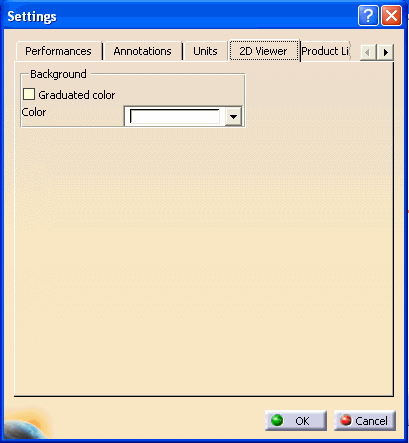
2D Viewer - You can change the background color and pattern of the viewer. The 2D model view display can be can also be repositioned by projection, axis position, rotation, and animation speed.

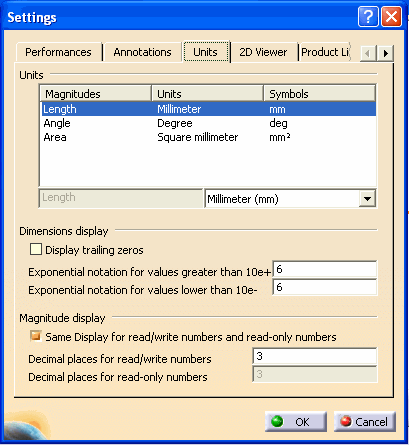
Units - You can change the numeric display of measurements and calculations. Trailing zeros, exponential notation, and decimal location can be modified.

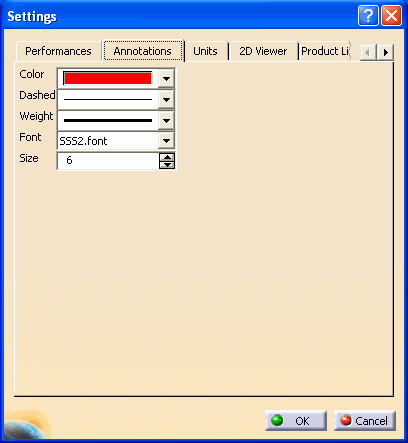
Annotations - The Annotations option affects the line characteristics in a model including color, weight, and font.

Section - The spacing between grid lines and adding grid labels can be changed with this option.

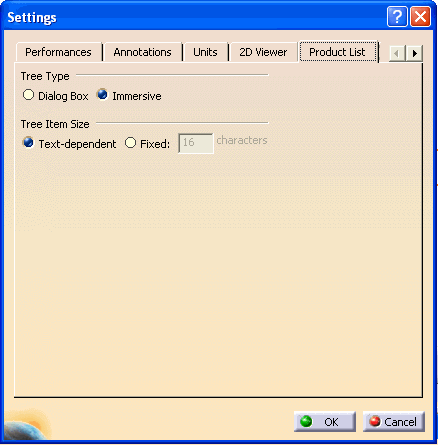
Product List -  - You can generate or modifies a product list for the model.

Note:  The tabs in the Settings dialog box are added dynamically when the corresponding object is first added to your view.  Settings dialog box will show the last tab opened previously during the session.  Use left arrow, located next to tabs, to view all of the available options.  Tabs are shown in the alphabetical order.

Note: if the Measure and/or Section commands have been previously accessed in a 3D Viewer during the current session, these tabs will appear in the 2D Viewer Settings dialog box. However, they are not relevant in the 2D context.

How to Modify 2D Viewer General Settings

You can modify the 2D viewer settings by following the steps below:

  1. In a 2D Viewer, click the Settings button. The Settings dialog box appears.


  2. Click the 2D Viewer tab.

  3. Modify the settings described below.

  4. Background color

    Modify the Background color to the color of your choice:

    Click the Color selection button and choose the desired standard color from the proposed list.

    Graduated color

    On - the background color will be graduated
    Off - the background color will be solid

  5. To apply the modified settings and close the Settings dialog box, click the OK button at the bottom-right of the dialog box.

How to Modify Units Settings

You can modify the units settings by following the steps below:

  1. Click the Units tab from the Settings dialog box.


  1. Modify the settings as described below:

Units

  1. In the Magnitude column, click the magnitude type to modify the unit of measure.

  2. At the lower-right of the Units area, click the units selection button and select a value from the proposed list.

Display trailing zeros

True - display trailing zeros of analyze results
False - do not display trailing zeros of analyze results 

Exponential notation for values greater than 10e+

Enter the power of 10 for large analyze results to be displayed in scientific notation, e.g. the default value 6 indicates that results will be displayed in scientific notation as of the value1,000,000 (10 raised to the 6th power).

Exponential notation for values lower than 10e-

Enter the power of 10 for small analyze results to be displayed in scientific notation, e.g. the default value 6 indicates that results will be displayed in scientific notation as of the value 0.000001 (10 raised to the -6th power).

Same display for read/write numbers and read only numbers 

On - display in similar manner (as defined for read/write numbers)
Off - display each in its own manner

Decimal places for read / write numbers

Enter the number of decimal places you wish to be displayed for numbers that appear in text-entry fields (numbers that you can write). 

Decimal places for read only numbers

Enter the number of decimal places you wish to be displayed for results (numbers that you can only read).

  1. To apply the modified settings and close the Settings dialog box, click the OK button at the bottom-right of the dialog box.

How to Modify Annotation Settings

You can modify the annotation settings by following the steps below:

  1. Click the Annotations tab from the Settings dialog box.


  1. To modify the Color, Dashed, Weight or Font settings, click the appropriate selection button and choose the desired setting from the proposed list.

Note: Line thickness (weight) can only be modified for font type STROKE. For all other font types, modifying the line thickness will have no effect.


  1. To modify the annotation size, enter the desired value in the Size text-entry field or use the increment/decrement buttons to obtain the desired value.

  2. To apply the modified settings and close the Settings dialog box, click the OK button at the bottom-right of the dialog box.

How to Modify Product List Settings

You can modify the product list settings by following the steps below:

  1. Click the Product List tab from the Settings dialog box.


  1. To work with a free-floating dialog box, click the Dialog Box option button, or, to work with a product list immersed in the Web Space, click the Immersive option button.

  2. For the Product List text to be self-determining, click the Text-dependent option button or, in order to determine a fixed size for the Product List text, click the Fixed option button and enter a character size in the characters text-entry field.

  3. To apply the modified settings and close the Settings dialog box, click the OK button at the bottom-right of the dialog box.