Loading an ENOVIA V5 Assembly in the Web Viewer


This section contains the following information about Loading an Assembly in the Web Viewer:

About Loading an ENOVIA V5 Assembly in the Web Viewer
When Loading an ENOVIA V5 Assembly in the Web Viewer
How to Load an Assembly in a Viewer
How to Add an Assembly in a Viewer

About Loading an ENOVIA V5 Assembly in the Web Viewer

Loading an assembly in the Web Viewer makes the process of visualizing a product assembly easier for you.  Instead of requiring you to navigate the assembly structure and load each of the documents into the viewer, you can now select the assembly and load it into the viewer directly. Using this feature will result in greater performance.

When Loading an ENOVIA V5 Assembly in the Web Viewer

  • Assemblies can be loaded into the Web Viewer from the following objects:  Product Root Class, Part Instance and Product Specification.

  • When sending an assembly to the Web Viewer all parts are shown in the viewer with correct positioning.

  • Only valid parts are shown in the Web Viewer when sending an assembly to the Web Viewer from a configured expansion (i.e.  from a Configuration Handler in Relationship Navigator).

  • To load a product into the Web Viewer, all parts in the assembly must have a 3d geometry associated with them.

  • Assemblies are loaded in the 3D Viewer.  If you want to view a 2d representation of the part, you must load the 2d documents into the viewer.

  • Loading sub-assemblies and product specifications into the viewer will result in greater performance.  Product specifications for each configured product are easily accessible through Relationship Navigator.

  • Depending on the user settings, toolbars can appear different from what you see in this document.

How to Load an Assembly in a Viewer

Complete the following steps to load an assembly:

Note:  The following example demonstrates how to load a Product Root Class.  The same process is valid for a Part instance or a Product Specification.  If loading a Product Specification, use the Advanced Access or Relationship Navigator instead of the Quick Search option.

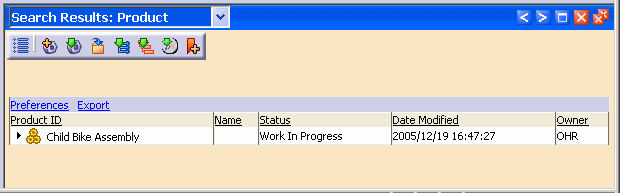
  1. Enter a value for the product type ID in the Search field and click the Search button.  The search results appear in the Search Results window.

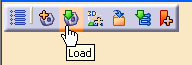
  2. From the Search Results window, select the object you wish to load in the viewer and click the Load button.


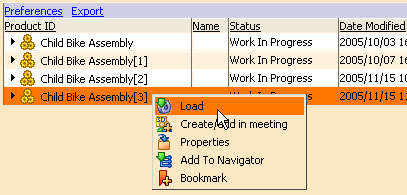
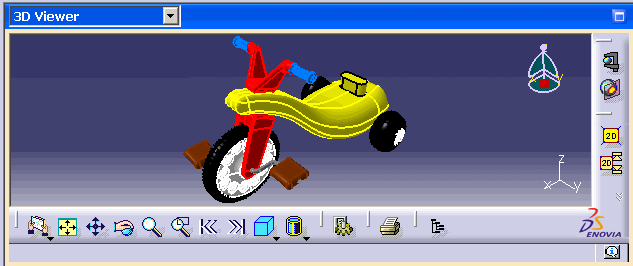
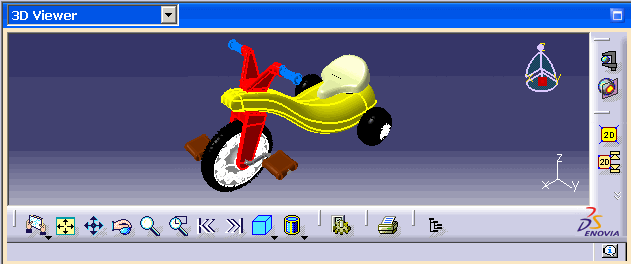
    Or, right-click the object, and select Load from the shortcut menu.  The assembly is loaded into the 3D Viewer.


    Note:  If an assembly was already loaded in the 3D Viewer, it will be removed and replaced by the new assembly.


    To learn more about the full functionality of the Web Viewer refer to the Web Viewer page.

How to Add an Assembly in a Viewer

You can add part instances into a viewer that already contains open assemblies.

In the earlier example, an assembly was loaded into the Web Viewer.  The loaded assembly is a bicycle that is missing a seat.  In the following scenario, you will learn how to use the Add feature to return the missing seat to the bicycle.

Note:  When adding parts to an existing assembly within the viewer, it is not necessary to have the parts loaded prior to adding them to the assembly.

Note:  The following example demonstrates how to load a Product Root Class.  The same process is valid for a part instance or a product specification.  If loading a product specification, use Advanced Access or Relationship Navigator instead of the Quick Search option.

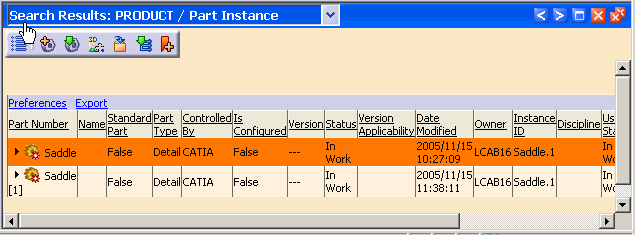
  1. Enter a value for the part instance ID in the Search field and click the Search button.  The search results appear in the Search Results window.

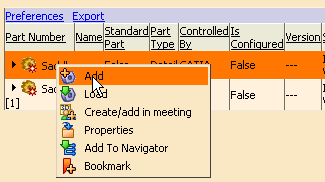
  2. Select the object you want to add to the viewer, and click the Add button.


    Or, right-click the object you are adding to the viewer, and select Add from the shortcut menu.  The part instance is added in the 3D Viewer.


    To learn more about the full functionality of the Web Viewer refer to the Web Viewer page.