Managing the User Home Page

This section contains the following information about the User Home Page:

About the User Home Page
When Managing the User Home Page
Accessing the User Home Page
How to Add and Configure a Portlet for Content Display
How to Minimize, Restore, and Refresh Information
Accessing Object Details in the User Home Page
User Home Page Window
How to Personalize the User Home Page
User Home Page Personalization Window

About the User Home Page

The User Home Page is designed as the main entry point that provides access to information from multiple sources. The User Home Page consolidates and displays information by organizing it into three different groups: Pre-defined searches, saved searches, and internal/external RSS (Really Simple Syndication) feeds, which allow the sharing of web content.

Note that you can perform all operations directly on the objects listed within the User Home Page. This capability helps you to reduce the number of steps when searching or accessing specific information that you own.

You are not required to add objects to the User Home Page in order to display them. This is done automatically whenever the object is either created or transferred.

  • Pre-defined searches: Pre-defined searches display commonly used lists of objects without the user having to search for the information. The pre-defined searches available for display in the User Home Page include: My Workitems, and Saved Search.

    The window below illustrates some of the pre-define searches you can display in the User Home Page.

  • Saved searches: A search requests specific information from a database or electronic filing system. Thus, the saved searches refer to the saved results of a query. In the User Home Page you can choose to display any saved search beneath the Favorites pane. When personalizing the layout of the User Home Page, select the Saved Search option to create a new pane.  Then, configure the new pane to display one of your saved searches by name. The illustration below provides a visual example of a saved search.

  • Internal and external RSS feeds: Really Simple Syndication (RSS) is an XML format for sharing web content. RSS simply allows you to access information from different websites using links. The RSS feed can include links to news feeds, event listings, stories, headlines, project updates, corporate information, and even some legacy data from other systems such as: SAP, Doors, and CRM. The illustration below shows examples of RSS feeds.

Personalizing the User Home Page

enables you to customize and arrange the position of the information displayed in the User Home Page.  You can personalize the layout (control how many section areas are displayed) and the content of the layout. For example, when you are working with actions, change orders and documents, then you may want to personalize the User Home Page so these items are always displayed.  Personalization of the User Home Page is explained below.

When Managing the User Home Page

  • When displaying the User Home Page, please note that not all your saved searches under the My Favorites area are displayed by default. You must select the specific searches you want displayed under the Personalize section. See the section on Personalizing the Home Page below for specific details.

  • To access information you own such as actions, activities, CRs, COs, and documents, select from the list of pre-defined panes to display the information you need in the User Home Page.

  • When viewing the list of objects, the section areas are not resizable. Use the scroll button to get to the next section.

  • The pre-defined RSS feed sites is specified in the web server runtime view (i.e. resources/pprregistry/homepage/RSSFeedHomelet.xml).  Time sensitive RSS feeds such as news stories are displayed from newest to oldest.

  • The administrator can add new sites by editing the RSSFeedHomelet.xml file.

  • Objects listed in the Search portlets have shortcut menus. Right-click on an object to access the shortcut menu and view the available actions for the selected object.

  • Saved or pre-defined searches are displayed in groups of ten.

  • When adding Saved Searches for the first time, add the saved search under the Personalized Layout window, then configure the portlet for content display using the Edit function in the User Home Page.

Personalizing the User Home Page

  • The User Home Page layout is divided into two zones:  Left Side Navigation Portlets and Right Side Content Portlets.

  • You can move portlets from left to right, one row up or down, and to the top or bottom.

  • The left side of the User Home Page is smaller, and it can be used to display navigational type information such as lists, names, and links.

  • The right side of the User Home Page is larger, and it can be used to display information that contains more details such as RSS feeds. 

Accessing the User Home Page

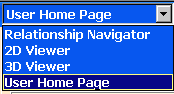
When you log into , by default you see the 2D Viewer in the Navigation and Viewer pane. Follow these steps to display User  Home Page:

 
  1. Click the drop-down list on the left side of the Navigation and Viewer pane. A list of options appear.

  1. Select User Home Page from the drop-down list. The User Home Page appears.

How to Add and Configure a Portlet for Content Display

In the User Home Page, you can select as many portlets or panes as you need to display and access information from Pre-defined Searches, Saved Searches or RSS Feeds.  However, it is recommended that you only personalize 4 to 6 portlets. 

The Edit function is available for the saved searches and RSS feeds types only. With this function, you can configure a portlet to display a specific type of search or RSS feed in the User Home Page

For customizing the layout of the User Home Page, see the How to Personalize the User Home Page section.

  1. Follow steps 1-2 from the How to Access the User Home Page section. To illustrate how to add and setup the content for a portlet, in this scenario a portlet is added for a saved search.

  2. Click the Personalize Layout button. The Homepage Personalization window appears.

    From this window, you have many options for customizing the layout of the User Home Page. See the How to personalize the User Home Page section for specific information. In this scenario, a portlet will be added for a saved search.

  3. Select a portlet to add from either the left side (i.e. Navigation Home Page Portlets) or the right side (i.e. Content Home Page  Portlets) and click the Add button.  For this scenario, the Saved Search  portlet is selected and added.


    The portlet is then added and placed in the left side of the User Home Page, and you are now ready to define the content for the saved search in the following steps.

  4. Click the OK button to return to the User Home Page.


    From the User Home Page, you use the edit function to define the content for new portlets. In this scenario, the portlet has been added, and it is ready to be configured for content display.

  5. Click the Edit button on the portlet or RSS feed you want to configure. A list of saved searches are available for selection. The Saved Search (new) portlet is selected to configure.

  6. From the drop-down box, select either the search type results or RSS feed you wish to display on the selected portlet. The is selected from the list of saved searches.

  7. Click the OK button. The selected saved search is assigned to the selected portlet. In this scenario, the Saved Seach portlet is now configured to display the saved search results in the User Home Page.


    Use the Refresh button to display current information for the objects displayed in the portlet.

How to Minimize, Restore, and Refresh Information

The minimize and restore functions, enable you to temporarily hide information from view, but leaves the titles of the section area visible for you to restore the information.

Complete these steps to use the minimize, restore, and refresh functions.

  1. Click the Minimize button to hide the information within a specific portlet. The list of items is minimized.

  2. Click the Restore button to display the information view. The search results list is restored and available for viewing in the User Home Page.

  3. Click the Refresh button to update portlet content with current information.

Accessing Object Details in the User Home Page

 Follow these steps to access object information within the User Home Page:

 
  1. Display the User Home Page using steps 1-2 from How to Access the User Home Page section.

  2. Click the Details button on any of the pre-defined searches or saved search portlets. The search results list appears in the User Interaction area.

  1. From the Search Results window, you can select the appropriate commands from the toolbar to perform operations on the objects; or right-click the object to view the shortcut menu with the functions available for the selected object.

  1. Perform any of the functions available for the selected item.

User Home Page Window


This table describes the buttons and functions that are available in the User Home Page window.

Button Description

Updates the information within specific portlets.

Access the customization page where you can define the layout of the User Home Page and the portlet types.

Displays the list of search results in the User Interaction area.

Enables you to change or setup the type of content within a specific portlet.

Hides the information temporarily from view.
Restores the minimized information for viewing within a portlet.

How to Personalize the User Home Page

The User Home Page is divided into two zones: Left Side Navigation Portlets and Right Side Content. The left side contains all of the pre-defined searches as well as adding saved searches. The right side contains the RSS feed content portlets. You can move portlets from left to right and back as necessary.

Follow these steps to personalize the  User Home Page:

  1. Display User Home Page.

  2. Click the Personalize Layout button. The Homepage Personalization window appears.

  1. Select either a pre-defined search, saved search, or RSS feed you would like to display from the left side Navigation Home Page Portlets list and click the Add button.  The portlet is added and placed in the left side.

  1. Highlight a portlet and use the arrows to define the desired position of a portlet within the User Home Page.

    Moves the portlet up one row.
    Moves the portlet down one row.
    Moves the portlet to the top of the list.
    Moves the portlet to the bottom of the list.

    Moves the portlet to the right side of the User Home Page.

    Moves the portlet to the left side of the User Home Page.

  1. Click the Apply button to save changes and continue to add portlets and arrange position.

  2. Click the OK button to save change and close the personalize layout window.

User Home Page Personalization Window


The User Home Page Personalization window appears in the User Interaction pane. With this window, you can modify the look and feel of the User Home Page by modifying the arrangement and content of the layout.

Thus, the User Home Page is divided into two areas. Left and right. 

  • The left side is a smaller area and you can add pre-defined searches, saved searches and RSS feeds portlets. This area can be used to display navigational type of information such as lists, names, links, etc.

  • The right side is a larger area that provides you with the ability to view more content, and you can either use this area for RSS feeds, pre-defined searches, or saved searches.

This table describes the buttons in the User Home Page Personalization Layout window.

Button Description

Applies the changes you performed on the  Personalization Layout and return to the User Home Page.

Discards the changes performed in the  Personalization Layout window and return to the last saved personalization settings.

Saves changes to continue personalizing the User Home Page.

Adds a portlet type to either the left or right side of the User Home Page.

Moves the portlet one row up within either the left side or right side.
Moves the portlet one row down within either the left side or right side.
Moves the portlet to the top of the list.
Moves the portlet to the bottom of the list.

Moves the portlet to the right side of the User Home Page.

Moves the portlet to the left side of the User Home Page.

Deletes the selected portlet from the User Home Page.