Loading a Product from into VPM Navigator

About Loading a Product from into VPM Navigator

The Open in VPM Navigator function allows you to easily load a product from to the VPM Navigator giving you a convenient way to access the full functionality of the VPM Navigator.

When Loading a Product from into VPM Navigator

  • In order to load a product into VPM Navigator from the , VPM Navigator must be installed on the client machine.

  • When you load a product from , the latest version of VPM Navigator that is installed on your machine will be used.

  • If VPM Navigator is not correctly installed on the client machine a message like the following will display.

  • This functionality is supported for Windows clients only.

  • When you load a product into VPM Navigator you will be presented with an authentication screen. Use the same login information (Server, User ID, etc.) that you used to authenticate in . However, you may log in with different login information, but keep in mind that your access to the data also may differ.

How to Load a Product from into VPM Navigator

Complete the following steps to load a product from into VPM Navigator:

Note: The following example shows how to load a Product Root Class. Another way you can search for the product is by using Advanced Access instead of Quick Search.

Advanced Access search window.

  1. Open a Product in .
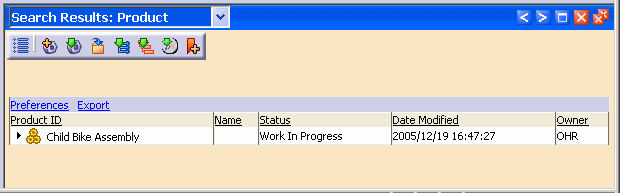
    Enter a value for the product type ID in the Search field and click the Search button. The search results appear in the Search Results window.

  2. Select the product you wish to load into VPM Navigator and select the Open in VPM Navigator button from the tool bar.


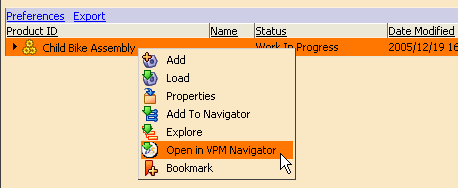
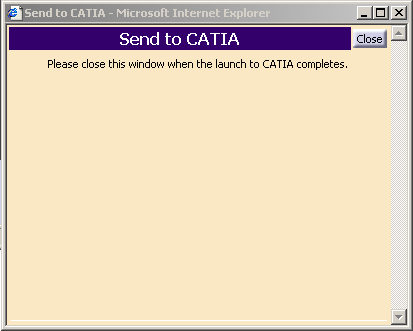
    Or, right-click the object, and select Open in VPM Navigator from the shortcut menu. File Download and Send to CATIA dialog boxes will appear.

    Note: You can also use the Open in VPM Navigator function in the Explorer window of .
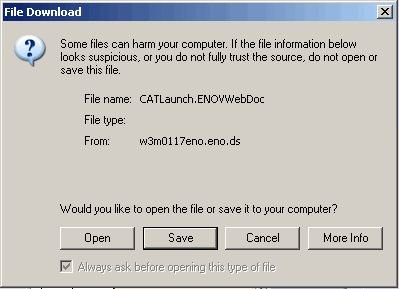
    Depending on your client configuration, File Download screens below may appear different from what you see in this example.

  3. Select the Open button on the File Download dialog box. Send to CATIA dialog box will close when the product loads into VPM Navigator.

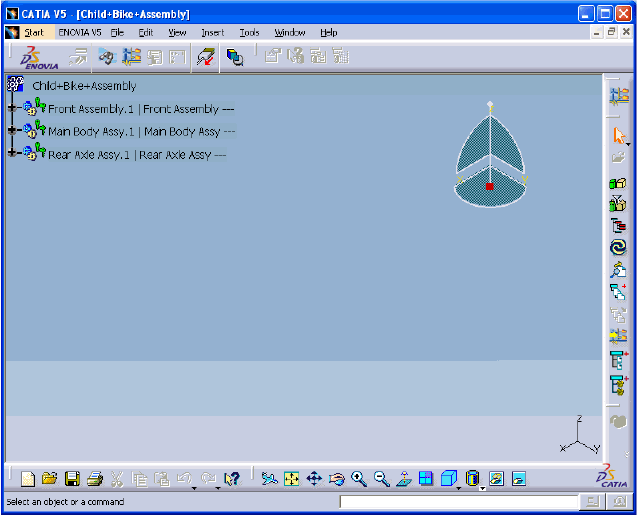
After authentication in VPM Navigator, the product is loaded.

You can now use the full functionality of VPM Navigator. You may refer to the VPM Navigator User Guide.