
This operation is dedicated to the machining of part showing multiple pockets with an obvious view direction as shown in the scenario below.
Multi-Pockets Flank Contouring is not suitable for this part as it has no obvious view direction.
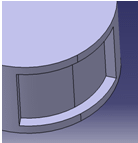

Open Process_MultiPocketFlankContouring.CATProcesfrom the samples directory.
If you are a DS Passport customer, you can read the article QA00000007833 from the Knowledge Base for more about the Top.

-
Click Multi-Pockets Flank Contouring
 and select Manufacturing Program.1 in the specification tree.
The Multi-Pockets Flank Contouring dialog box is displayed
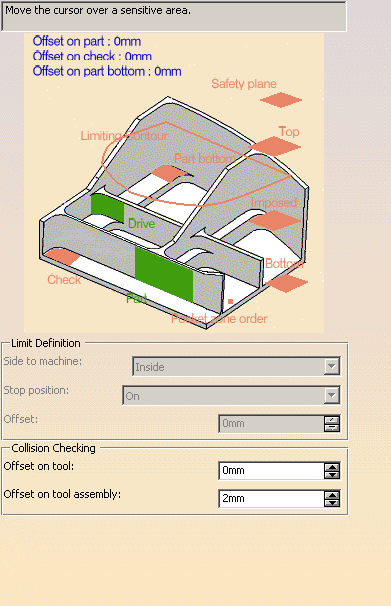
and a Multi-Pockets Flank Contouring operation is added to the manufacturing program. -
Click Part in the sensitive icon and select the part to machine.
Double-click anywhere in the 3D viewer to validate your selection and revert to the main dialog box. -
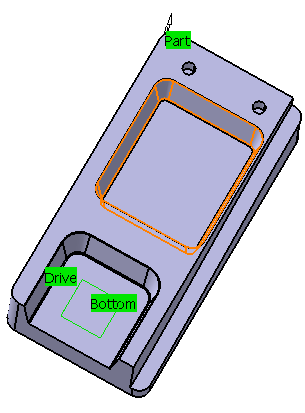
Click Drive and select faces as shown below.
Click Bottom and select the bottom of the part as shown below:
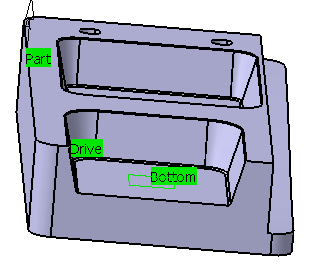
Click OK in the Face Selection toolbar to validate the selection and revert to the main dialog box. -
In the Stepover tab, set the Distance Between Paths and the Number of paths.
Click Tool Path Replay .
The tool path is computed and displayed:
.
The tool path is computed and displayed:
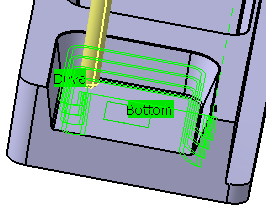
-
Now add the following faces to the drive:
Click Tool Path Replay.
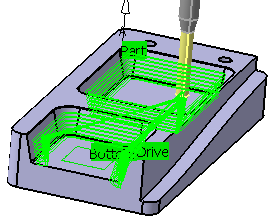
The tool path is computed and displayed:
-
Click OK to validate and exit the dialog box.
