
Each user parameters can be generated in the APT file if you modify the
macro of the probing operation in the PPTable.
For example, you add the parameter called "MyParameter" in the hole
probing operation.
Modify the macro NC_PROBING_HOLE by adding "%MyParameter"
to retrieve its value.
When you click OK, the corresponding edition dialog box is displayed to let
you enter the parameter value.


-
Go to the Machining Strategy tab, then to the User Parameters tab.
This tab page is found in each probing command.
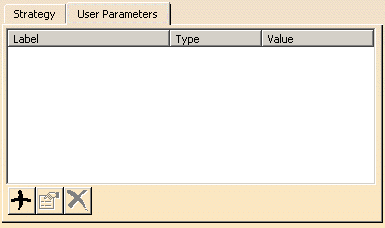
-
Click
 Add.
Add. The Add User Parameter dialog box is displayed. - Key in the Name of the parameter.
- Select the Type of the parameter you want to add:
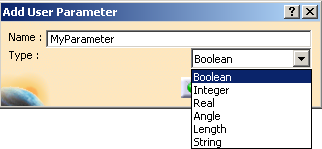
The parameter is added to the dialog box and you are invited to valuate it.
-
If the parameter is of Type Boolean:
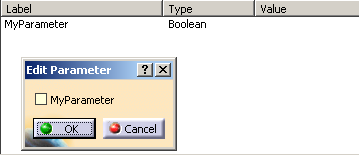
- do not select the check box in the dialog box that appears to set its value to false.
- select the check box in the dialog box that appears to set its value to true.
-
If the parameter is of another Type, either:
- Key in a value in the dialog box that appears:
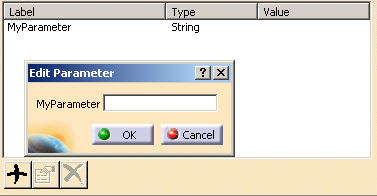
- or use the contextual menu:
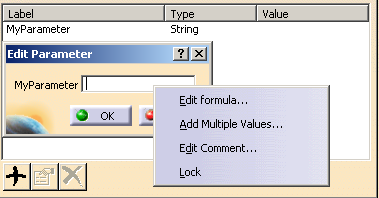
This menu varies according to the Type of the parameter.
- Key in a value in the dialog box that appears:
-
If you have selected Edit formula, the Formula Editor opens.
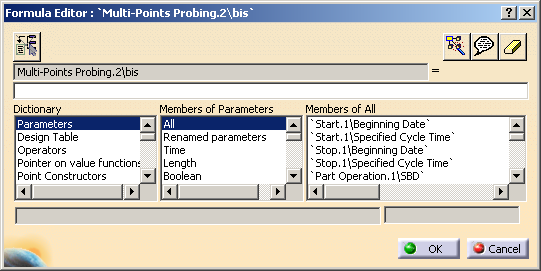
See the Knowledgeware Infrastructure - Tips and Techniques - Summary dedicated to the infrastructure knowledgeware capabilities for more information on formulas.
Note that parameters that have no value field require that you use the Formula Editor. -
If you have selected Add Multiple Values, enter them in the dialog box that appears and click OK.
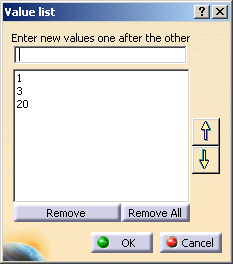
They appear as a list in the Edit Parameter dialog box.
Select the value you need from that list and click OK.
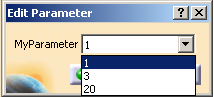
-
If you have selected Edit Comment:
The URLs & Comment dialog box appears
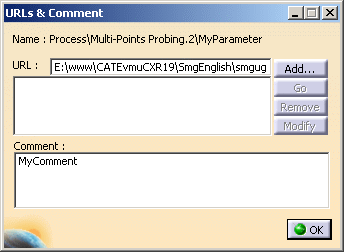
Either type a comment in the dedicated field or click Add to key-in a URL:
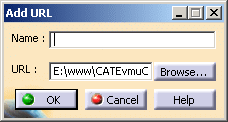
Click OK to validate and exit the dialog boxes.
The content of your comment appears as a tooltip when you place the pointer over the parameter.

-
Once a parameter has been created,
 and
and
 become available.
- Click
Remove to delete the selected parameter.
- Click
Edit to edit the selected parameter as explained above.
- Click
-
To define multiple values for the user parameter of each probing points:
- Select and right-click a parameter in the dialog box.
- Select Set Multiple Values.
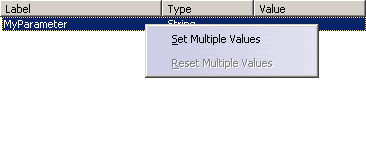
-
The type of the parameter changes to Multi values.
A first line is added under the parameter, with the value of the parameter if it existed.
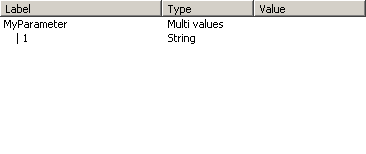
- If the parameter was not yet valuated, double-click that line and enter a value in the dialog box that appears.
-
To add another value, select a value line, and click
Add.
Valuate the parameter in the dialog box that appears and click OK.
A new value is added at the end of the values list. -
When you select a value line,
and
become available.
- Click
Remove to delete the selected value line.
- Click
Edit to edit the selected value line as explained above.
- Click
-
Select and right-click a multiple values parameter, and
select Reset Multiple Values.
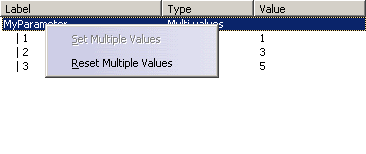
Only the first value is kept.

- A message is displayed if there are more selected points than values.
- For parameters of Type Integer, there is no need to
define explicitly a value for each point:
- If the law can be defined by an origin and a step.
For example, if you set the value for the first two points and not for the third point, the user parameter will be set automatically for the third point according to following rule: value 2nd point + (value 2nd point - value 1nd point)

- If the law cannot be defined, the pattern is
repeated:

- If the law can be defined by an origin and a step.
- The generated value of a Multi value user
parameter will be changed for each point, except in the
following cases:
- if the linking macros of the Probing operation are deactivated, only one NC CYCLE will be generated. The generated value of the user parameter will be the first value.
- if the Output CYCLE syntax check box in the Tool motions tab in Generate NC Code Interactively or Generate NC Output in Batch Mode is cleared, the generated value of the user parameter will be the first value.
