

Insert PP Word in Machining Pattern
You can insert PP Word in Machining Pattern for a single position or for multiple positions in a single shot. You can insert PP Word instructions before any hole in the Machining Pattern. If you use this Machining Pattern in any Axial Machining Operation then these PP Word instructions get evaluated and generated in the Aptsource file.
- Open the Machining Pattern dialog box and click No
Point text.
See Prismatic Machining Preparation Assistant User's Guide:Machining Patterns
The authoring window comes in view. - To edit PP Word for a single hole position.
- Select single hole pattern in the hole depth representation in the authoring window.
- Right-click point manipulator and click Edit PP Word
from the point manipulator contextual menu.
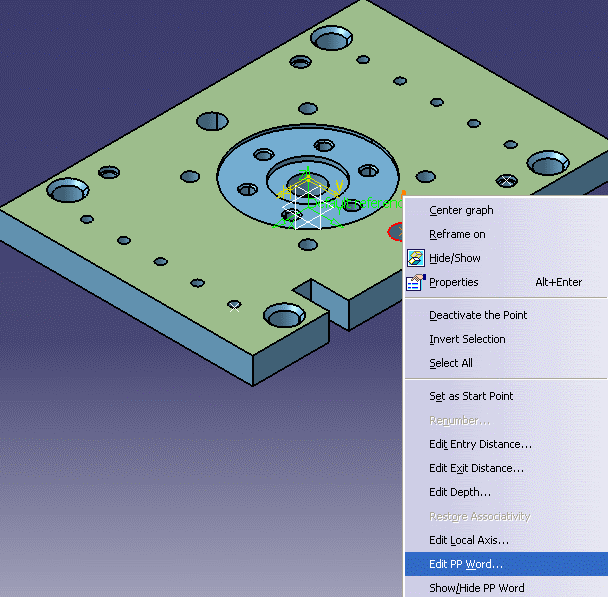
The Edit PP Word for a Position dialog box appears.
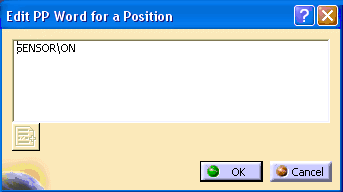
If the hole position has some pre-defined PP Words, then the Edit PP Word for a Position dialog box shows that value. If there is no pre-defined value then the Edit PP Word dialog box appears blank. - Edit the PP Word value. Specify the PP Word value, if required.
- Click OK in the Edit PP Word for a Position
dialog box.
The PP Word value, as displayed in the dialog box, gets allocated to that hole/position. If you delete the pre-defined value, then all the PP Word value for that position are deleted.
- To edit PP Word for multiple hole positions.
The existing PPWords are not displayed while editing PP Word for multiple hole positions as the list of existing PPWords differ from one position to the other within the multi-selection.- Select multiple holes pattern in the hole depth representation.
Double-click to end your selections.
The text No Point is updated with the number of points to machine. In the below image four points are selected. - Right-click the position point in the viewer of Machining
Pattern dialog box and select Edit PP Words from
the contextual menu.
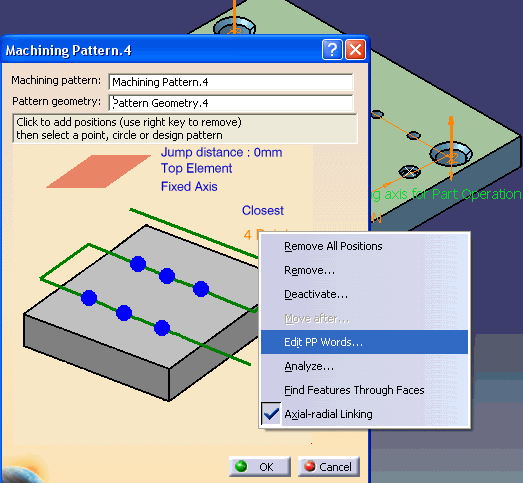
The Define Range to Edit PP Words dialog box appears.
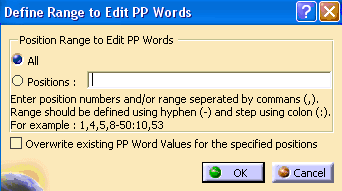
- Specify the range of positions for which you want to insert/Edit PP Words in Define Range to Edit PP Words dialog box.
- Select All, to insert PPWords for all selected positions in a pattern.
- Select the Overwrite existing PPWord values for the
specified positions check box to overwrite the existing values
by the new value given in Edit PP Word dialog
box in all the positions.
 By default, this option is not selected.
By default, during editing PP Words for multiple positions, the
value given in Edit PP Word dialog box gets appended to
the existing PP Word value associated with the positions. - Select Positions to specify the range and exact positions
separated by comma in Define Range to Edit PP Words
dialog box.
Specific positions can be mentioned by the corresponding position numbers separated by commas and range can be specified in the format. Start position number hyphen (-) End position number : Step. Here step is a number that you have to add in the Start position number to get the Next position number. Consider a syntax 8-50:10, 8 is the Start position number, 50 is the End position number, and 10 is the Step. To get the Next position number add 10 in the Start position number, so syntax 8-50:10 means that positions considered for Edit PP Word are: 8,18,28,38,48.
Some information while specifying range:
a)By
default, step value is 1, so range is specified without specifying
step then 1 is considered as the value of the step (for example, 3-6
means 3-6:1 and 3,4,5,6 positions are considered).
b) When range and step are mentioned in such a way that the end position number is not achievable going by the step then the last position number is not considered and highest position value in the range in considered.
c) When range is specified beyond the maximum number of positions in the pattern, or specified a position that does not even exist, or a wrong syntax is given then a warning is generated. - Click Ok in the Define Range to Edit PP Words dialog box.
- Specify the PP Word value in Edit PP Word for Multiple Positions dialog box.
- Click OK in the Edit PP Word for Multiple
Positions dialog box.
The PP Word value is allocated to all the positions. If there is already any PP Word value present and you select Overwrite existing PPWord values for the specified positions check box and does not specify any value in the Edit PP Word dialog box then all the PP Word value for those positions gets deleted.
- Select multiple holes pattern in the hole depth representation.
Double-click to end your selections.
- To see the PP Word associated with any single hole of the pattern in
the Viewer.
- Right-click point manipulator and select Show/Hide PP Word
from the point manipulator contextual menu.
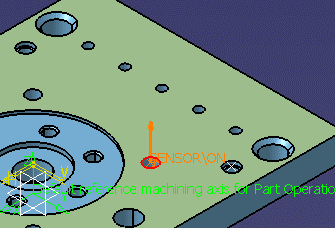
In the above image you can see the PP Word Sensor/ON in the viewer.
PP Word is shown in the viewer for all the holes and by the first click of the Show/Hide PP Word in the contextual menu PP Word gets hidden in the viewer for that particular hole/Position. This happens to the selected hole/position and does not affect the Show/Hide status of other holes/position in the pattern. This option works as a toggle, with one click the PP Word gets hidden and with the next click it re-appears.
The PP word appears in Show state only, whenever you open the Machining Pattern or Axial Machining Operation dialog box.
Insert PP Word in Axial Machining Operation
You can insert PP Word in Axial Machining Operation for a single position or for multiple positions in a single shot.
- Open a Drilling operation.
See Prismatic Machining User's Guide: Drilling
You can use the already created Machining Pattern which has PP Word inserted or you can create a new Machining Pattern. - Perform the steps as described in Insert PP Word in Machining Pattern to insert/edit and show/hide the PP Word in Axial Machining Operation.
- Right-click point manipulator and select Show/Hide PP Word
from the point manipulator contextual menu.
PP Word and AptSource Output
PP Word instructions appears in the Aptsource for every position. While generating CYCLE statements for Axial Machining Operation for any position if PP Word syntax is inserted then CYCLE gets broken at that point and PP Word is outputted before that point.
- Right click any hole and click Edit PP Word.
- Insert PP Word (SENSOR/ON) for Point 2.
CYCLE gets broken at Point 2 and PP Word SENSOR/ON is outputted in the Aptsource. The Point 2 is outputted in a new CYCLE statement as shown below:
CYCLE/DRILL, 10.000000, 1.000000,1000.000000,MMPM
GOTO / -26.78131, -23.44311,30.00000
CYCLE/OFF
RAPID
GOTO / -26.57618, 10.16628,31.00000
SENSOR/ON
CYCLE/DRILL, 10.000000, 1.000000, 1000.000000,MMPM
GOTO / -26.57618, 10.16628,30.00000
CYCLE/OFF
If no PP Word is inserted for any position then the sample output in the Aptsource for CYCLE statement is shown below:
CYCLE/DRILL, 10.000000, 1.000000,1000.000000,MMPM
GOTO / -26.78131, -23.44311,30.00000
GOTO / -26.57618, 10.16628,30.00000 CYCLE/OFF
When CYCLE statements are not generated, in that case for any position if PP Word is inserted then just before the GOTO motions to start drilling on that particular point, and after the linking motion from the previous point, PP Word is outputted in the Aptsource. If there is no PP Word inserted then the output is:
GOTO / -26.78131, -23.44311,31.00000
FEDRAT/ 1000.0000,MMPM
GOTO / -26.78131, -23.44311,20.00000
FEDRAT/ 1000.0000,MMPM
GOTO / -26.78131, -23.44311,31.00000
RAPID
GOTO / -26.57618, 10.16628,31.00000
FEDRAT/ 1000.0000,MMPM
GOTO / -26.57618, 10.16628,20.00000
FEDRAT/ 1000.0000,MMPM
GOTO / -26.57618, 10.16628,31.00000
If PP Word is inserted for Point 2 then just before starting the drilling of the Point 2, PP Word is outputted as shown below:
GOTO / -26.78131, -23.44311,31.00000
FEDRAT/ 1000.0000,MMPM
GOTO / -26.78131, -23.44311,20.00000
FEDRAT/ 1000.0000,MMPM
GOTO / -26.78131, -23.44311,31.00000
RAPID
GOTO / -26.57618, 10.16628,31.00000
SENSOR/ON
FEDRAT/ 1000.0000,MMPM
GOTO / -26.57618, 10.16628,20.00000
FEDRAT/ 1000.0000,MMPM
GOTO / -26.57618, 10.16628,31.00000
It is not possible to valuate CYCLE related parameter in these PP Word (like diameter, depth etc.), as the CYCLE gets broken for the position where PP Word is inserted.
