

Modifying an xml GVS file in a text editor is a cumbersome task. It takes a long time and leads to numerous errors. The GVS editor allows an easy and simple way to modify the GVS files. You can change the attributes like line thickness, color, etc.
The GVS Editor dialog box consists of three frames:
|
The GVS editor defines a data using the XML structure. When you open an xml GVS file, it shows in the following structure:
|
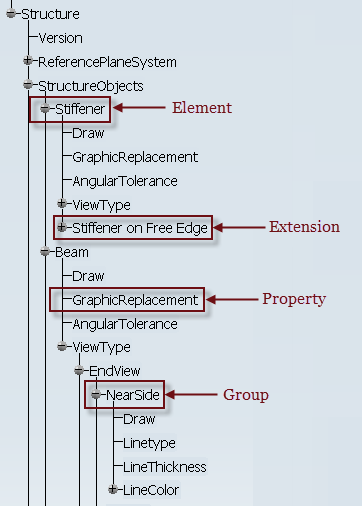
The GVS Editor dialog box displays the tree structure of the GVS file, parameters of the structural objects and generates a preview of the modified GVS parameter in the respective frames.
There are two view modes available in the GVS Editor dialog box.
|
||
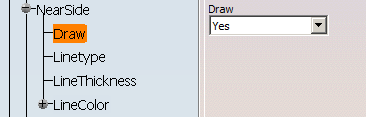
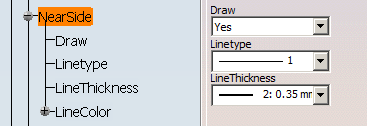
If you find that the structural element is missing any extension, you can add extension to it. You can add extension only at the element level, using the contextual commands. If an extension already exists, a warning message appears, suggesting you to check the extension in the Edit mode.
Once you add the extension, right-click and select Refresh to display the newly added extension to the element.
You cannot add an extension to the existing extension. Using the contextual commands, you can add, edit and remove the extension. If required, you can also remove the particular node using the Remove Node contextual command.
