 |
In this task, you will learn
about:
|
|
|
Creating an Advanced Front View without GVS
|
 |
-
Open the CATPart document. Define a new drawing sheet.
-
Click Advanced Front View
 in the
Views toolbar. in the
Views toolbar.
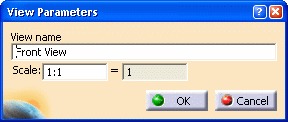
The View Parameters dialog box is
displayed.
-
Modify the View name and Scale
value, as required.
-
Select a plane of projection or planar surface in the 3D part to define
the reference plane.
-
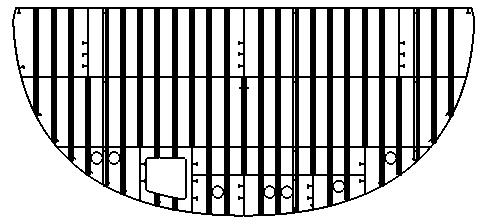
Click in the drawing document to generate the advanced front view.
|
|
|
Similarly, you can create a front view by using Front View  in the Views toolbar. In this case, the View Parameters
dialog box is not displayed.
in the Views toolbar. In this case, the View Parameters
dialog box is not displayed. |
|
|
Creating an Advanced Front View with GVS
|
 |
Generative View Style (GVS) drawings are driven by XML templates and
control the appearance and behavior of a view.
To access this mode, you need to go to Tools > Options > Drafting > Administration
tab. Clear the Prevent generative view style usage check
box.
|
|
|
-
Open the CATPart document. Define a new drawing sheet.
-
Click Advanced Front View
in the Views toolbar.
The View Parameters dialog box is displayed.
-
Modify the View name and Scale value, as required.
-
Select the GVS file you want to use and click OK.
-
Select a plane of projection or planar surface in the 3D part to define the reference
plane.
-
Click in the drawing document to generate the advanced front view.
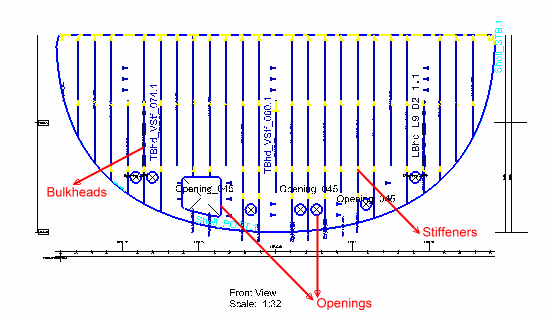
The GVS view automatically generates many different 2D text and
symbols, such as bulkheads, stiffeners, and opening
symbols.
|
|
|
Similarly, you can create a front view with GVS by using Front View
in the Views toolbar. In this case, the Generative view style
dialog box is displayed, where you can select the required GVS file. |