|
This task explains you how to copy or move one
or more elements (plates, stiffeners, beams, openings) along the
reference planes.
You can:
|
 |
Open a structure containing plates, stiffeners,
beams, openings etc. |
 |
Translate the Elements
|
|
|
-
Click Advanced Copy
 in the
Detailing Tools toolbar. in the
Detailing Tools toolbar.
| The
Advanced Copy/Move
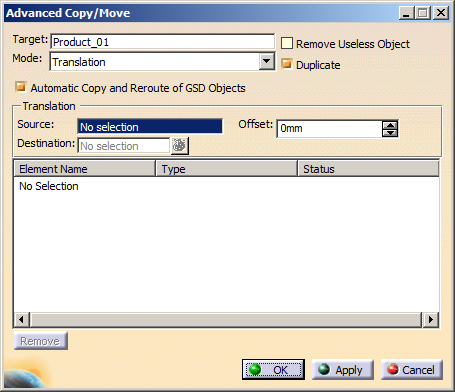
dialog box appears. |
 |
-
In the Repository box, the existing
structural functional design system appears.
-
In the Mode list, select Translation.
-
In the Translation area,
- In the Source box, select the
reference plane from which translation will be computed.
- In the Destination box, select
another reference plane up to which the translation will be
computed.
You can select more than one reference plane.
 |
The elements will be moved with respect to the
difference between the source plane and destination
plane. |
- In the Offset box, type the value or
use the arrows to change the value by which the elements
should be offset from the destination reference plane.
- Select one or more element to be translated.
The element is selected and appears in the
dialog box:
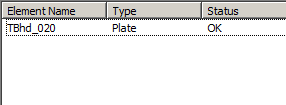
- The Element Name column displays a list of the selected object.
- The Type column displays the type of the selected object.
- The Status column displays if the selected object is compatible to be
moved or not.
If the status is:
- OK: the
selected objects can be
moved.
- Same: the
selected object is same and
the inputs are not modified.
- Out of Bound:
the selected object is using
a specification for which no
reference plane is
available. It indicates that
selected input is incorrect
and needs to be changed.
-
GSD Objects Found:
The selected object is using
wireframe object as input.
If the Automatic Copy
and Reroute of GSD Objects
check box is cleared, you
need to manually reroute the
wireframe object.
|
|
|
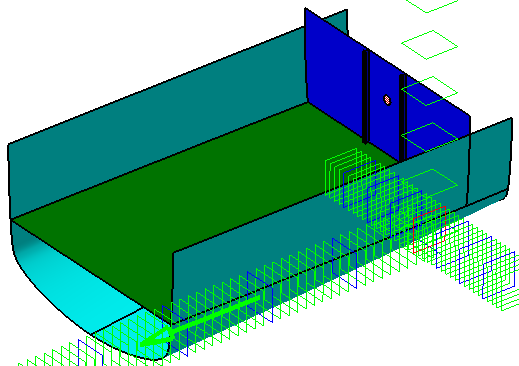
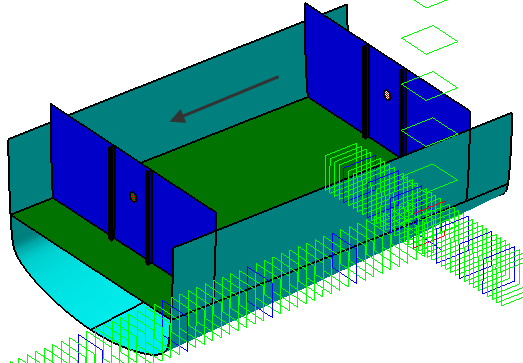
Here we selected a transverse bulkhead with stiffeners and
an opening.
|
-
Click Apply to preview the translated
element.
-
Optional: Select the
Automatic Copy and Reroute of GSD Objects check box to
automatically copy and reroute all the structure objects that have
wireframe objects as input.
By default, this check box is selected. If the check box is not selected, you need to
manually reroute the wireframe objects.
-
Optional: Select the Remove Useless
Object check box to delete the objects automatically which are in
update error after translation or symmetry.
By default, this check box is cleared.
-
Optional: Select the Duplicate
check box if you want to copy the structure object while translating
them.
By default, this check box is selected.
-
Click OK.
The element is translated and can be identified in the tree.
|
|
|
Create a Symmetrical Copy
|
|
|
-
Click Advanced Copy
in the
Detailing Tools toolbar.
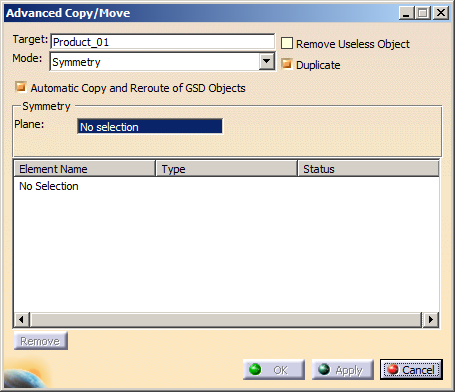
| The
Advanced Copy/Move
dialog box appears. |
 |
-
In the Repository box, the existing
structural functional design system appears.
-
In the Mode list, select Symmetry.
-
In the Symmetry area,
- In the Plane
box, select the select the reference plane along which the
mirror symmetry element be created.
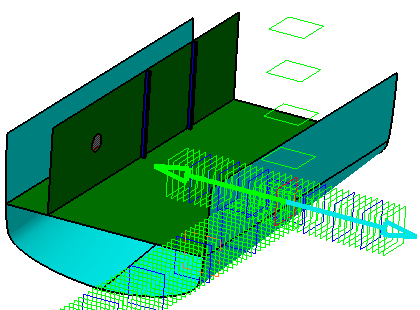
- Select one or more element to be copied.
Here we selected a longitudinal bulkhead having stiffeners
and an opening.
|
-
Click Apply to preview the symmetrical
element.
-
Optional: Select the
Automatic Copy and Reroute of GSD Objects check box to
automatically copy and reroute all the structure objects that have
wireframe objects as input.
By default, this check box is selected. If the check box is not selected, you need to
manually reroute the wireframe objects.
-
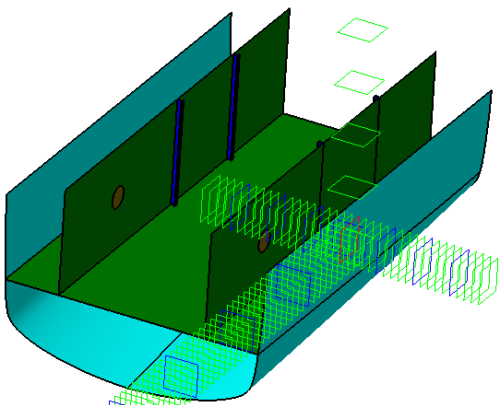
Click OK.
The element is copied and can be identified in the tree.
|
|
|
Perform Reroute Analysis
|
|
|
-
Click Advanced Copy
.
| The
Advanced Copy/Move
dialog box appears. |
-
Perform step 2 to 4 as mentioned in the
above task.
-
To analyze the rerouting of the elements, right-click
and select Reroute Analysis.
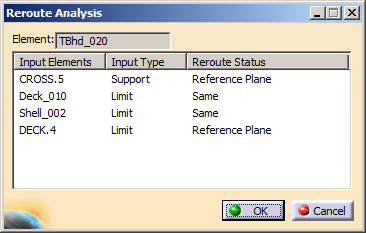
The Reroute Analysis dialog box appears.
The dialog box lists the following columns:
- Input Elements: Displays the input support and limits of
the selected element.
- Input Type: Displays the type of the each input element.
- Reroute Status: Displays the computed status where each
input will move.
The different status are:
- In Selection: states that the input element
is selected and will be translated.
- Same: states that the inputs will not
change.
- Reference Plane: states that input
element will be moved to the reference plane.
- GSD Object: states that
the input element is a wireframe object. To
manually reroute this object, right-click the
GSD Object row and select Copy
GSD Element.
|
|
-
Click each row and select a reference plane or a
structural object in the 3D area to change the input element.
-
Click OK in the Reroute Analysis
dialog box.
-
Click Apply to preview the translated
element.
-
Click OK.
|
|
|
|
|
|
The wireframe elements, that are used as support or
limit for structural objects, after advanced copy operation are similar
to any translated or symmetrical wireframe elements. If you have
selected the Keep link with selected object check box, the
objects are imported with link. The symmetrically copied or
translated wireframe elements are associative to the original element. If this check box is clear, they
are imported without link. |
|
|
|
|
 |