|
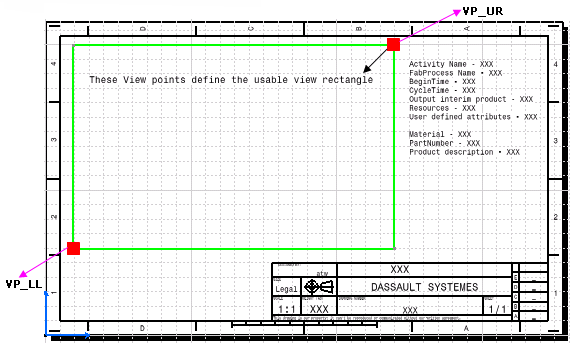
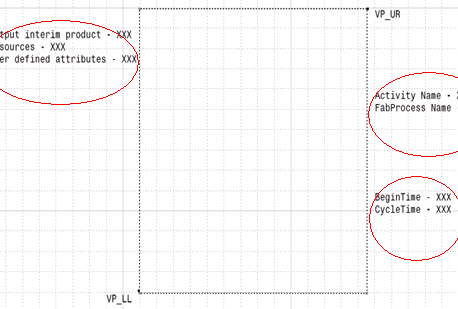
You can create multiple text templates for the drawing workshop documents. You can use multiple text templates within all drawing templates that are used for the extraction of various fabrication sketches such as plate, profile, and resource fabrication sketches. In addition, you can also have the flexibility to retrieve the attribute values with or without their names. Multiple text templates can have an effect upon the positioning and centering of the drawing in the drawing sheet; to control this, define the usable view rectangle by placing two points namely, VP_LL and VP_UR at the lower left and upper right corners respectively. VP_LL stands for View Point at the Lower Left; VP_UR stands for View Point at Upper Right.
|
 |
Each text template feature needs to be named Keep_Name so as to extract the attribute values along with their names or else only attribute values are extracted in the workshop document. To do this, go to the properties of each text template using contextual menu, and change the name in the Feature Name editor under the Feature properties tab page of Properties dialog box. |
 |
|
|
|
|