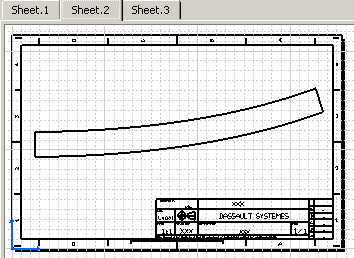
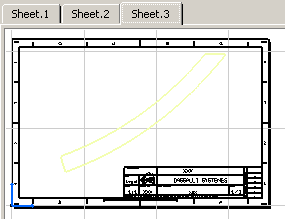
You will do this for a shape in the SHELL.CATProduct.
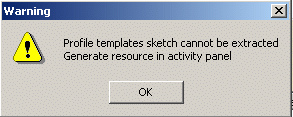
Important: You must have already generated Templates in the activity (see Detailing Profile Bending Activities). Otherwise, you will not be able to extract workshop documents and a warning message will be issued.

-
Click Workshop Documents Extraction
 .
. -
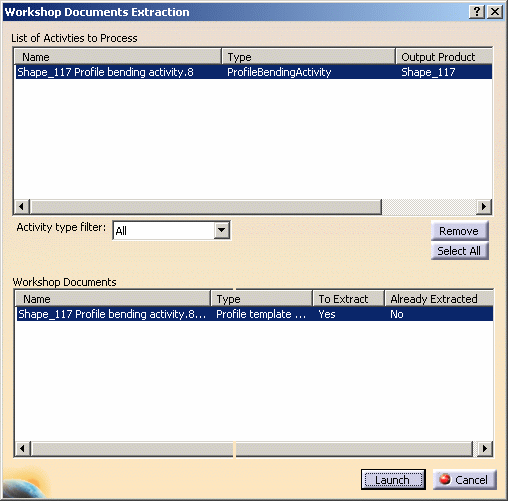
In the PPR tree, select the profile bending activity for the shape for which you want to generate a template sketch.
Selected activity is listed in the top half of the dialog box. -
Click the activity to display associated workshop document in bottom half.
-
Click the To Extract column to indicate whether or not you want to extract the associated document:
Clicking this column switches the value from Yes to No and vice-versa.
Set the To Extract column to Yes.
-
Click Launch when done.
Requested workshop document is generated and saved in the location identified in the project resource management (PRM) file.
An information box appears summarizing the process and indicating how successful or not it has been. -
Click No to exit if the extraction was successful and Yes to see traces if needed.
-
Open the generated template sketch for the shape.
The workshop document contains three sheets: - The first sheet shows a front view of the curved shape.
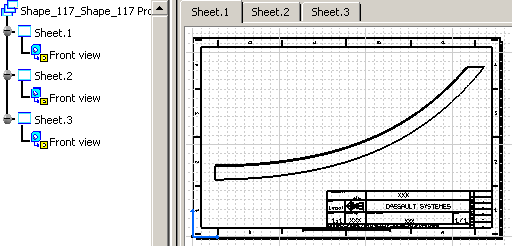
- Sheets 2 and 3 each show a template sketch. In our example, two templates were created for this shape when detailing the profile bending activity.