
The burnside up position defines which side of the plate or shape will be up when it is cut and marked and is automatically assigned when you create operations provided that an output product is specified. It is listed as an item of the Initial Marking and Cutting operation. Each plate or shape has its burnside up position.
Note: You can also edit consumed items using the IMC Operation dialog box.

 for Deck01.1.
-
Select Deck01.1 in the ProductList of the PPR tree.
The PlateIMCOperation dialog box for Deck01.1 opens and shows the burnside up item assigned to Deck01.
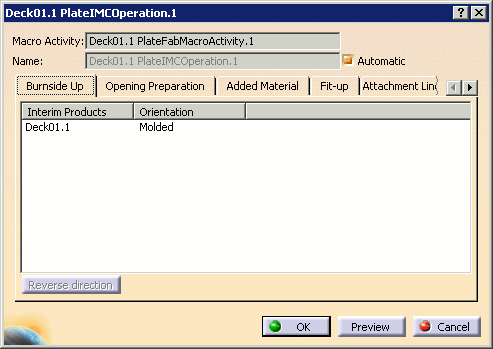
Any other consumed items you have defined in the joining operation for this plate are listed in appropriate tabs of this dialog box.
In the geometry area, an arrow shows the burnside up direction. 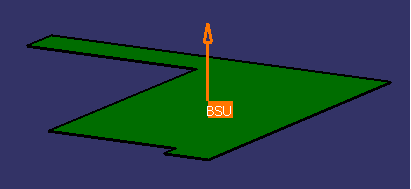
-
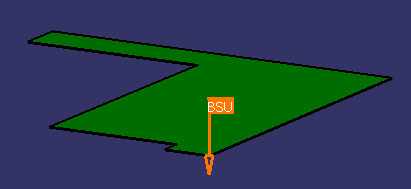
Select Deck01.1 in the dialog box and click the Reverse Direction option in the dialog box to invert the direction.
-
Click the Preview button. The IPM Preview dialog box is displayed and the geometry is updated in the 3D window.
Note that the Burnside Up is defined as specified:
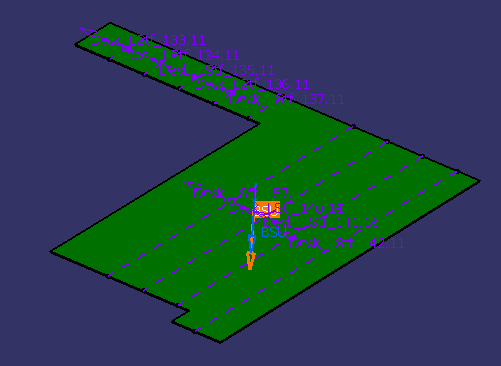
Click Close to close the preview.
-
Click OK when done.
 command.