
A catalog of pin jig resources is referenced in PRM (see Managing Project Resources). It contains:
- a reference axis system - all measures and computations are made from that axis system
- a support base plane
- a set of planes in X direction
- a set of planes in Y direction.
The intersection points between base plane, X planes and Y planes give the pin locations.

 for the Shell_STB_1.CATProduct.
-
Select the Joining Operation command
 .
. -
Select Shell_STB_1 in the ProductList of the PPR tree.
The Joining Operation dialog box appears. -
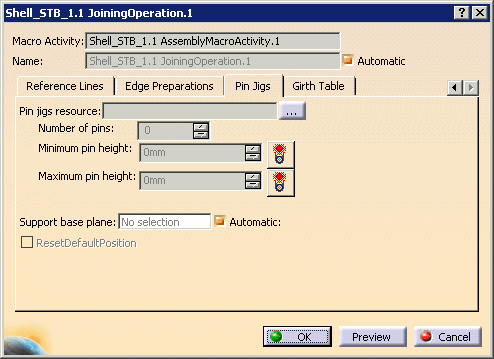
Select the Pin Jigs tab.
-
Select the Pin Jigs resource [...] button to open the Catalog Browser.
-
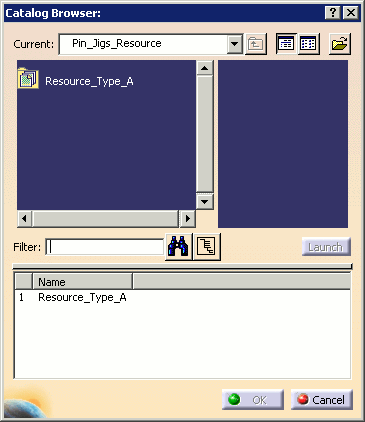
Navigate to the Pin Jig Resource catalog (this should be displayed by default).
-
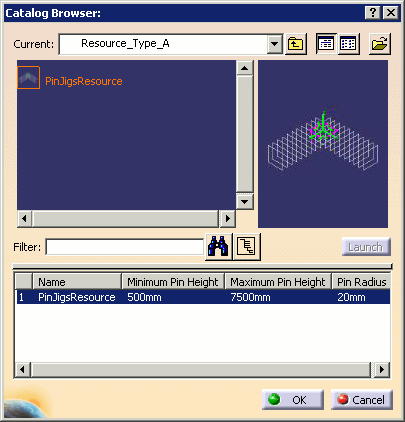
Select the desired pin-jig resource then click OK.
-
The Pin Jigs resource is generated in the Resource list and is assigned to the Joining operation. The Pin Jigs tab is updated with your selection: number of pins, minimum and maximum pin heights.
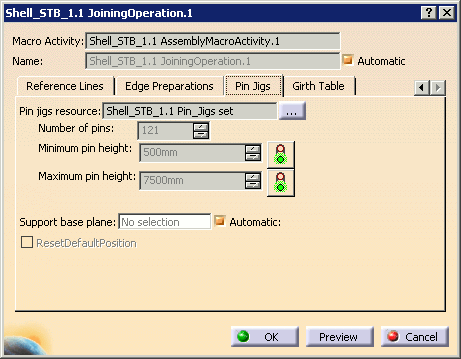
The following elements are automatically computed: - Definition of base plane (as least squares mean plane of the panel)
- Positioning panel along X and Y axis for the panel cuboid to be
contained within the pin jig cuboid.
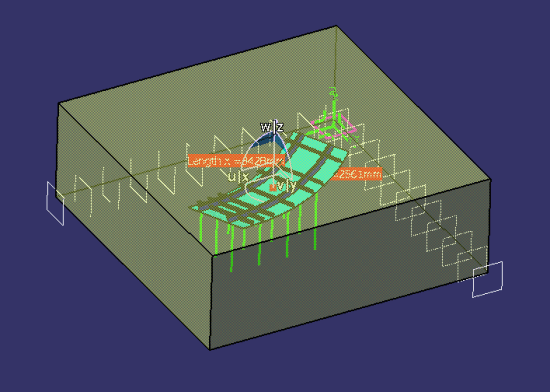
- Positioning of panel along Z axis to match minimum and maximum pin heights.
Initially the assignment bulbs next to the Maximum pin height and Minimum pin height may be displayed in red
 instead of green
 . This
is to indicate that the geometry of the selected product (in this case, Shell_STB_1)
is not fully within
the displayed bounding box. An example is shown below.
. This
is to indicate that the geometry of the selected product (in this case, Shell_STB_1)
is not fully within
the displayed bounding box. An example is shown below.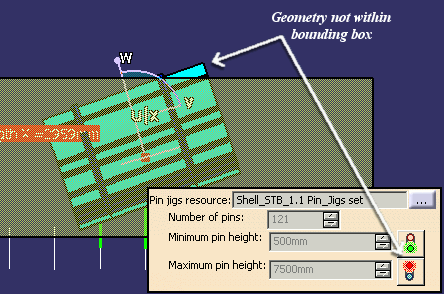
When this occurs, adjust the orientation of the product to ensure that the whole product is in the bounding box and both of these indicators become green.
Note: Here is the Pin Jig set seen in a different view. 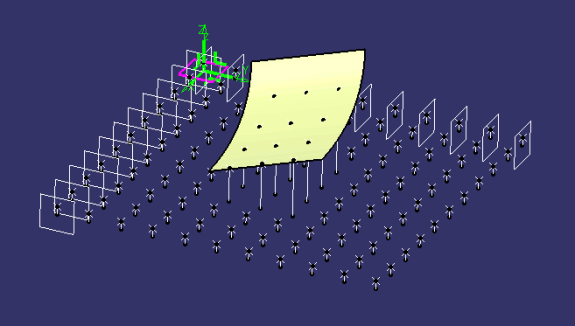
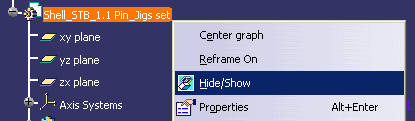
This view can be seen by highlighting Shell_STB_1.1 Pin_Jigs set in the Resources List of the PPR tree and selecting the Hide/Show contextual command.
-
You can change the support base plane by clearing the Automatic check box and selecting a new plane.
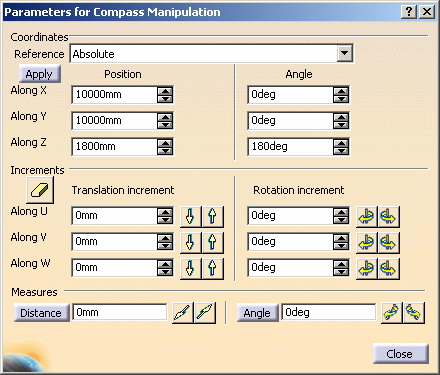
From that point, using Parameters for Compass Manipulation dialog box, you can adjust pin jig location or panel position along any direction and/or around any axis.
-
Click OK when editing of the joining operation is complete, or click Cancel to cancel any changes that were made and dismiss the dialog box.
You can extract generated resource data in workshop documents as described in:
Extracting Pin Jig Resource Sketches and Extracting Pin Jig Data in XML File.
