
The visibility states described below are only valid if the option Support Engineering Requirements in Tools > Options > Digital Process for Manufacturing > Verification is turned on. If turned off, FTAs are not supported at all.
| Option Selected in Products Shown/Hidden List | Hide Unassigned Parts Check Box Selected | Hide Unassigned Parts Check Box Cleared |
| Hide Products | No products are shown. No FTAs are shown | All unassigned products are shown. All assigned products are hidden. All assigned FTAs of assigned. products are hidden. All assigned FTAs of unassigned products are hidden. All unassigned FTAs of assigned products are shown. All unassigned FTAs of unassigned products are shown. |
| Show Activity’s Products | Unassigned products are hidden. Assigned products are only shown at and after assignment. Unassigned FTAs are hidden. Assigned FTAs are only shown at the activities to which they are assigned irrespective of their parents' assignment. | Unassigned products are always shown. Assigned products are only shown at and after assignment. Unassigned FTAs are shown. Assigned FTAs are only shown at the activities they are assigned to irrespective of their parents' assignment. |
| Show All Products | All unassigned products are hidden. All assigned products are shown. All assigned FTAs of assigned products are shown. All assigned FTAs of unassigned products are hidden. All unassigned FTAs of assigned products are hidden. All unassigned FTAs of unassigned products are hidden. | All unassigned products are shown. All assigned products are shown All assigned FTAs of assigned products are shown. All assigned FTAs of unassigned products are shown. All unassigned FTAs of assigned products are shown. All unassigned FTAs of unassigned products are shown. |
| Show Current Activity's Products | All products not assigned to the current activity are hidden; only the products assigned to the activity are shown. All assigned FTAs of the products assigned to the activity are shown. All assigned FTAs of unassigned products or products not assigned to this activity are hidden. All unassigned FTAs of assigned products are hidden. All unassigned FTAs of unassigned products are hidden. | All unassigned products are hidden. All products assign to this activity are shown All assigned FTAs of assigned products are shown. AAll unassigned FTAs of assigned products are shown. |
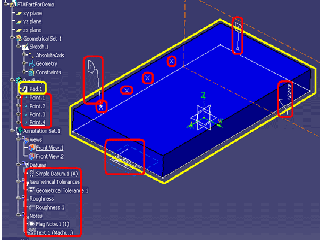
Visibility Rules for FTAs and Geometric Elements (circled in red, above)
Geometric elements and FTAs are only shown at the current activity if they are assigned to the current activity with the relation Process implements requirement (i.e., the relation is not cumulative).
Other FTAs and geometric elements are hidden because they are not assigned.
Visibility Rule for Geometries within ARM Parts (circled in yellow, above)
Usually geometries, such as a pad, are only shown if their ARM part is assigned with a relation such as Process processes product to the current activity or a previous activity. This caveat does not apply to FTAs or geometric elements.