

- Move joints activity (performs joint jogging on devices with forward kinematics defined (inverse kinematics are not required).
- Move home activity (moves the device into one of its home positions, as defined in the .CATProduct data used to create the device data)
- Move Cartesian activity (moves only for kinematics devices supporting inverse and forward kinematics -- e.g., robots)
Virtually all of the options in the dialog boxes used to edit device move activities are the same as those used to create them. Therefore, these options are described in a single section at the end of this procedure. See Device move activity options.

-
On the PPR tree, select the device move activity you wish to change by:
- double-clicking (with the left mouse button) on the activity OR
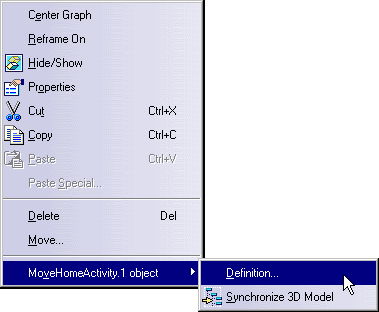
- right-clicking on the activity and then selecting Move Activity Object > Definition (an example of a context menu appears below)
- selecting the activity with the left mouse button and then selecting Edit > Move Activity object > Definition from the menu bar.
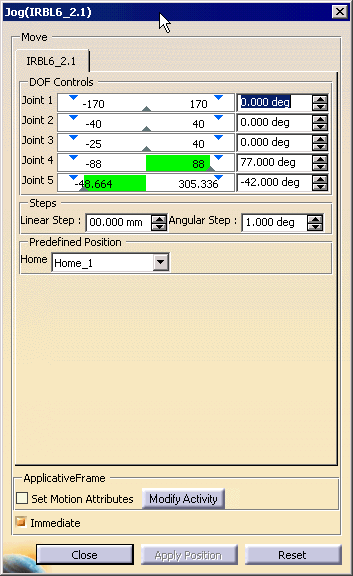
The dialog box that appears depends on the original device move activity. - The Move Joint Activity and Move Home Activity definitions are contained in the joint jog dialog box.
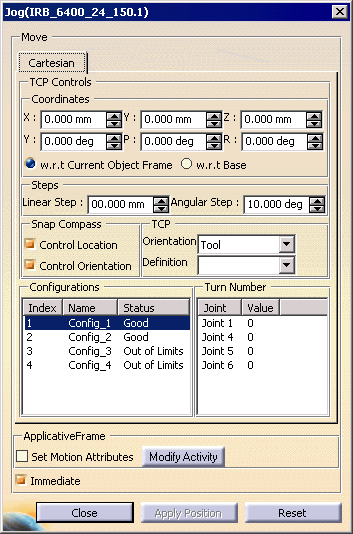
- The Move Cartesian Activity definition is contained in the Cartesian dialog box.
-
Use the Jog dialog box to modify device move activity:
Move (Jog) Joints Activity
-
Manipulate the device using one of the methods described below:
- On the dialog box, manipulate the lever on the individual degrees of freedom (DOF) scale.
- Select a home position from the Home Position list.
- On the dialog box, alter the numerical DOF values.
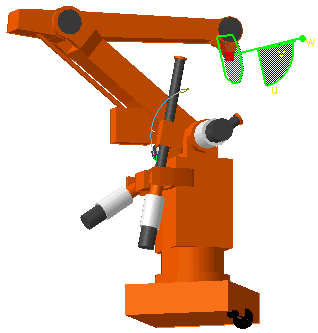
- On the 3D inventory window, you can move each joint using the manipulator arrow associated with the device (see curved arrow below).
-
Once the movement (and, optionally, any motion attributes) is modified as desired, click the Modify Activity button, and then click the Close button.

The name and type of the activity remains MoveJointActivity, even if the modification you perform is to move the device to its home position corresponding to the selected home position. The activity will not be changed to a MoveHomeActivity. When editing a MoveJointActivity, the compass and the Cartesian tab page are not displayed, even if the device supports inverse kinematics.
Move Home Activity
-
To modify this activity, you can select another home position from the Home list.
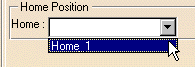
If you need to alter the device's movement in a way other than selecting a different, predefined home position, you have to delete the existing MoveHomeActivity and create the desired one instead. -
Once the movement (and, optionally, any motion attributes) is modified as desired, press the Modify Activity button, and then click the Close button.
Move Cartesian Activity
|
|
Only the Cartesian tab are displayed when editing a MoveCartesianActivity. |
-
Use one of the methods below to modify the movement.
- On the dialog box, you can change the values listed on the
Tool Center Point (TCP) controls.
You can choose whether the coordinate values are set relative to the base or to the world (the default is relative to the world).
- On the dialog box, you can select a new configuration.
- On the 3D inventory window, you can manipulate the compass
attached to the device.
Under the Snap Compass heading:- If Control Location is checked, the TCP location matches the compass location;
- If Control Orientation is checked, the TCP orientation matches the compass orientation
- On the dialog box, you can change the values listed on the
Tool Center Point (TCP) controls.
-
Once the movement (and, optionally, any motion attributes) is changed as desired, press the Modify Activity button; then press the Close button.
Device Move Activity Dialog Box Options
- If the Immediate check box is selected, any alterations to the dialog box will immediately appear on the geometry.
- If the Immediate check box is not selected, you may select the Apply Position button to make the effects of the movements appear on the geometry.
