|
This procedure describes how to
copy, cut, and paste a move trajectory. This task involves
copying a move activity within or between process documents,
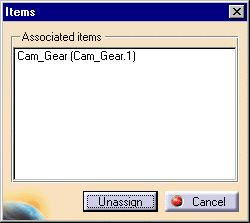
unassigning the item associated with move activity, and then assigning a
different item to the pasted move trajectory. In this way, a
trajectory originally created using one part of an assembly can be
assigned to a different part.
This procedure describes how to copy move trajectories using move activities created both in release 9 and prior to release 9. The procedure has four sections: |
|||||
 |
This procedure assumes that you have at least
one move activity already created.
To copy a move activity created prior to V5 release 9, double click on the activity to select it. The Edit Track dialog box will appear; click OK. This "converts" the pre-release 9 move activity to a release 9 move activity. |
|||||
 |
Copying and Pasting within a Process File |
|||||
|
||||||
 |
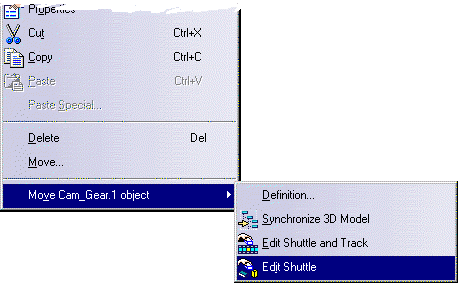
In lieu of using the Unassign/Assign commands, you can select the move activity, use the RMB to get the context menu, and select the Edit Shuttle option. You can then deselect the current item or items in the shuttle, and select the desired items. | |||||
Cutting and Pasting within a Process File |
||||||
Cutting and pasting within a
process file works just like copying and pasting, with the following
exceptions:
|
||||||
Copying and Pasting between Process Files |
||||||
| |
When you paste a move activity between process files, you can opt to bring the product data with the move activity (in which case, you are copying both the move trajectory and the item(s) assigned to the move activity), or just copy the trajectory of the move activity. | |||||
| |
To copy the move trajectory, you can use:
|
|||||
|
|
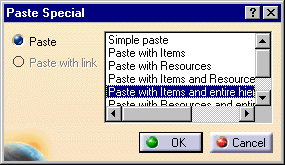
To copy the trajectory and the product data, use any method of copying other than drag and drop. In the new process, use the menu bar to select Edit > Paste Special. On the Paste Special dialog box, select Paste with Items and entire hierarchy. | |||||
 |
||||||
|
|
In all cases, you are selecting the process node of the second process as the location where you paste the move activity. The move activity will always get pasted to the end of the process. | |||||
|
|
If you have not used the special
paste, you will have an empty shuttle for the move (i.e., no items
will be associated with the activity on the process node). You can
associate a part(s) with the move activity in one of three ways:
|
|||||
 |
||||||
|
|
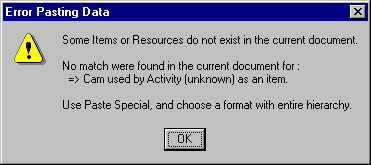
If you use a method of copying
and simply pasting between processes other than drag and drop, you may
get the following message:
This message reminds you that you are not importing the product data when you simply paste the move activity, which is the expected behavior of the simple paste command; it is not notifying you of a true error. |
|||||
Cutting and Pasting between Process Files |
||||||
| Cutting and pasting between
process files works like copying and pasting, with the following
exceptions:
Use the Ctrl+X key sequence, the Cut option in the context menu, or the Edit > Cut menu bar option to cut the activity. You cannot use drag and drop to cut the original move activity from the first process. |
||||||
 .
.
 .
.