

Depending on how you have your simulation options set, remember that
you may not see hyperlinks during a simulation or process verification. When
you add a hyperlink activity to a simulation and the
simulation
options are set to Pause, the simulation automatically
pauses, so that users can access the information in the hyperlink.
To restart the simulation, users select a command from the Process
Simulation  sub-toolbar (e.g., Play Forwards). Similarly, when
Process Verification
sub-toolbar (e.g., Play Forwards). Similarly, when
Process Verification  or Auto Synchronization
  are in animation mode, the simulation stops so that viewers can read
hyperlinked data.
are in animation mode, the simulation stops so that viewers can read
hyperlinked data.
If the simulation options are set to Continue, you can add a pause activity to allow users to access the hyperlink data.
- See Tools > Options > DELMIA Infrastructure > Simulation for an explanation of how to control the default settings regarding hyperlink activities.

Create a Hyperlink Activity
-
On the PPR tree, select the activity after which you wish to create the hyperlink activity.
-
Click Hyperlink Activity
 from the Simulation Activity Creation toolbar.
 The Edit Hyperlink Operation dialog box appears. 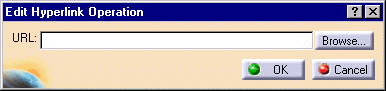
-
Either enter the path or use the Browse button to select the link you want.
-
Click OK.
The hyperlink activity appears on the PPR tree. Its label contains the hyperlink path.
Edit a Hyperlink Activity
-
On the PPR tree, double-click on the hyperlink activity you wish to edit.
The Edit Hyperlink Operation dialog box appears. The current hyperlink activity's URL appears in the dialog box. 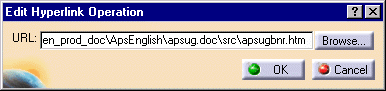
-
Either enter the path or use the Browse button to select the link you want.
-
Click OK.
On the PPR tree, the hyperlink activity's label changes to contain the new hyperlink path.
