
This implies the understanding of the type of features you can paste using this command as well as the various formats available for pasting these features.

-
Select PartBody in the specification tree.
-
Right-click the PartBody in the specification tree and select Copy or use Edit > Copy from the menu bar.
-
Select Edit > Paste Special....
The Paste Special dialog box appears.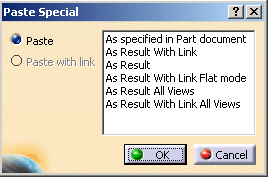
- Paste As Result: copies the object without its design specifications and without any link with the original object and the copied body has the current view’s result (folded/unfolded) of original object.
- Paste As Result with Link : copies the object
without its design specifications and is linked to the
original object. Therefore, copied object is always in
synchronization with only the folded view result of the
original object.

For the parts created in or before CATIA Version 5 V5-6 Release 2019, pasted body is synchronized with the current view (folded/unfolded). - Paste As Result with Link Flat Mode: pastes a flattened object. The Copied object is synchronized with the unfolded view of the original object.
- Paste As Result All Views: the Sheetmetal object is copied as a solid with both folded and unfolded views. The option is only applicable to solid Sheetmetal features.
- Paste As Result with Link All Views: the Sheetmetal object is copied as a solid with both folded and unfolded views and with a link to the original object. This means that whenever the original object is modified, the solid is updated accordingly.
-
Select As Result All Views and click OK.
A copy of your Sheetmetal part is generated.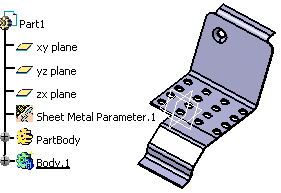
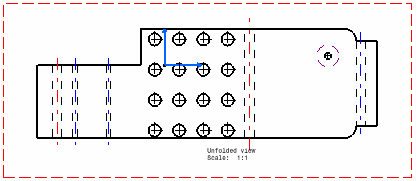
- You can generate a drawing of the copied Sheetmetal
part:
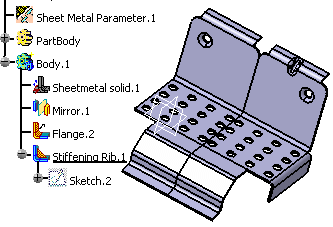
- You can work directly on the copy of the Sheetmetal part
generated:
- You can generate a drawing of the copied Sheetmetal
part:

- The Paste Special... command lets you add Sheetmetal features on a resulting part.
- You can generate drawing views from the resulting part with the technical data of the original.
- You can use the part for machining with technological data.

- Sheetmetal solid thickness and Sheetmetal parameters thickness have to be equal. If not, an error message appears.
- Unfolded curves are not copied when using the following options of
the Paste Special... command:
- As Result With Link
- As Result With Link Flat mode
- As Result All Views
- As Result With Link All Views
