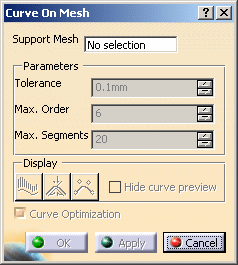
- The dialog box of the command
- How to create split points and internal points
- How to constrain the curve extremities
- How to close the curve
- How to create a dominant curve section
- How to edit the curve as you create it
- How holes in the support mesh are managed.
Dialog Box
Note that contextual menus are available throughout the creation of
the curve.
Their items vary according to the action you are performing.
Support Mesh
Displays the name of the mesh on which the curve is created.
Multi-cells meshes are not allowed. Multi-selection is not allowed.
Parameters
The parameters become active once the mesh has been selected.
Tolerance
It is the tolerance used to smoothed the scan formed by the points picked
and the intermediate points, i.e. the maximum allowed distance between the
resulting curve and the points of the scan.
Max. Order
Maximum order of the curves created, i.e. the number of control points of
those curves.
Max. Segments
Maximum number of spans between two cutting points.

the Curve on Mesh command tries to create curves with the defined tolerance,
with the least possible number of segments of the least possible order. I.e.:
- The command tries to create a curve with one segment of order 2.
- If the tolerance is not reached, the order of the segment is increased up the Max. Order value.
- If the tolerance is not yet reached, the number of segments is
increased, the segments having the least possible order.
This order is increased to meet the tolerance, then the number of segments,
and so on until both the maximum order and the maximum number of segments are reached.
When the mesh support is a large one, you can clear this check box
to improve performances during the creation of the curve.
In this case, however, the command will not optimize the number of segments
nor the order of the curve, meaning the maximum allowed values you have
entered can be reached.
You can check the segmentation and the order of the curves with the
 icon.
icon.
Display
Hide curve preview
By default, you are in running point mode,
i.e. the curve is updated in real time and the projection of the cursor on
the mesh indicates the next pick.
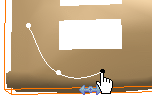
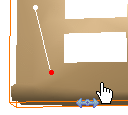
Select the Hide curve preview check box to exit the running
point mode.
The last picked end point is colored in red, and there is no
indication of the next pick.
 analyzes the curvature
of the resulting curves.
analyzes the curvature
of the resulting curves.
 displays the maximum
deviation.
displays the maximum
deviation.
displays the order and the
number of segments.
Creating Split Points and Internal Points
Types of Points
Split points are the points
you pick to create the curve.
The two curve sections connected at a split point are constrained.
They are displayed in white.
Intermediate points
are construction points, computed automatically between two split points.
They lie on the mesh.
They form a scan with the split points.
This scan is
smoothed to create the curve.
Internal points are not
split points and have the same behavior as intermediate points,
i.e. they
are intermediate points that are not computed by the command but picked by
you.
They are displayed in dark grey.
Types of Constraints
The symbol under the cursor indicates the current type of constraint.
Picking a point on the mesh will create a new point with that constraint.
 indicates a
point continuity (G0 continuity),
indicates a
point continuity (G0 continuity),
 indicates a
tangent continuity (G1 continuity),
indicates a
tangent continuity (G1 continuity),
 indicates an internal point.
Use the contextual menu to select a type of constraint
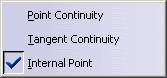
or press Shift to go from one symbol to another.
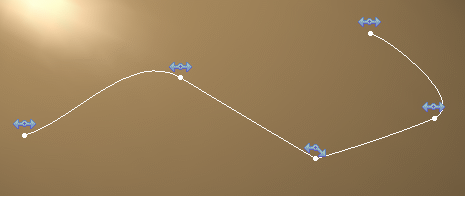
Press Ctrl+Shift to visualize all the constraints
of the current curve.
Constraining the Curve
You can impose constraints on the extremities of the curve by picking:
- An existing 3D point
- A curve
- A plane
- or the edge of a surface.
Examples:
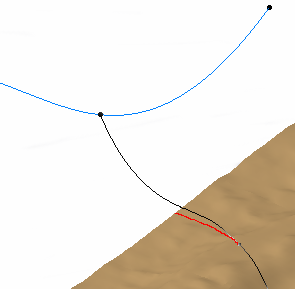
Continuity constraint on a curve:
Tangency constraint on a curve:
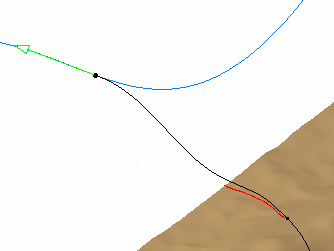
Note that in the examples above, the red section of the curve does not lie
on the mesh.
In the case of extremity G0 constraints on an external entity, you can
edit the tangent direction using the contextual menu:
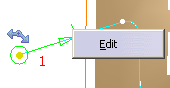
then the dialog box:
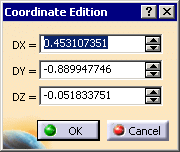
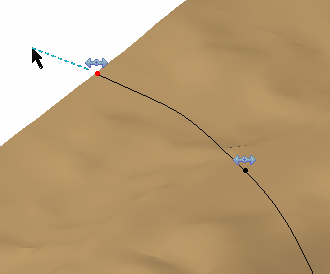
You can also end a curve exactly on the free edge of the mesh by picking
an empty space near that free edge.
A new control point is then created
automatically on the free edge.
In that case, the curve lies totally on the
mesh. This control point can be edited like any control point.
Example:
The black arrow shows the empty space picked.
The red dot is the control point created on the free edge.
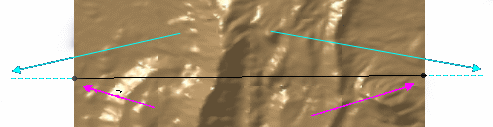
You can use this functionality to create a curve that crosses a mesh
completely:
The cyan arrows show where to pick, the pink arrows show where the control
points are created.
Closing the Curve
Select the contextual menu item Close Curve to close a curve:
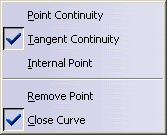
Undo a Close Curve action by deselecting the item.
Creating a Dominant Curve Section
A dominant curve section is a section of the curve between two split points which enforces a tangent continuity at those points.
Pick a point and drag the cursor. The symbol turns to
 ,
that indicates you are in dominant creation mode.
,
that indicates you are in dominant creation mode.
Release the cursor and pick the next split point to create a dominant curve
section (You exit the dominant creation mode automatically as you pick the
split point).
Edition
You can edit the curve while you are creating it (move a
point, remove a point, modify continuity constraints...).
- The scan formed by the split points and the intermediate points is displayed in cyan.
- When you pass the cursor close to a split point, it turns red, the
constraint symbol is displayed and you can drag the point to another
location.
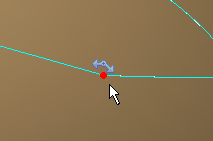
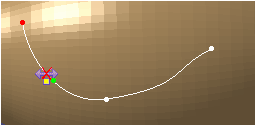
You can also pick the constraint symbol to go from one type to another. - When you move the cursor along the scan, a green dot is displayed
corresponding to intermediate points.
Pick an intermediate point to insert a split point or an internal point, depending of the current type of constraint.
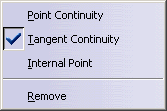
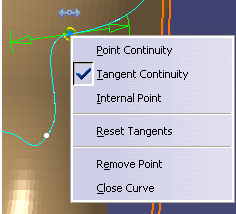
- use the contextual menu to change the type of constraint or remove a
point.
- When you move the cursor over a section of the curve, you can see if
it is a dominant curve section
or not
 .
.
Use the contextual menu to go from one status to the other.
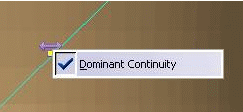
- You can see the current tangents at the control points and you
can edit those tangents.
E.g. use the arc of circle manipulator to rotate the arrow representing the tangent around the control point, in the view plane.
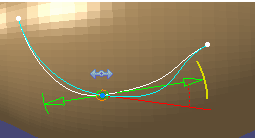
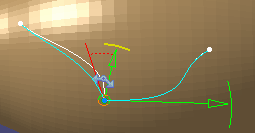
Drag the arrow to modify the tangent vector.
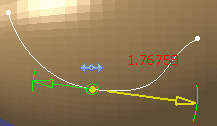
In the case of a point continuity, you can modify both tangents separately.
Use the contextual menu of the tangent to revert to its initial values.
-
While
you are editing the curve (e.g. moving the cursor before a pick) the
tangents vary with the position of the cursor.
Once you have edited and thus fixed a tangent, it remains the same when you move the cursor.
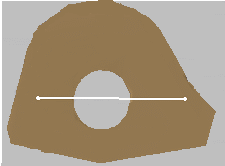
Management of Holes
When there are holes in the support mesh, the curve is interpolated on
the hole area as shown below.