


-
Before computing mean dimensions, apply the Edit Parameters contextual menu item to Pad.1 to display parameters, then take a look at the part you have just opened. The part includes three toleranced parameters as shown below.
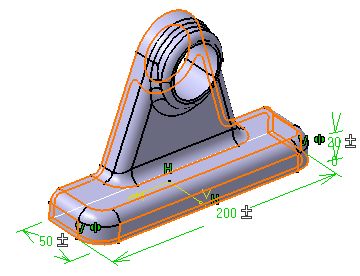
Remember that to access tolerance values, you need to double-click the parameter of interest, then use the Tolerance > Edit... contextual menu item.
-
Click Mean Dimensions
 in the Tools toolbar.
-
Click Update All
 in the Tools toolbar
to integrate the modifications to the part.
in the Tools toolbar
to integrate the modifications to the part.
Note: The update options set for your session (for more see General) do not affect the Mean Dimensions command behavior: you always have to explicitly update your part.
Mean dimensions are displayed around the part.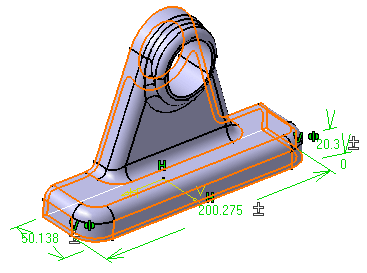

-
If you want to go back to the previous state, click the Mean Dimensions icon
again. The part will be resized to nominal dimensions.
Original tolerance values, when re-computed, are always expressed in
numerical values. -
To ensure that you can run the command properly, do not use features having the same name.
-
If parameters are driven by formulas, the application deactivates these formulas to compute mean dimensions.
