|
|
When importing geometry from one document to another, the application
lets you choose between reporting original colors or assigning new
colors.
Topics discussed are:
|
|
|
Transferring Original Colors

|
|
|
To transfer original colors from features 'sub-elements to
imported features 'sub-elements, you must first select Inherit
colors from the reference featurein the Options dialog
box (accessed by using Tools > Options > Infrastructure > Part
Infrastructure > Part Document).
The colors transferred are the
colors that you can get on sub-elements, no matter how original colors
are assigned to a set, a feature or from the Graphic Properties
toolbar.
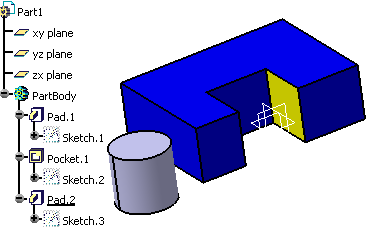
In the example below, the part body
is made up of a blue colored pad, a pocket and a non-colored pad. A face
of the pocket has been colored yellow using the Graphic Properties
toolbar capabilities.
After copying this part body and
pasting it in a new part file using As Result With Link,
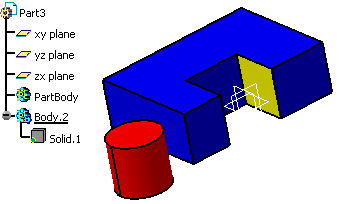
the colors are kept on the imported geometry:
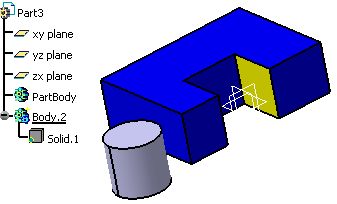
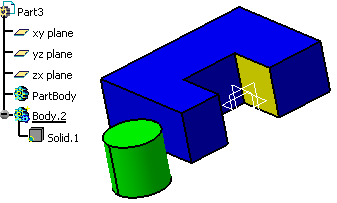
With Inherit colors from the
reference feature cleared, you would get default colors on
imported geometry:
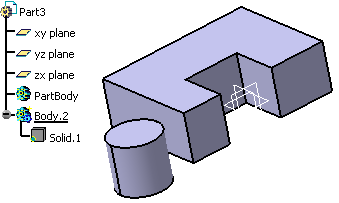 |
|
|
 |
The Color On Import Management setting only
assigns color, opacity and effects from the original copied feature's
sub-elements to the corresponding sub-elements in the pasted result,
obtained using Copy Paste As Result or
Copy Paste As Result With Link. |
|
|
Colors of Parts Created Using Pre-V5R18 Applications
When opening a pre-V5R18 part in your session, the
current selected status of Inherit colors from the reference
feature (selected or not) available in the Options
dialog box applies to the part.
If later you paste (using As Result With Link)
geometry onto this opened part, Inherit colors from the reference
feature controls the way colors are assigned to imported geometry.
The selected status of Inherit colors from the
reference feature is saved along with the geometry when saving the
document. |
|
Modifying the Way Colors are Transferred
You can modify the way colors are transferred to the part by
accessing the Properties dialog box, the Color
Management tab and selecting or clearing Imported features in
current part inherit color from reference feature.
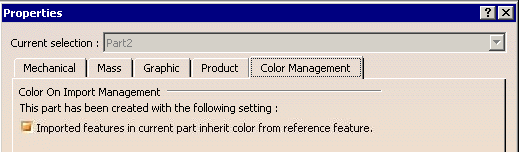
Selecting or clearing Imported features in
current part inherit color from reference feature does not affect the status of
Inherit colors from the reference feature (selected or not)
available in the Options dialog box . It does not affect the
color already assigned to the imported geometry either. |
| |
Assigning a New Color
If colors issued from an import operation do not suit your needs, you
can assign the color of your choice directly to an imported sub-element.
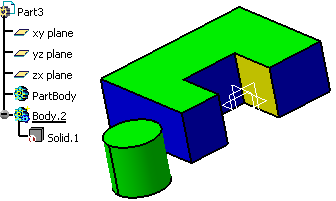
In the example below, the user has applied the red color (using the
Graphic Properties toolbar) to the top face of the pad:
Initial state:
Result:
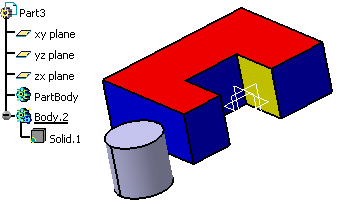
Removing this color by using the Automatic option from the
Graphic Properties toolbar gives you back the color obtained
by doing the copy/paste As Result With Link operation.
|
| |
Rules
The following rules determine which color takes priority:
|
| |
|
|