 |
Licensing
|
|
|
This command is only available when you have opened a DELMIA Process
Engineer (DPE) project within
V5; consequently, a DPE license is required to use this command. |
 |
This procedure describes how to insert manufacturing assemblies
into a process. Manufacturing assemblies created within DPM
Assembly Process Planner are shown on an assembly specification tree
(AST); this tree is added to a process using Insert AST
 .
In addition to being able to insert a single AST, you can also select
multiple ASTs for loading. In addition, you can
import all or part
of one or more ASTs from the Manufacturing Hub. .
In addition to being able to insert a single AST, you can also select
multiple ASTs for loading. In addition, you can
import all or part
of one or more ASTs from the Manufacturing Hub.
For more information on creating ASTs, please see DPM Assembly
Process Planner User's Guide: User Tasks: Creating an Initial Process
Structure for Product Structure. The following objects are loaded
when an AST is inserted:
-
The assembly specification graph (ASG) process associated
with
the AST manufacturing assemblies
-
The inputs and outputs of the ASG process
-
All
children and parents of this activity, with inputs and outputs
-
All resources, with their states and positions, that are
linked through the relation process_uses_resource
-
Fasteners associated with the ASG process and
its children
-
All links among the loaded processes
-
If one of the loaded inputs or outputs is an
manufacturing assembly (MA), all parents and children of the
MA are loaded
|
 |
Insert a One or More ASTs
|
|
|
-
Click Insert AST
(on the PPR Tools toolbar).
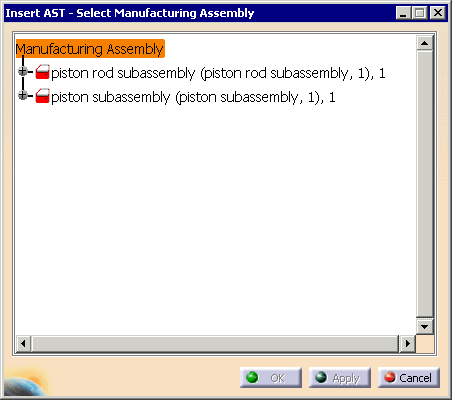
| The Insert AST - Select Manufacturing Assembly dialog box
appears.
All manufacturing assemblies that have been created in the DPM Assembly Process Planner are displayed. |
 |
-
Select the manufacturing assembly and click OK. You can select more than one manufacturing assembly by holding down the
Ctrl key while selecting.

|
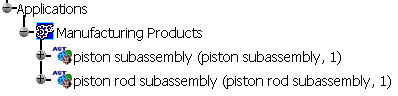
| The manufacturing assembly (or assemblies) is displayed in the PPR tree,
under Applications. |
 |
|
| |
Import Part or All of an AST from the Manufacturing Hub
|
| |
-
On the PPR tree, under the Applications node, select the
AST(s) whose Assembly Specification Graphs (ASGs) you want loaded.
-
Right-click and select Import this AST from Hub.
The ASGs corresponding to the ASTs are loaded from the Manufacturing
Hub. However, the child AST manufacturing assemblies are not
loaded.
-
Select two ASTs that have unloaded child MAs,
right-click. and select Import this AST completely from Hub.
All child MAs and all ASGs are loaded.
|
| |
Limitation
|
| |
For RC (resource-centric) loads: after inserting of an AST, the data
cannot be saved back to the Manufacturing Hub with detailing. |
|

|