 |
Alternatives can be planned for complex process structures
of the PPR tree that can be created in the PPR tree by a simple copy process.
Copy Process and Resource makes it possible for you to copy process structures with linked
resources and to position an existing process structure in another place. The copied objects are independent
objects of the structure and can be used for further planning just as if you had created the structure anew. In
this way the planning of alternatives is supported. You thus have an alternative possibility of creating complex
structures by copying without spending too much time on it. |
|
|
Copy Process and Resource is a function of the PPR
tools toolbar. When editing DPE projects, the processes in the manufacturing hub are saved and can be further
edited there.
When copying, the following options are taken into consideration: |
| |
- Linked resources: these refer to all resources that are linked to a process.
You can select a resource with a behavior as new target to copy a
TSA or an activity. After selecting a TSA or an activity, you can
select a resource that has a behavior or that can have a behavior.
In .CATProcess mode, each resource can have a behavior; in
Manufacturing Hub mode, a resource's ability to have a behavior is
determined by the attribute value of owns behavior. If a
resource can have a behavior, but does not yet have one, the
command creates a behavior and then copies the previous selected
TSA or activity to the new created behavior.
- Parent nodes: these refer to all structure elements for process and resources for which it is possible to
directly create further structure levels in the hierarchy. Therefore further children can be created for a
parent node. These structure elements are set in the used plantype set.
- Copying of process structures: all of the children of the structure are copied as well.
- Copying of linked resource structures: all of the children of the structure can be copied as well.
|
 |
Click Copy Process and Resource
 . .
-
Select the process or resource behavior to be copied
and then select the parent.
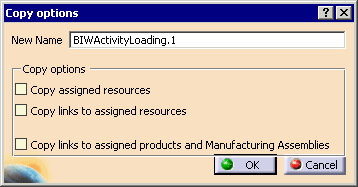
| The Copy Options dialog box appears. |
 |
-
Enter a new name, if desired.
-
Select one of the copy options, if desired and then
click OK.
| You can only select one of the check boxes. |
| If you select a process with an assigned resource, the
Attached Resources dialog box appears. |

|
-
Enter the desired option.
| Resource |
All copied resources are displayed in this column. The column entries can not be edited, but they can be
used for checking, e.g. whether all of the resources have actually been copied. |
| New name |
All of the copied resources are displayed with the copied resources. If you change the name, the new name
is used for the copied resource.
Only for DPE projects: If no new names are specified, new names are created internally for the copied
resources. |
| Parent |
In this column the object parent node is specified for all executed resources of the target parent node.
Resources can be copied only if the target parent node is entered in the respective lines. The
following options are possible:
- Only resources can be specified as target parent nodes. Furthermore, only resources that are not copied
can be specified as the target parent.
- The resources are actually copied only if the target parent node is entered in the line. The individual
resources can be copied only if a target parent node is specified for the parent node of the copied
resource -- in the example the target parent node R3 for resource R1.
- The parent node is displayed for resources that are directly assigned to a parent node if this parent
node is also linked to the target process or is linked to one of its children. In this case you can not
assign any other parent nodes to the resource. The entry can not be changed.
- There are two available options for resources that are not directly assigned to a parent node: a) the
lines are empty and b) the target process of the copy process is linked to resources; the resource that was
linked to the target process as the first resource is entered into the lines.
|
|

|
With these icons you can delete the entry for the parent node. |
|

|
You can assign a new parent node with this button. In order to do this, the three dots on the button must
be black. If the dots are greyed out, there is no resource available for selection as the parent node. |
|
|
| |
Display of the Copied Structure in the PPR tree
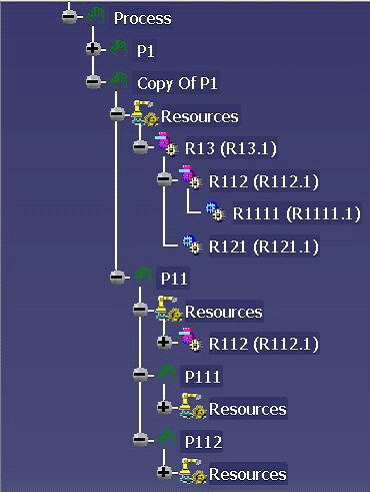
The copied objects are displayed in the process and resource structure. New names are created internally for
the copied resources in DPE projects. For example, R1 to R13.
Display of the copied resources in the process structure - in the example under Copy OF P1. |
| |
 |
| |
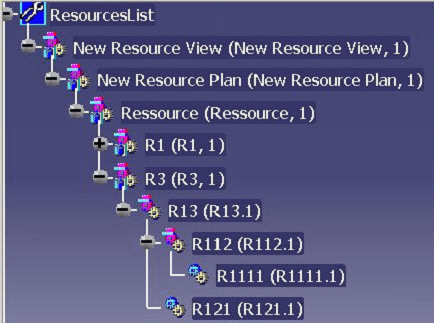
Display of the copied resources in the resource structure
under the new parent node R3 (in the example). |
| |
 |
| |
Limitations
|
| |
Limitation 1
Only linked resources can be copied. Linked products are not copied. |
| |
Limitation 2
The children of the resource structure are copied only if the target parent node is entered for the parent
node of the resource structure. |
| |

|