|
The Part Selection command allows for the selection of parts and resources to be displayed in a
3D preview window. The Part Selection window is useful for displaying a selection of parts of interest to be used
as an input for other commands.
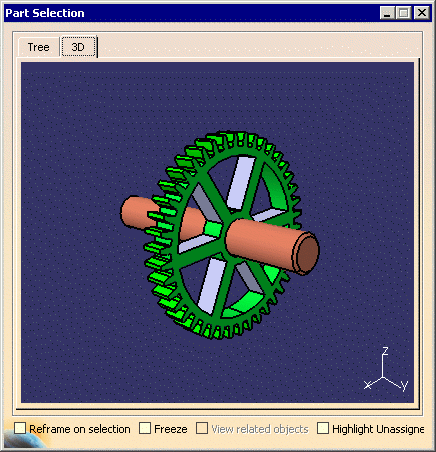
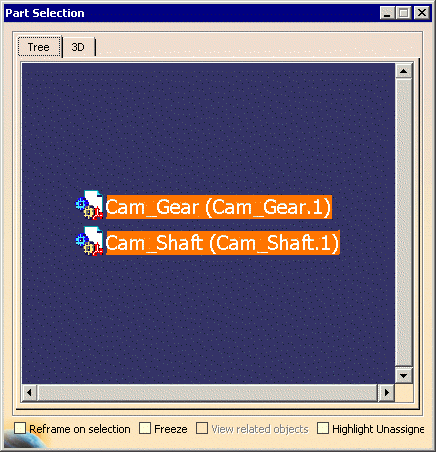
The Part Selection window will consist of a 3D tab and a Tree tab. Parts and resources may be selected from either and used for any other commands, such as assignment. |
|
|
|
Using the Part Selection command |
|
|
||
OptionsReframe on selectionWhen enabled, the selected parts are centered in the main 3D window. FreezeWhen enabled, the content of the Part Selection window is frozen. This means the currently selected parts will remain visible in the preview window and selecting additional parts has no effect. This can be useful when building a subset of parts or resources of interest. View related objectsThis option allows you to navigate through objects linked to the product currently loaded in the Part Selection window. When enabled, the part selection window displays the immediate parents and children of the selected part, if any. This option is enabled only if a single part is loaded in the part selection window. Highlight Unassigned PartsWhen enabled, selected parts that are not assigned to an activity are highlighted with a specific color. This color is defined from the Part Consumption tab page of the Tools -> Options -> Digital Process for Manufacturing user settings. The Part Consumption tab page also defines the relations that should be used to check for assignment. |

 to display the preview window. The preview window provides a 3D tab page and a Tree tab page, with the 3D tab
page showing a 3D graphic view of the selected parts or resources and the Tree tab page showing a list:
to display the preview window. The preview window provides a 3D tab page and a Tree tab page, with the 3D tab
page showing a 3D graphic view of the selected parts or resources and the Tree tab page showing a list: