
- Windows users must have Windows scripting host, as all documentation is generated via Visual Basic Script.
- UNIX users use the scripting mechanisms provided by the CNEXT platform.

To use this procedure, you should have a window displaying the PPR tree which contains the process to be documented.
-
On the PPR tree, select the process you want documented.
-
Click Document Process
 .
.The Process documentation... dialog box appears. 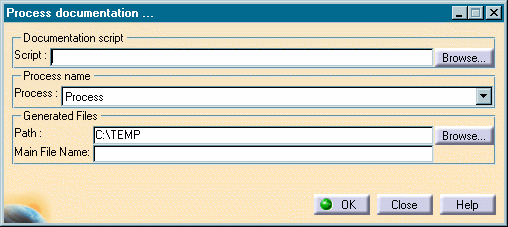
-
Fill out the dialog box as desired.
The table below provides information for each field. For: Provide: Documentation Script The CATScript file that generateq the documentation files from the current process. Process name The system shows the process element selected in Step 1. The list can be used to select a different process. Generated Files, Path The directories or folders in which the document is stored. Characters that your operating system forbids in path names are also forbidden in this field. Generated Files, Main File Name The name of the document to be generated. Characters that your operating system forbids in file names are also forbidden in this field. Characters that should not appear in the the Generated Files fields: - the less-than sign (<)
- the greater-than sign (>)
- the double quotation mark (")
- the colon (:)
- the forward slash (/)
- the backwards slash (\)
- the pipe (|)
- the asterisk (*)
- the question mark (?)
-
Click OK to begin the documentation process.
As the process begins, a dialog is displayed to indicate the status of the process: 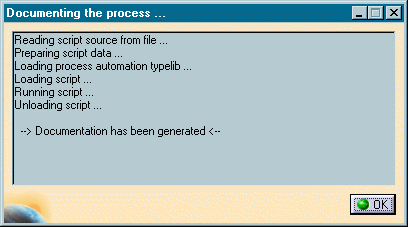
-
After the documentation has been generated, click OK to close the status window.

- CATScripts on Windows and UNIX differ in their syntax.
- A default CATScript, titled DocumentNewGeneratorHTML.CATScript, is provided in the code/command directory of the DPM installation.
