
This procedure describes how to move resources in the PPR tree under a new parent.
Resources, such as robots, can be assigned a different
parent node in the resource structure with Reparent
Resource
 .
Once you have reparented a resource, it always appears under the new parent node in the PPR tree. When the resource is reparented, you can decide whether to preserve the 3D positions of the
graphics or whether the coordinates are to be adapted to the new parent
node. Corresponding to the selection in the dialog, the 3D graphics appear in a station.
.
Once you have reparented a resource, it always appears under the new parent node in the PPR tree. When the resource is reparented, you can decide whether to preserve the 3D positions of the
graphics or whether the coordinates are to be adapted to the new parent
node. Corresponding to the selection in the dialog, the 3D graphics appear in a station.
You can reparent any number of resources simultaneously.

Licensing
Two versions of Reparent
Resource
are available:
-
In the DPM Process and Resource Definition workbench (license required)
-
In the Manufacturing Systems Definition workbench (license required).
If you have a license for both workbenches, the enhanced version of the command available on Manufacturing Systems Definition is the version available to you.

Reparenting Resources in DPM Process and Resource Definition
-
Click Reparent Resource
. -
On the PPR tree, select the resource you wish to reparent.
-
Select the new parent for the resource.
The resource selected in Step 2 is now placed under the parent selected in Step 3.
Limitations
- Not all of the relations are preserved when using Reparent
Resource
.
When reparenting a resource, only its relations to activities, 3D states, and position objects from the current
document are updated.
-
Reparenting a resource (such as a manikin or robot) that owns tasks can have an unintended effect on these tasks: the position definition of the task may no longer be valid due to the change in the relative position of the resource.
Reparenting Resources in Manufacturing Systems Definition
 ,
which makes them children of the Resources List node. They are
reparented so that they are children of the station New Station.
,
which makes them children of the Resources List node. They are
reparented so that they are children of the station New Station.
-
Click Reparent Resource
in the Authoring Systems toolbar. The Reparent Resource dialog box opens empty. 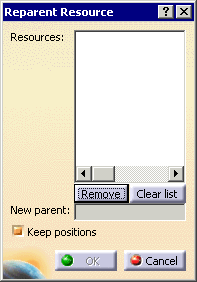
-
On the tree, select the first resource to be reparented, e.g., robot IRB1500.1.
-
On the tree, select the new parent node, e.g., New Station.
Once you have selected the parent node, you can select additional resources for reparenting. If you wish to assign only one resource to the new parent node, click OK -
On the tree, select the next resource, e.g., robot IRB1500.2.
- To remove a single resource from the list, select the resource and click the Remove button.
- To remove all the resources from the list, click the Clear list button.
- To select a different parent, click the New parent field, and then select a new parent.
The Keep positions option has the following effect:
-
If the check box is selected (the default), the 3D positions remain as they were set originally. The resources are only shown under the new parent node in the tree, but the 3D graphics are not affected.
-
If the check box is not selected , the 3D positions are adapted to the new parent node. The shifted resources are listed under the new parent node in the tree and the 3D graphics of the resources are shown in this station.
-
Click OK.
The two robots are assigned to the parent node New Station.
 do not affect the process assignments of parent-child resource nodes in
the reparented structure. Resource nodes must be explicitly unassigned
and subsequently reassigned to an activity to reflect any reparenting
that has occurred in the Resource tree
do not affect the process assignments of parent-child resource nodes in
the reparented structure. Resource nodes must be explicitly unassigned
and subsequently reassigned to an activity to reflect any reparenting
that has occurred in the Resource treeProcessing DPE Projects in V5
For DPE projects, a hierarchical structure of the
individual plantypes is defined in the plantype set. In accordance with this
definition, resources can be assigned a different parent node. When you
use Reparent Resource
,
V5 checks whether the parent
node you select is allowed to have the resources moved as child. If
this is the case, the resource is listed under the new parent node
after execution of the command. Otherwise, reparenting is not allowed.
