
For MSD workbench the command Replace Resource has been added as of release R17. To work with MSD Workbench you will need a license. Only if you have such a license, the functions of MSD Workbench will be available.
Extended functions in MSD for the Replace Resource command
- IOs (input/output) assigned to the old resource must be assigned to the new one (logical and physical resource).
- Mounted devices must be applied to the new resource (physical resource).
- Positions (with respect to the parent) must be retained (logical and physical resource).
- Tasks of the old resource must be assigned to the new resource (physical resource).
- Task Specification Activities (or ‘Child Activities’) of the Line/Station will be replaced with those ones from the new resource (logical resource).
- Task Specification Activities of the old resource must be assigned to the new resource (physical resource).
- Attributes, Positions, Relations, Activities of the parent resource will not be modified.
In other words: A logical resource like a line or station will be replaced completely by the new logical resource within all of its children and assigned objects. A physical resource will be replaced by another one only within the graphical representation. The new resource will get all of the assignments from the old resource.

To perform this procedure, you must have at least one robot loaded in the PPR tree, a device mounted on that robot, and a device to replace the currently mounted device.

1.
2.
 in the Authoring Systems
toolbar.
in the Authoring Systems
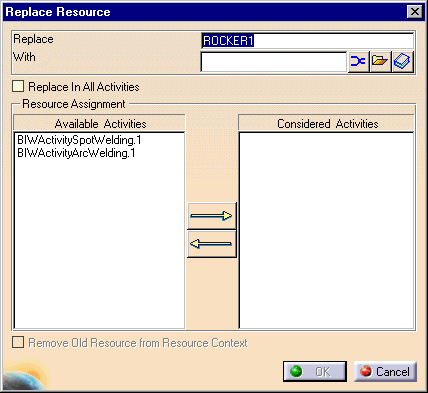
toolbar.A dialog box appears:
2.
You can select the replacement device in one of four ways:
| Use: | To obtain resource from: |
| Clicking on geometry or Resource node of PPR tree | Current .CATProcess document |
 |
PPR Hub |
 |
File |
 |
Catalog browser |

Users working with the PPR Hub can only obtain replacement resources that have already been defined as part of the current project.
Starting with R18 you can replace resources with different plan types. After starting the command all authorized plan types (associated with the father plan type) of the resource are displayed and can be replaced by each other e.g. the authorized child plan types associated with the father plan type are a, b and c so the resource can be replaced by resources with the plan type a, b or c.
3.
Either check the Replace in all activities option OR select activities from the available activities list and use the right-pointing arrow to move them into the considered activities list.
4.
(Optional) Click the Remove Old Resource from Resource Context, if you wish to delete the resource from your PPR tree. This option is only available for flat-file based projects.
If you do not replace the resource for all activities, you cannot remove the resource from the resource context.
5.
Click on the OK button.
