-
Select the product node under the Resource List.
-
Click Create Resources in PPR
 .
.
The Add Resource dialog box appears, into which you can specify the requirements for the new resource. 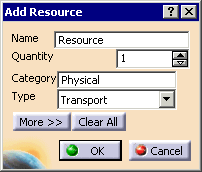
-
Enter the name and quantity of the new resource.
-
Enter a Category for the resource (e.g., Physical or Organizational)
-
In the Type field, select:
- Buffer
- InterlacedTransport
- OrgResource
- Resource
- Station
- Transport
- TransportPool
- Worker
- Machine.

The choices for Category and Type are determined by the ResourceDelmia.feat Startup catalog. -
Click the More>> button to expand the dialog box and specify Additional Data that can be configured to suit QUEST requirements:
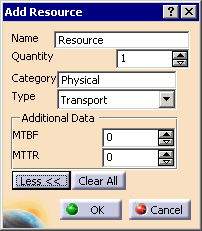
-
Click OK.
Resources created in this manner appear under Resource List > Product. -
Right-click on the newly-created resource and select Properties.
The Properties dialog box appears. 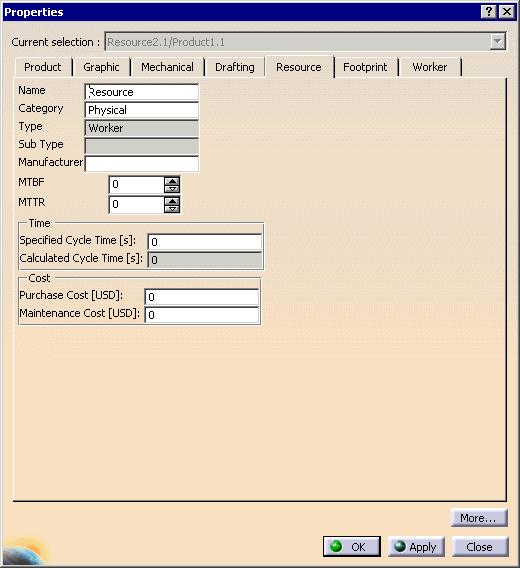
-
Click the Resource tab page to see the resource properties.
The Resource tab contains all of the properties that were input when the resource was created. The properties of the selected resource can be changed using this tab.
Notes
- Create a Product Document and treat it as if it were a Resource Description while importing it into the ResourceList of the PPR tree.
- Use Plant Layout, which will also create a Product Document but with object types (areas, etc.) and with semantics close to the Resource Definition world. Again, this document can be imported inside a PPR Tree in a ResourceList.
- Use Catalogs (the subject of the next section).
Creating Resources using Catalogs
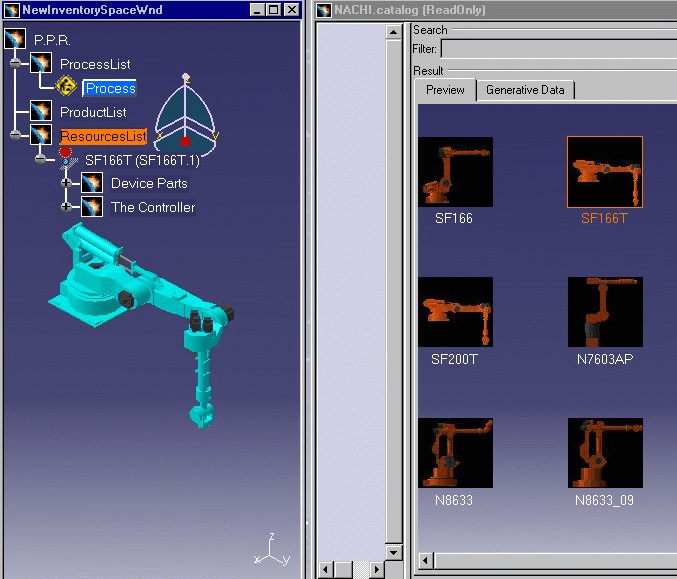
After opening a catalog file in a DELMIA session, a catalog item can be selected and dragged over a ResourceList node of a PPR Tree to create a local instance (including the geometry) of that selected catalog item:
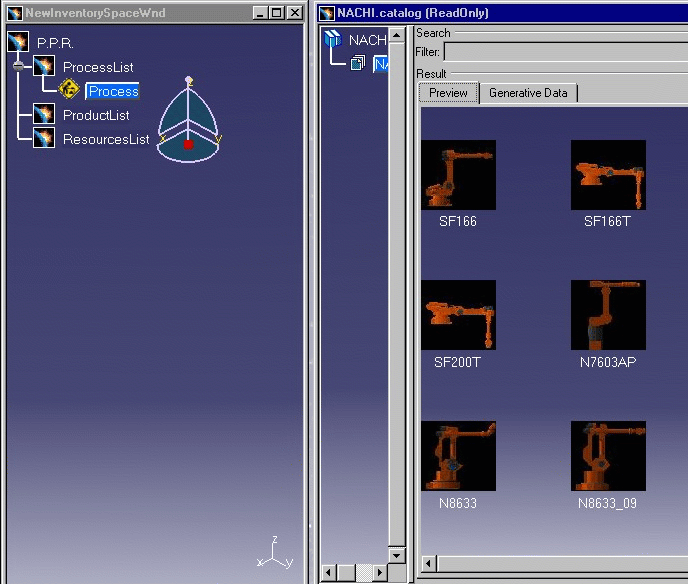
After selecting a catalog item and dragging it over a ResourceList node, an instance of the selected item appears in the ResourcesList, and its geometry appears in the 3D view: