PPR Manufacturing Hub Navigator allows you to open and edit templates that are stored in the Manufacturing Hub.

This scenario assumes that you have:
- Access to the Manufacturing Hub
- One or more templates saved in the Manufacturing Hub

Opening a Template
-
Select File > Open Template from Manufacturing Hub, or select Open Template from Manufacturing Hub
 in the Manufacturing Hub toolbar.
-
Log into the Manufacturing Hub when prompted:
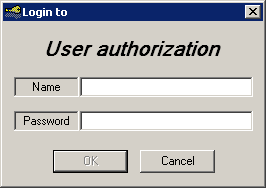
-
Select a template to open.
Once logged in, a dialog box is presented which lists all of the templates currently stored in the Manufacturing Hub database:
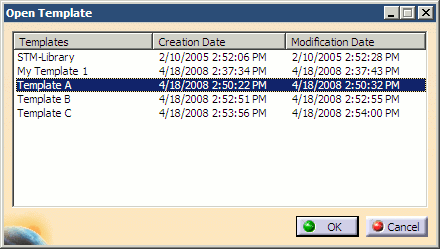
Any of the listed templates may be selected by clicking on the name of the project to highlight it, then selecting OK to load the selected template.
The selected template is opened in PPR Manufacturing Hub Navigator:
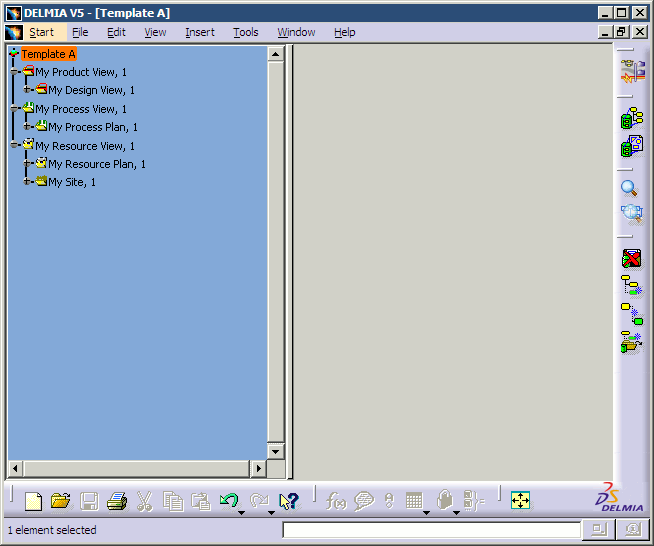
All of the capabilities of PPR Manufacturing Hub Navigator can be used with templates in the same manner as projects, including template structure navigation and using the PPR Editor commands to edit the template.
Notes
- Edited templates can be saved back to the Manufacturing Hub, but
it is not possible to save any detailing on processes or resources
loaded from the template. File > Save and File >
Save to Manufacturing Hub will display the following error
message if detailing is present when saving:
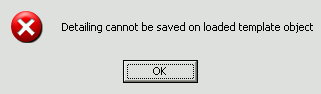
- If there are no templates stored in the Manufacturing Hub
library, the following error message is displayed:
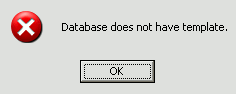
- It is not possible to Publish (nor Subscribe to) any application
data when using template projects. The following error messages are
displayed when the Subscribe/Publish commands are selected:
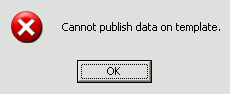
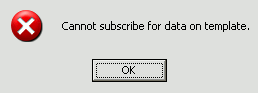
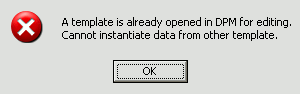
- While editing a template in DPM, it will not be possible to
further instantiate data from a different template. The following
error message is displayed when Instantiate from Template
is selected: