-
The Nachi parsers (NachiAW.jar & NachiAX.jar) upload tag targets as non via; All the via tags in the original V5 task are uploaded as non via tags.
The Nachi robot language (SLIM) does not have an attribute to differentiate between via and non-via target types. This is a V5 convention.
However, if the user uses an XML file for upload (instead of robot language file), the via/non-via target type information will be preserved in the uploaded task.
-
I am unable to download WELD action using Nachi AW/AX translators.
If you are using Nachi translator for download, make sure that the Spot Weld action is defined using either AWSpotWeld.act or AXSpotWeld.act toolbars. Weld actions defined using other .act toolbars are ignored by the Nachi translator.
-
In V5, I have a task with WAIT I/O statement defined but, the Nachi translator download is same whether the signal value is set to ON or OFF.
In Nachi robots, WAIT always waits until the input variable gets the value of 1 (ON). There cannot be a WAIT Until the Input Variable gets the value OFF in SLIM. Even though a WAIT Until OFF statement is defined in V5, the Nachi translator will ignore the signal value and download it as ,say, WAIT I2 (Wait until the input signal at port 2 is turned ON).
-
Motion and accuracy profile names in the uploaded program are not identical with the initial robot task in V5.
Nachi robots refer to the motion and accuracy profiles by means of numbers and not names.
V5 does not support numbers for specifying motion and accuracy profiles. Hence, the uploader creates motion and accuracy profiles with the same value as specified in the original V5 robot task.
-
The Nachi translator or parser ignores tool pick/drop and part pick/drop actions.
SLIM does not provide separate commands for tool pick/drop actions and part pick/drop actions. The best way to handle this is to define a parameter called Macro.AWSpotToolPick and Macro.AWSpotToolDrop.
For example, the user may define these two parameters as:
Macro.AWSpotToolPick = SETM M38,1; CALLP INTF_IN3
In this case all AWSpotToolPick actions will be output as two lines:
SETM M38,1
CALLP INTF_IN3The idea here is, to allow the user to associate any desired command with AWSPotToolPick and AWSpotToolDrop.
By default, Macro.AWSpotToolPick and Macro.AWSpotToolDrop will not be associated with any command. Based on the user’s definition, the translator will just output the commands associated with the above macros. The same would apply to part pick/drop actions.
-
How is the wrist orientation specified for Nachi robots?
Wrist orientation is not supported for Nachi AW and AX controllers in OLP. -
Do Nachi robots have a parameter to define the relation between joints 2 and 3?
Please refer to the Parameter Data worksheet in the SLIM_V5_XML_MAP.xls file.
-
What happens with unsupported SLIM syntax on upload?
Unsupported commands, on upload, are mapped to pre and post activity attributes. Unsupported commands will be mapped to as pre-comment attributes to the succeeding activity/action. An unsupported command encountered at the end of the robot program will be mapped to as post-comment attribute to the preceding activity/action.
Consider the below robot program where SREQ, SHIFTROT are unsupported commands in V5 OLP. Upon upload, these commands will be mapped to attributes as shown in the figure below:
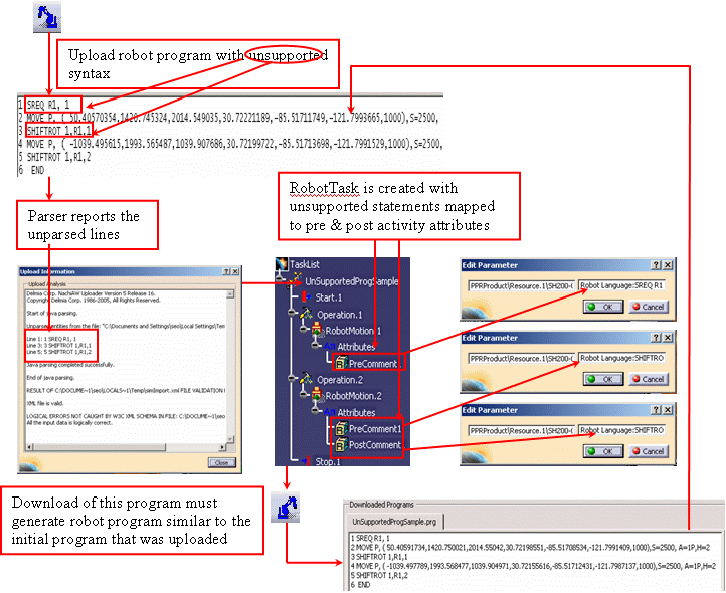
-
Nachi translator downloads programs as Separate Files even though I selected the Subroutines option in the Downloading Options dialog box.
Nachi robot always downloads programs as separate files. It does not support the Subroutines option.
-
Whenever a robot task is downloaded, an XML file (simResult.xml) is generated behind the scenes. Which XML elements are not used/supported by SLIM?
In V5R16 release, the following xml elements (in simResult.xml) are not used by SLIM during download:
OLPData > Resource > Controller > ToolProfileList > ToolProfile > Mass
OLPData > Resource > Controller > ToolProfileList > ToolProfile > Centroid
OLPData > Resource > Controller > ToolProfileList > ToolProfile > InertiaOLPData > Resource > Controller > MotionProfileList > MotionProfile > Accel
OLPData > Resource > Controller > MotionProfileList > MotionProfile > AngularSpeedValue
OLPData > Resource > Controller > MotionProfileList > MotionProfile > AngularAccelValueOLPData > Resource > ActivityList > Activity > Target > BaseWRTWorld
OLPData > Resource > ActivityList > Activity > Target > CartesianTarget > Config
OLPData > Resource > ActivityList > Activity > Target > CartesianTarget > TurnNumber
OLPData > Resource > ActivityList > Action > ActivityList > Activity > MotionAttributes > OrientMode -
How does the Nachi translator and parser take into account the Object Frame profiles during download and upload?
-
If the object frame offset is zero and tool is mobile (mounted on robot), the frame of reference is robot base frame.
The Nachi translator will read the target co-ordinate values from the simResult.xml file and output them (in MOVE statements) in appropriate units regardless of whether Apply to all targets is set to ON or OFF.
-
If the object frame offset is non-zero and tool is mobile, the frame of reference is the object frame (with its offset defined with respect to the world frame).
The Nachi translator does not download object (reference) frames. There is nothing special that needs to be done in SLIM robot program. All that the translator needs to do is, just output the values from simResult.xml (as part of MOVE statements).
-
If object frame offset is zero and tool is stationary (fixed TCP case), the frame of reference is the robot’s mount frame.
The Nachi translator outputs the values in simResult.xml as part of MOVE statements.
-
If object frame offset is non-zero and tool is stationary, the frame of reference is the object frame, which is defined relative to mount frame.
The Nachi translator outputs the values in simResult.xml as part of MOVE statements.
-
-
Can I add comments to robot tasks in V5 and also download them?

The following procedure describes how to add or download comments. 
-
Right-click an Operation/Activity/Action from the robot task in the PPR tree and select Properties. The properties dialog box opens.
-
Select the Specific tab.
-
Add the appropriate comments using the Attribute Type, Attribute Name and Attribute Value editors.

For Attribute Name, always use either PreComment or PostComment depending upon the location of the operation.
The comments will be downloaded by the Nachi translator. If the Attribute Name is not defined as either PostComment/PreComment, then, the translator will ignore the attributes.

-
-
My robot task has an Activity/Action not yet supported by V5 OLP, but I still want to download the Activity/Action.
Please refer to FAQ 12 above. Follow the same procedure, except that, the Attribute Value will be:
Robot Language: <any robot language command>.
For example, CALLRBT command in SLIM is not supported in V5. By specifying, RobotLanguage : CALLRBT 2,2,0 as Attribute Value, the translator will be able to download the above statement.
-
Does the Nachi translator have an option to turn off line numbers during download?
Nachi translator handles this through parameter data.
The following procedure describes how to turn off line numbers during download. -
Select the resource whose tasks have to be downloaded, right click and select Properties from the contextual menu . The properties dialog box opens.
-
Click the Define other properties button.
The Define Other Properties dialog box opens. -
Define a new parameter as follows:
Parameter name: PrintLineNumbers
Parameter value: false
Parameter type: boolean
By default, line numbers are generated by Nachi translator during download. -
-
The I/O activities in XML have an attribute by the name Port Number. What does this correspond to in V5?
In V5, Port Number corresponds to IO Number.