
- Controller Profiles
- Applicative Profiles
- Action Libraries
- Robot Parameter Data
- Program Logic/IO
- Weld Guns
- Syntax Map
- Robot Parameter Map
- Spot Welding Application
- Arc Welding Application
Controller Profiles
Every robot controller has certain profiles each of which define characteristics of different aspects of the controller. By default, controllers by the name Default are defined for Motion, Tool, Accuracy and Object Profile.
During download, tool profiles are sequentially numbered. However, tool profiles can be named in the format "H=number" such as "H=1" to download to the desired tool numbers.
Please see Device Task Definition: Workbench Description: Robot Controller Toolbar for more information on controller profiles.
Applicative Profiles
The purpose of applicative profile is to store application process data, or any data the user considers meaningful, but not accounted for in standard controller profiles (motion, accuracy, tool and object).
Please see Device Building: Advanced Tasks: Creating and Editing Profiles: Creating Applicative Profiles for more details.
Action Libraries
Action library consists of a sequence of activities that users create to perform specific operations within a robot task.
Please see Device Task Definition: User Tasks: Device Task Programming Tasks: Creating and Modifying an Action Library for more details.
Parameter Data
The purpose of parameter data is to include device specific and task specific information that is not stored in robot programs.
 |
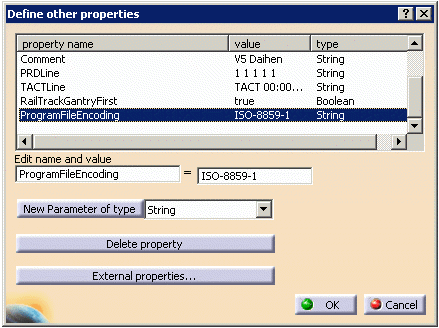
The following procedure describes how to define device parameters. |
 |
Open the NachiAWDownload_start.CATProcess file. |
 |
|

Program Logic/IO
IOs enable users to synchronize resources using signals in a process where resource programs run in parallel.
Please see Workcell Sequencing: Workbench Description: IO Management Toolbar for more details.
Weld Guns
Weld guns (servo / non-servo) are represented as mounted
devices.
A non-servo gun is a weldgun that is simply mounted to the robot but,
not defined as an auxiliary axes device. If a weldgun is defined as an
auxiliary device then the joint value is output for each RobotMotion
activity as joint 7 (in the case of a single axis weldgun).
For Nachi, regardless of whether a weldgun is a servo or non-servo, the
AWSpotWeld/AXSpotWeld actions along with their attributes
will be output as a SPOT command.
Special Considerations
For Nachi robots, the adjustment for axis 3 is done by default. This is achieved by defining two device parameters as explained below.
If the user does not define these two device parameters explicitly, default values will be used by the downloader and uploader.
In case the user does not want the default behavior or wants to assign different values, he has to explicitly define these two parameters and assign their values.
Parameter Name: Axis3Adjust
Parameter Type: Real
Parameter Value: 90 (default value)
Description: This parameter determines the amount of adjustment of axis
3 during download/upload. For most Nachi robots, this value is 90; for
tilt robots, the value is 0; for some models, it is set to –90. The
value of this parameter is used in the Joint3Linked parameter
description. By default, the value of this parameter is set to 0; it is
the responsibility of the user to set it to the appropriate value
depending on the robot model type.
Parameter Name: Joint3Linked
Parameter Type: Boolean
Parameter Value: false
Description: This parameter controls the adjustment of axis 3 during
download and upload. If this is set to true, which indicates that
joint2 and joint3 are linked, no axis 3 adjustment will take place.
Otherwise, axis 3 will be adjusted based on the following relation:
Upload: igrip_axis_3 = robot_axis_3 – robot_axis_2 + axis3adjust
Download: robot_axis_3 = igrip_axis_3 + igrip_axis_2 - axis3adjust
where,
igrip_axis_3 = robot’s joint 3 value as shown by the Jog command/dialog.
igrip_axis_2 = robot’s joint 2 value as shown by the Jog command/dialog.
robot_axis_3 = value of robot’s axis 3 in the downloaded program (as
output by V5 OLP)
robot_axis_2 = value of robot’s axis 2 in the robot program (as output
by V5 OLP)
axis3adjust = the parameter Axis3Adjust defined above.
Syntax Map
Please refer to the SLIM_V5_XML worksheet in the SLIM_V5_XML_MAP.xls file for detailed syntax map and examples with screen captures.
Robot Parameter Map
Refer to the Parameter Data worksheet in the SLIM_V5_XML_MAP.xls file.
Spot Welding Application
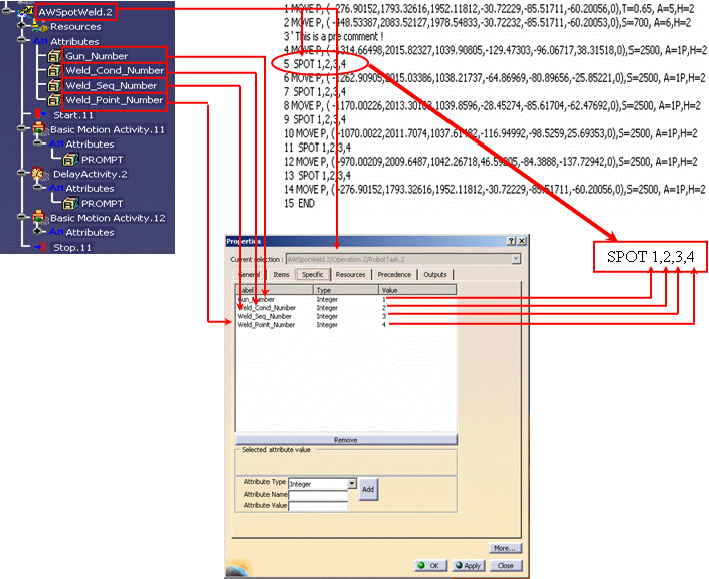
This section illustrates the translation of V5 spot actions to SLIM commands. The table below shows the syntax map between V5, XML and SLIM specifically for the Spot application.:
| V5 | XML | SLIM |
|---|---|---|
| ActionType = AWSpotWeld or AXSpotWeld
Attributes: With the following atomic activities: |
<OLPData/Resource/ActivityList> <Action ActionType=”AWSpotWeld”/> <ActionName/> <ToolResource/> <AttributeList> <Attribute> <AttributeName>Gun_Number</> <AttributeValue>1</> </Attribute> <Attribute> <AttributeName>Weld_Cond_Number</> <AttributeValue>2</> </Attribute> <Attribute> <AttributeName>Weld_Seq_Number</> <AttributeValue>3</> </Attribute> <Attribute> <AttributeName>Weld_Point_Number</> <AttributeValue>4</> </Attribute> <ActivityList> <ActivityName=”DNBRobotMotionActivty”/> <Activity ActivityName=”DelayActivity”/> <Activity ActivityName=”DNBRobotMotionActiviy”/> </ActivityList> |
SPOT gun number, weld condition table, weld sequence table, weld point number. |
Below is the illustration of V5 spot weld action to SLIM spot translation that is common to both AW and AX controllers:
Arc Welding Application
The table below gives a syntax map between V5, XML and SLIM specifically for the Arc-Welding application for AW controllers:
| V5 | XML | SLIM |
|---|---|---|
| Activity Type = ArcOn
With the following atomic activities: V5 does not have a separate activity or action for arc welding application. ARCON command is associated with RobotMotion activity. |
<OLPData/Resource/Controller> <UserProfileList> <UserProfileInstance> <UserDefinedAttribute> <DisplayName/> <DataType/> <Value/> </UserDefinedAttribute> <…> </UserProfileInstance> <…> </UserProfileList> </> <…> indicates can be repeated any number of times. |
ARCON <weld start condition
number>
The weld condition number refers to the weld table where parameters for ARCON command are defined. The parameters for ARCON in AW controller are: DisplayName: WeldSpeed DisplayName: StartDwellTime DisplayName: Current DisplayName: Voltage |
| Activity Type = ArcOff With the
following atomic V5 does not have a separate activity/action for arc welding application. ARCOFF command is associated with RobotMotion activity. |
<OLPData/Resource/Controller> <UserProfileList> <UserProfileInstance> <UserDefinedAttribute> <DisplayName/> <DataType/> <Value/> </UserDefinedAttribute> <…> </UserProfileInstance> <…> </UserProfileList> </> |
ARCOOFF <weld end condition
number>
The weld condition number refers to the weld table where parameters for ARCOFF command are defined. The parameters for ARCOFF in AW controller are: DisplayName: WeldSpeed DisplayName: EndDwellTime DisplayName: Current DisplayName: Voltage |
The table below gives a syntax map between V5, XML and SLIM specifically for the Arc-Welding application for AX controllers:
| V5 | XML | SLIM |
|---|---|---|
| Activity Type = RobotMotion
V5 does not have a separate activity or action for arc welding application. ArcStart (AS) is associated with RobotMotion activity. |
<OLPData/Resource/Controller> <UserProfileList> <UserProfileInstance> <UserDefinedAttribute> <DisplayName/> <DataType/> <Value/> </UserDefinedAttribute> <…> </UserProfileInstance> <…> </UserProfileList> </> |
AS <arc start weld
parameters>
For AX controller, the AS command has 39 parameters. Refer to the User Profile worksheet in the SLIM_V5_XML_Map.xls file attached under the Syntax Map section. |
| Activity Type = RobotMotion
V5 does not have a separate activity/action for arc welding application. ArcEnd(AE) is associated with RobotMotion activity. |
<OLPData/Resource/Controller> <UserProfileList> <UserProfileInstance> <UserDefinedAttribute> <DisplayName/> <DataType/> <Value/> </UserDefinedAttribute> <…> </UserProfileInstance> <…> </UserProfileList> </> |
AE <arc end weld
parameters>
For AX controllers, the AE command has 28 parameters. Refer to the UserProfile worksheet in the SLIM_V5_XML_Map.xls file attached under the Syntax Map section. |