


- The Daihen robot program is read and an XML file is generated. The commands in the program are mapped to elements in the XML file. The generated XML file is independent of the robot language.
- The XML file is read and the required activities, actions, sequences or other items are generated as specified.

-
Click Import Robot Program
 in the Offline Programming toolbar.
 -
Select robot AV06.1 in the PPR tree.
A File Selection dialog box appears. -
In the File Selection dialog box, navigate to the desired program file, e.g., P003.ASC and select Daihen.jar.
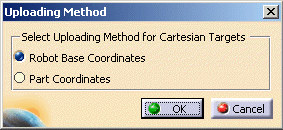
The Uploading Method dialog box opens.
-
Select Robot Base Coordinates and click OK.
-
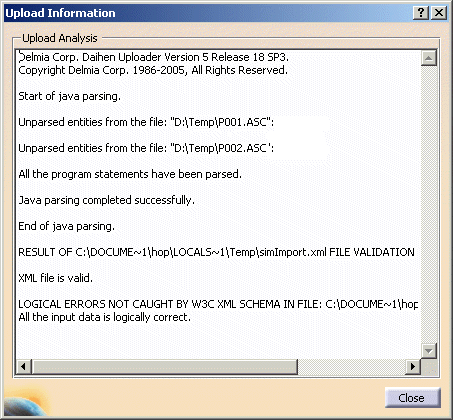
Repeat the procedure for AV06.2 by selecting program P001.ASC. Program P002.ASC gets called from P001.ASC and is also uploaded and a separate task created.
-
Switch to Workcell Sequencing workbench.
Please remember to open the DaihenUpload.CATProcess file after the switch is performed. -
Click Multiple Resource Simulation
 in the Simulation toolbar.
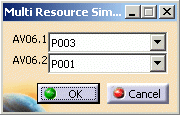
The Multi Resource Simulation dialog box appears.
-
Choose the device tasks shown above and click OK.
The Process Simulation toolbar appears. -
Click Play
 in the Process Simulation toolbar to simulate the process.
