-
Click Import Robot Program

-
Select the robot task into which you wish to import the program.
-
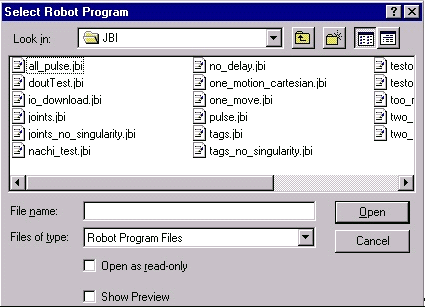
A dialog box appears asking for the location of the robot program.
-
Select either:
- a native robot language file or
- an XML file that complies with OLP XML file format rules.
If you select an XML file, OLP will validate the XML format. The set of XSchema rules implemented in the default OLP.xsd file will be applied to the contents of the selected XML file. In case of unrecognized XML tag names or incorrectly specified tag values (including tag sub-structure, data types, and data ranges), an error message will appear and uploading will cease.
Users can derive their own schemas from OLP.xsd either by extension or by restriction or they can include OLP.xsd into their schemas. Users can extend OLP.xsd to verify that user customizable portions of OLP XML (e.g., ParameterData, AttributeList, and Action tags -- and all of their children) are correctly formatted. -
An Upload Progress bar appears and the following messages may be displayed:
- Uploading Activities, please wait.
- Creating activity <current_number> of <total_number> from XML.
- Preparing to show upload report.
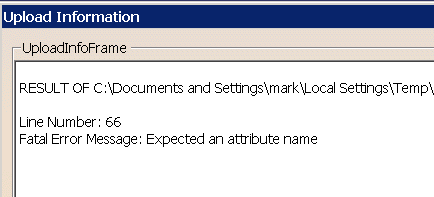
The validation also provides information about where in the program the fault occurred. An example error message appears below.
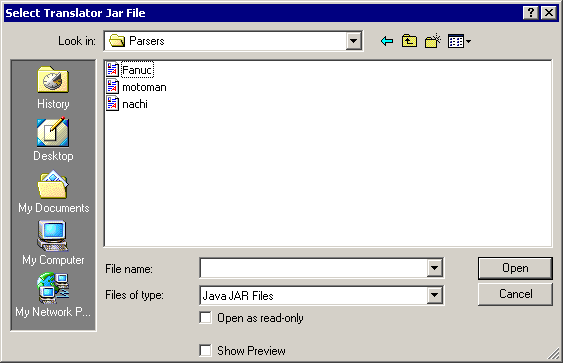
If you select a native robot language file, a dialog box appears asking for the location of the robot program translator (or parser file).
-
Click Open.
-
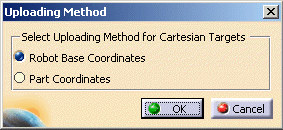
The Uploading Method dialog box appears, asking whether the coordinates should be set relative to a part or the robot base coordinates.
-
Select the desired uploading method.
- If you select Robot Base Coordinates, select OK and the program is imported.
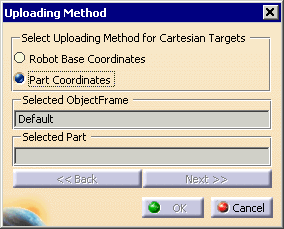
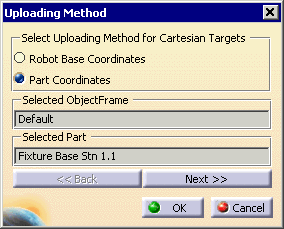
- If you select Part Coordinates, you must also select a part or profile and may select more than one. (To select more than one, keep selecting the Next button until all the desired profiles/parts have been selected.)
-
Select OK.
-
The robot program appears in the form of a V5 robot task.
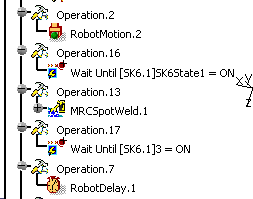
The operations in the task can include IO activities, delay activities, or spot welding activities. In addition, tags and the attributes of an operation can be imported or uploaded.
In addition, if comments have been added to the program, including comments written in Kanji characters, they can be roundloaded -- that is, imported into V5, exported into a native robot language or XML, and re-loaded into V5. In V5, comments appear in Attributes sub-node of the Task List node on the PPR tree.
|
|
Uploading Fixed TCP Positions In most cases, Fixed TCP targets will be
uploaded in part coordinates, and is applicable in both uploading from
a translator and uploading from XML file cases. Only in a case of
fully-generated XML description, that includes all properly set XML
attributes for "Tag" XML element, will it be possible to upload Fixed
TCP positions in Robot Base coordinates. That means that in the case of
an XML file roundload (upload of previously downloaded XML file) both
upload methods of "In Robot Base Coordinates" and "In Part Coordinates"
will produce the same correct result. When using an uploader to create
Fixed TCP targets, that upload needs to be expressed in part
coordinates, since robot programs generally do not contain sufficient
information to create entire "Tag" XML element description (including
all of its attributes).
|
|
|
To allow unambiguous tag creation, two XML attributes are available for "Tag" XML element: "PathToPart" and "AttachmentType". Here is the entire XML description of the "Tag" XML element (using XML pseudo code): <Tag TagGroup="STRING(TagGroup.1)" AttachedToPart="STRING(Box.1)" AttachmentType="Local OR ModifyReference" PathToPart="STRING(SK16.1/Base.1/Box.1)">STRING(Tag1)</Tag> Attribute definitions are:
An enhancement checks to determine if a tag point with the same name and the same location exist in the owning tag group, and if so a new tag point would not be created, but the existing tag point would be reused instead. If an XML description contains the TagGroup attribute, a new tag group with the specified name will be created, but if that attribute is missing and the upload is not in part coordinates, a new unattached tag group will be created under the robot node in the PPR tree and named, by default, OLPTagGroup. If an upload is expressed in part coordinates and you have mapped object frames with V5 part names and at the same time the XML description contains AttachedToPart and/or PathToPart attributes, the parts that you have selected will take precedence and will be used as reference parts for upload. However, Tag group names will always be as defined in XML. |
|
|
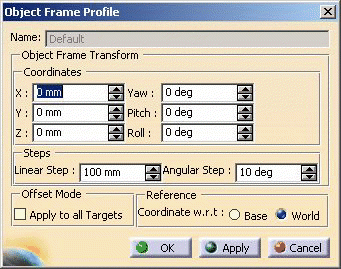
Defining Object Frames in Fixed TCP It is important to note that object frames in V5 are always defined with respect to the World frame. That concept puts users in a difficult position when they need to create them with respect to the mount frame, as is needed in Fixed TCP case for most of the robot controllers. Furthermore, values that users set for object frame offsets in fixed TCP case are completely disregarded, if "Apply To All Targets" button is unchecked, since robot always ends up at the target location.
In order to create an offset from the tag (a target location with an offset in case of tag target) when robot is moving in fixed TCP mode, robot motion activity referenced object frame profile needs to have "Apply To All Targets" button turned on during its creation. |
|
|
Identifying Frames of Reference for Tag Targets Frame of reference for a tag target, relevant for both upload and download, depends on the values of both object and tool frame profiles associated with the robot motion activity that contains that tag. There are four different cases here:
NOTE: These frames of reference are relevant only for OLP XML. Individual robot language translators may use different frames of reference based on robot language specification. |